
Participant
December 31, 2024
Answered

Remove the ring left by photoframe

  • December 31, 2024
  • 3 replies
  • 513 views

Hi all,


Does anyone have any idea how to remove the oval shape ring left by a photoframe please?

Image is attached.


Thanks in advance,


Chris

Correct answer Conrad_C

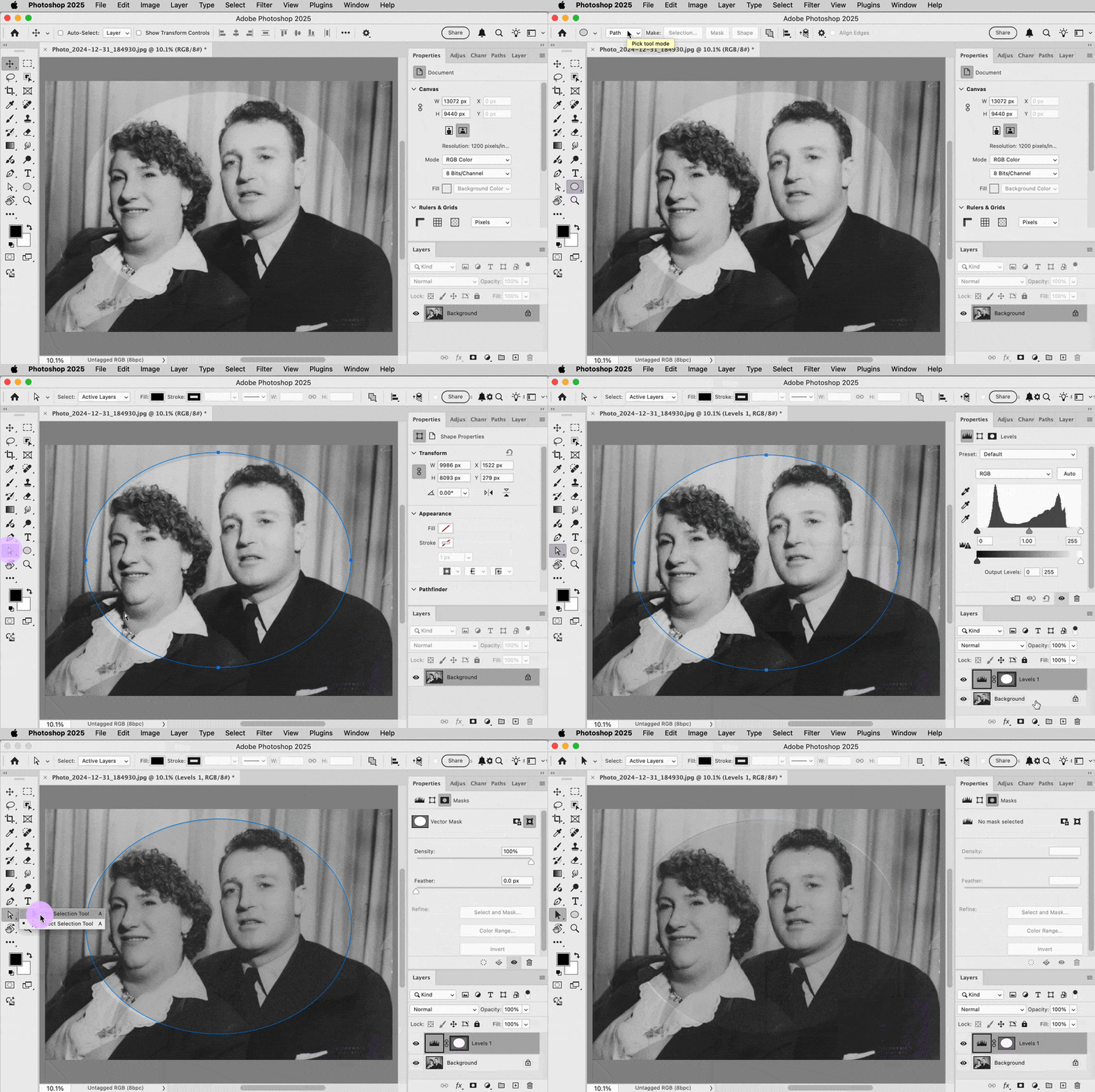
The oval is caused by fading due to light exposure. That can be reversed using a simple Levels adjustment. You have to restrict the Levels adjustment to the faded area using a mask. I drew an oval vector mask using the Ellipse tool in Path mode, but if you’re not familiar with vector masks, you can use the Elliptical Marquee tool instead. (I like vector masks because they are much easier to adjust later.)


When a selection or path exists, creating a new fill layer or adjustment layer automatically converts that to a mask. Then you only need to adjust the input and output levels until the area in the oval matches the rest of the image.


My demo below is very quick and rough, so you can see that the oval edges aren’t quite matched up perfectly. That’s just a matter of spending enough time to adjust the vector mask precisely.
 

3 replies

Trevor.Dennis
Community Expert
Community Expert
January 1, 2025

I am not even going to try and do better than Conrad's beautifully done fix, but I can give you an enhanced and upscalled (4076 x 2093) version to work with via Topaz Labs Photo Ai. Click to expand, and right click to copy.

Trevor.Dennis
Community Expert
Community Expert
January 1, 2025

Soor Conrad, I couldn't help but I used your trick of using a vector mask rather than a layer mask, which was very cool.  I did set the path to .5 pixels to help with alignment.  I found it difficult not to have a feint outline of the mask, so I cheated and fixed that with the Remove Tool.

Stephen Marsh
Community Expert
Community Expert
December 31, 2024

@ChrisFoster1UK 


Perhaps the most obvious method:


Use the oval/eliptical selection tool to select the shape. You can use transform selection tool to fine tune. Then add an adjustment layer such as levels or curves, using the selection as a mask. You can make tonal adjustments or change the blending mode of the adjustment layer, invert the adjustment layer, feather the edges etc.


Edit: while I was typing Conrad replied!


I have another idea, but it will need to be explored once I'm in front of Photoshop.

Conrad_C
Community Expert
Conrad_CCommunity ExpertCorrect answer
Community Expert
December 31, 2024

The oval is caused by fading due to light exposure. That can be reversed using a simple Levels adjustment. You have to restrict the Levels adjustment to the faded area using a mask. I drew an oval vector mask using the Ellipse tool in Path mode, but if you’re not familiar with vector masks, you can use the Elliptical Marquee tool instead. (I like vector masks because they are much easier to adjust later.)


When a selection or path exists, creating a new fill layer or adjustment layer automatically converts that to a mask. Then you only need to adjust the input and output levels until the area in the oval matches the rest of the image.


My demo below is very quick and rough, so you can see that the oval edges aren’t quite matched up perfectly. That’s just a matter of spending enough time to adjust the vector mask precisely.


Participant
December 31, 2024

Legend. Thanks so much.

Happy new year!