Participating Frequently
December 7, 2021
Question

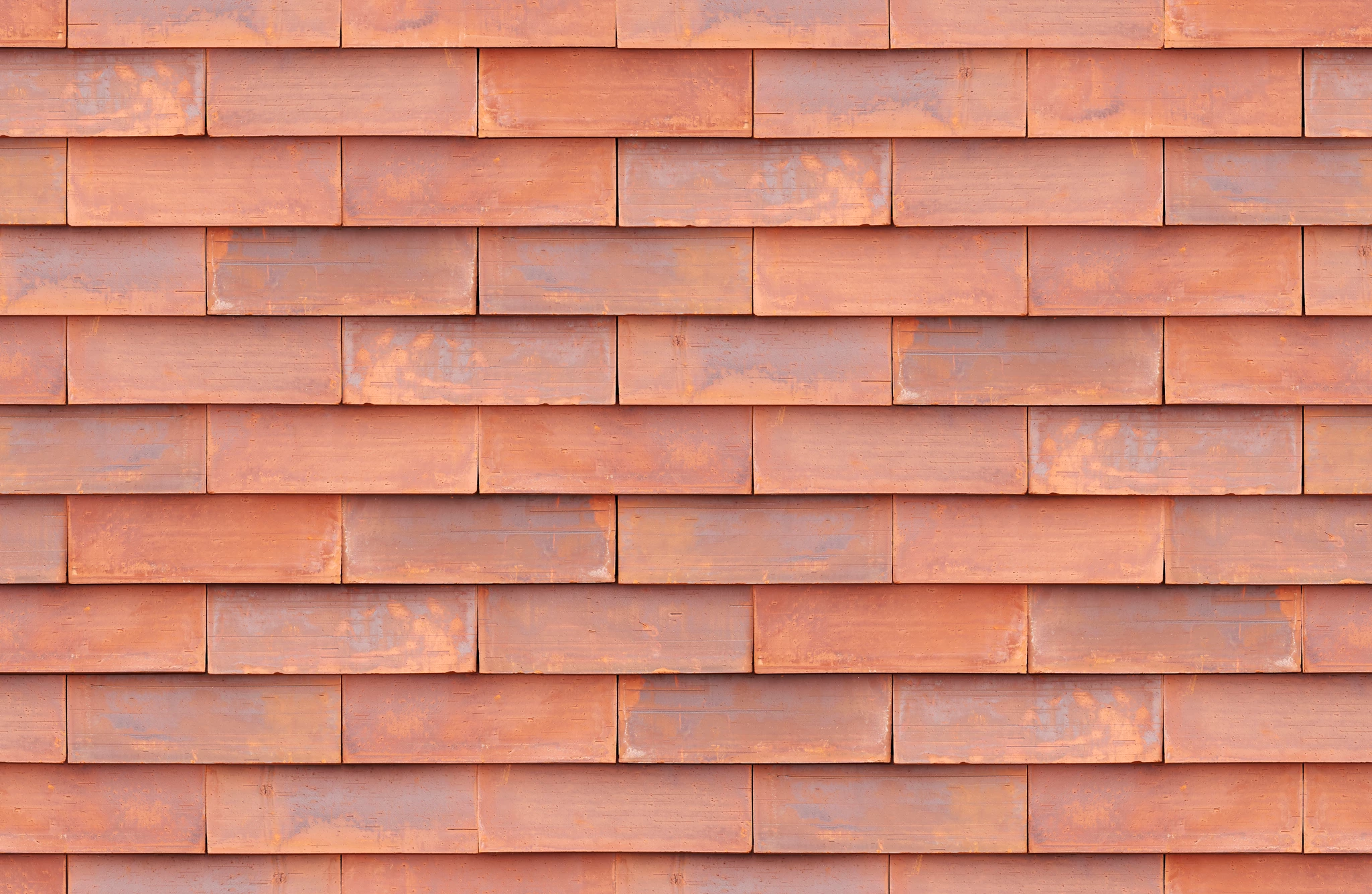
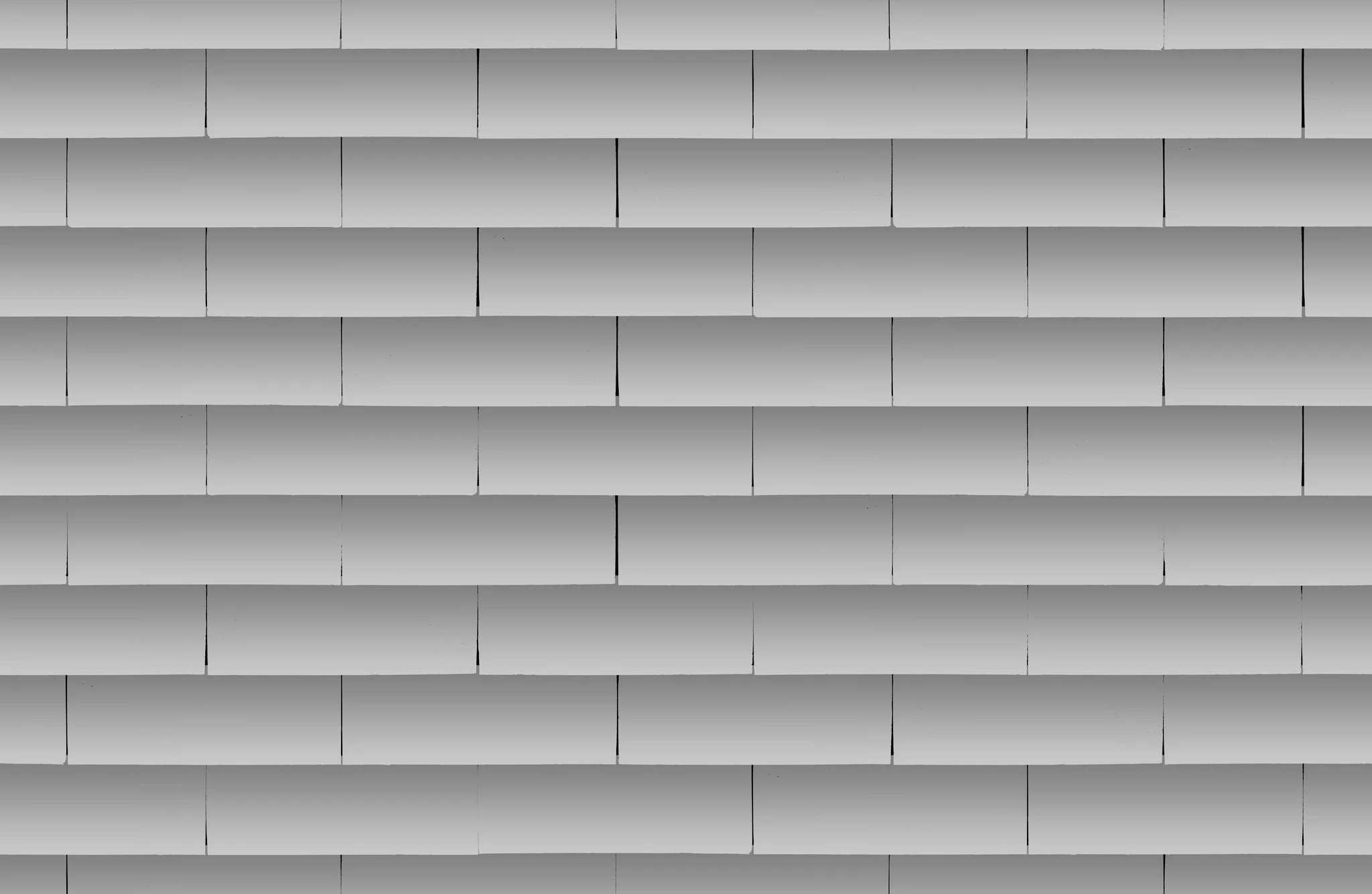
Remove tones and colors from picture of a wall (I guess)

  • December 7, 2021
  • 6 replies
  • 956 views

Hi


I have some photos of some different walls. I have a photo like the file attached and I want to make a file like the other attached file. 


Is there a simple way to do that? I'm not an expert, so I don't even know what it's called.


Thanks


This topic has been closed for replies.

6 replies

didiermazier
Community Expert
Community Expert
December 15, 2021

Hi,

If you just aim to change color of the red brick wall, then go to settings > matching color and select grey wall image as a source… (sorry for the french UI)


Legend
December 15, 2021

Is this what you are looking for?


First, make several copies of the layer

on one of them, use Blur > Average to create a flat version of your color

on another, adjust levels until only the shadows remain; add a black and white filter to that layer only


set that layer to multipy at a lowered opacity


Participating Frequently
December 15, 2021

No one know how to do this?

NB, colourmanagement
Community Expert
Community Expert
December 15, 2021

Rita, yes, see my reply above, did you try that?


In the hue and saturation dialog - [if you can't manually select the wall area] you can use the eyedropper to select an area based on the colour. 

creativepro.com targeting-huesaturation-adjustments-photoshop

I hope this helps neil barstow, colourmanagement net :: adobe forum volunteer google me "neil barstow colourmanagement" for lots of free articles on colour management 

Participating Frequently
December 15, 2021

thanks for the answer, but it will just make the photo black and white - not the way that I want (check the displacement file) 

NB, colourmanagement
Community Expert
Community Expert
December 8, 2021

You can do this by making a selection  of the wall (or if it's on a separate layer by selecting just that layer) and go to the "Adjust Hue and Saturation " pane, then reduce the saturation until you're happy. You may find that the wall loses detail and if that’s the case you may improve that by adding contrast with an S shaped curve in the levels pane. using curves


I hope this helps
neil barstow, colourmanagement net :: adobe forum volunteer
google me "neil barstow colourmanagement" for lots of free articles on colour management
[please only use the blue reply button at the top of the page, this maintains the original thread title and chronological order of posts]

Trevor.Dennis
Community Expert
Community Expert
December 8, 2021

You can transfer the shading by overlaying greyscale layer and setting it to Luminosity

That gives you the shading but they are looking too smooth to be real, so overlaying this rough stone texture

And setting it to Soft Light gives the bricks some texture.


If you want to add a mortar joint, paint some hard grey lines and give them some noise and an inner Shadow layer style.  Set to Disolve to give a rougher edge 


Participating Frequently
December 8, 2021

Hi, 


Thanks a lot for your answer, but I don't want it to look real like that. 


I actually just want exactly like the grey version of the wall. It isn't that have done it, but I need to do something similar.


So how do I turn the normal wall into the grey/white?

Chuck Uebele
Community Expert
Community Expert
December 7, 2021

You can paint get an image of the colors of the wall

 Open within PS and add the first file above that and set the blend mode to luminosity.