tegow2508037
Participant
July 23, 2018
Answered

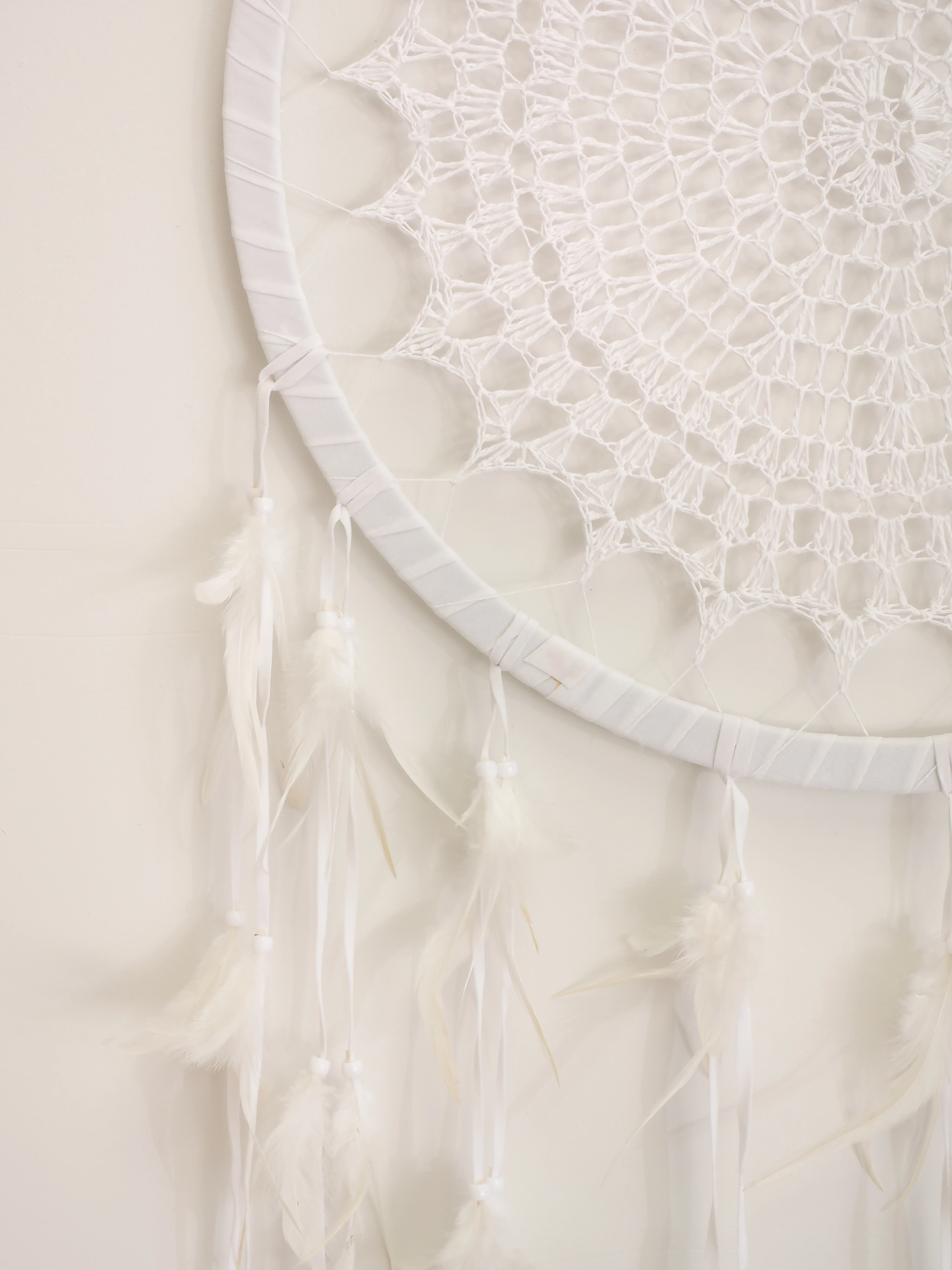
Removing background from a low contrast image with lots of small/fine details.

  • July 23, 2018
  • 3 replies
  • 5931 views

Hi guys, I have a dilemma! I need to completely remove the background from images such as the one below.  I'm having issues due to the similar background colour/contrast and the fine details.  Any help is greatly appreciated.  (it's currently painstakingly slow!)

    This topic has been closed for replies.
    Correct answer D Fosse

    Photoshop doesn't know what's in the image, it can't "see". It only works with RGB numbers. Any automatic selection method is based on differences in RGB numbers. So you can see there's no straightforward auto method to do this.

    I'd start with Select > Color Range. You'll need to make several selections based on different tonal ranges, and use one selection to clean up another. There's no other way.

    Finally, all values that are darker than the flat background are unusable for selection, because of the shadows. That has to be cleaned up manually, by painting in the mask.

    This is painstakingly slow work. Next time, shoot against a contrasting background.

    You may want to put a temporary Curves layer on top to help with the manual painting.

    3 replies

    Bob_Hallam
    Legend
    July 23, 2018

    This type of image is very difficult yo mask, but making a proxy image to use for making works well for some images.  Copy the image in  the history pallet and do what's needed to exaggerate the differences and edges.   Seeing this image includes tonal ranges that are for the most part lighter than the background, exaggerating those differences will help make this mask.   Creating stronger edges using exaggerated sharpening then duplicating that layer multiple times applying it in multiply mode and soft light will help create differences that you can then use for masking.   Select / color range, and then after doing your best to get something reasonable, go to select and mask to fine tune the mask.  After exhausting that tool then use Quick mask to fine tune edges with the brush tool. 

    ICC programmer and developer, Photographer, artist and color management expert, Print standards and process expert.
    tegow2508037
    Participant
    July 23, 2018

    Yeah, this is exactly how I've ben doing it so far   I hadn't realised the client wanted pure white background until after I had photographed, edited and sent all 60 images.  Then she said, no I need it like this and sent a sample someone else had shot and edited.  I think I'm just going to bite the bullet and do a re-shoot, this is nuts, there are 60 images in this batch alone and a further 300+ to photograph! 
    Thanks so much for the advice, at least it's confirmation that I was on the right track editing wise and wasn't missing an easy fix somewhere!    Appreciate you taking the time to reply!

    D Fosse
    Community Expert
    D FosseCommunity ExpertCorrect answer
    Community Expert
    July 23, 2018

    Photoshop doesn't know what's in the image, it can't "see". It only works with RGB numbers. Any automatic selection method is based on differences in RGB numbers. So you can see there's no straightforward auto method to do this.

    I'd start with Select > Color Range. You'll need to make several selections based on different tonal ranges, and use one selection to clean up another. There's no other way.

    Finally, all values that are darker than the flat background are unusable for selection, because of the shadows. That has to be cleaned up manually, by painting in the mask.

    This is painstakingly slow work. Next time, shoot against a contrasting background.

    You may want to put a temporary Curves layer on top to help with the manual painting.