
Participant
April 25, 2023
Answered

Removing power lines and light poles

  • April 25, 2023
  • 2 replies
  • 3664 views

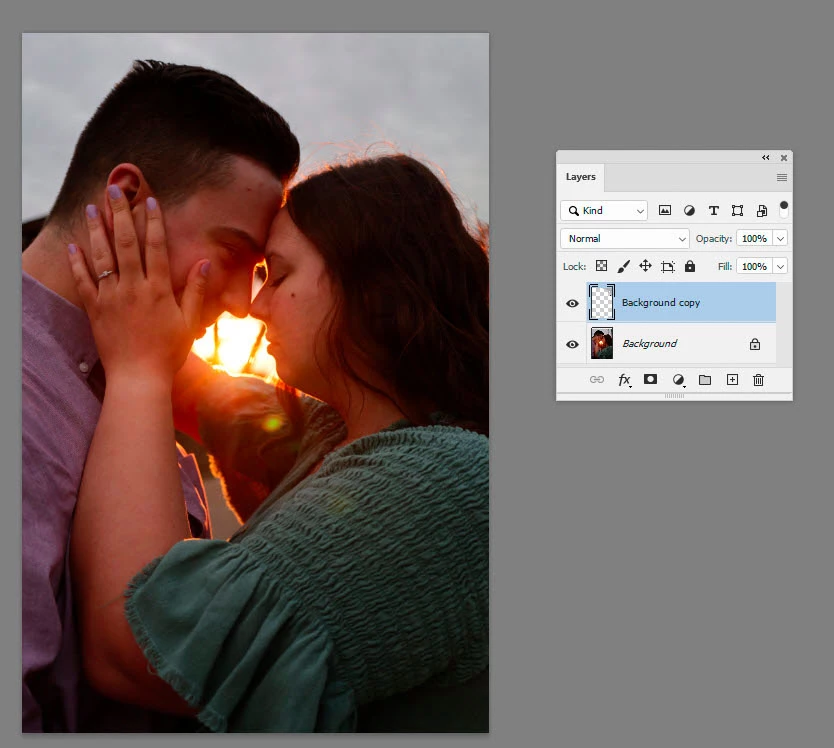
Hi! I am new to photoshop and trying to learn techniques. I have watched many you tube videos, as I am a visual learner, and used the content aware, clone stamp, and I cannot figure out how to get these removed from the back ground. This was just a spur of the moment photo while we were doing some engagement shots earlier with heavy overcast and as were heading to our car, the sun just peaked through the clouds and I just started clicking. I'd really like to remove the power lines if I can. Can anyone help at all on some tricks or tips? 
This topic has been closed for replies.
Correct answer davescm

Use the polygon lasso tool to make a selection around the are you want to remove.

Go to Edit > Content aware fill

Make sure the green only covers areas you want to fill from (i.e. the sky)

When happy click OK

The patched area will be on a new layer

Use the spot healing brush to finish any problems

Dave

2 replies

davescm
Community Expert
davescmCommunity ExpertCorrect answer
Community Expert
April 25, 2023

Use the polygon lasso tool to make a selection around the are you want to remove.

Go to Edit > Content aware fill

Make sure the green only covers areas you want to fill from (i.e. the sky)

When happy click OK

The patched area will be on a new layer

Use the spot healing brush to finish any problems

Dave

Participant
April 26, 2023

Thank you so much for that! That was actually quite simple! Once I do that and click ok, the lasso tool is still there. I used the healing brush to clean it up but it only works inside the layer. How do I merge the two for one complete image? 

Legend
April 27, 2023

To Deselect and remove the lasso just use Ctrl+D.


I would not flatten the image (or merge the layers). If you set the spot healing brush to sample all layers then you can work on a separate layer.

Save as TIFF or PSD to retain the layers and therefore the ability to alter your edits.


If you do need a flattened jpeg, for example to post on-line, use File >Export >Save for Web Legacy or Save a Copy. That will give you an additional flattened copy, along with your save edited file.


Dave


While I concur in some cases you do not want to flatten the image, CTRL +E will only merge visible layers. Therefore if you want preserve the layer just click on the eye to the left of the layer. Thereby preserving the layer. 

Legend
April 25, 2023

This is a fairly easy task for PS. However, I would consider extracing the part of the image you want to keep and place it on another layer. IOT accomplish this use your lasso tool encircle the object you want to retain and if you use Win Hold your CTRL key and hit the letter "J". This gives a new layer. You can also use the replace sky feature to add a new background. There is also a new feature in the Beta version of PS which you can download through Creative Cloud UI. 

Also suggest Linkedin Learning for learning PS. Many local libraries offer this as a free service to patrons with library cards.