slvnk
Inspiring
February 18, 2020
Answered

Rendering Video in Photoshop has bad quality

  • February 18, 2020
  • 4 replies
  • 20750 views

Ukr / Rus / Eng
I am trying to render a video which consists of a still image and a video. Both of them are high quality and look good on preview. After combining them in photoshop and rendering to video, the video quality is horrible.
How can I keep the initial quality of the image and video and render to .mp4 format.
On another PC with similar performance video has good quality.
My PC
QuadCore
 Intel Core i7-7700HQ, 3600 MHz
nVIDIA GeForce GTX 1060 with Max-Q Design
16 RAM
In Photoshop CC 16, 17, 18 does not have this problem.
Please do not advise use After Effects or Premiere pro or some other video editor. I need to fix this problem in Photoshop.

Thanks!

 

This topic has been closed for replies.
Correct answer slvnk

Thanks so much for trying to help. You totally lost me at the bump maps, and I figure at this point putting together a time lapse has become out of my depth. I don't have that skill level, and I'm not very good at understanding all the technical stuff. I just enjoy being creative.

The source images are all good, playback in PS is all good. It's just the render that comes up rubbish.

It's odd, though. I've been putting time lapses together for years on PS without any issue in the video quality. Then all of a sudden, the videos start coming out pixelated. No change in my workflow at all. I don't know what the issue is, but whatever it is, it's clearly beyond me!! It is sad to say good bye to a much loved hobby. 😞

Thanks 🙂


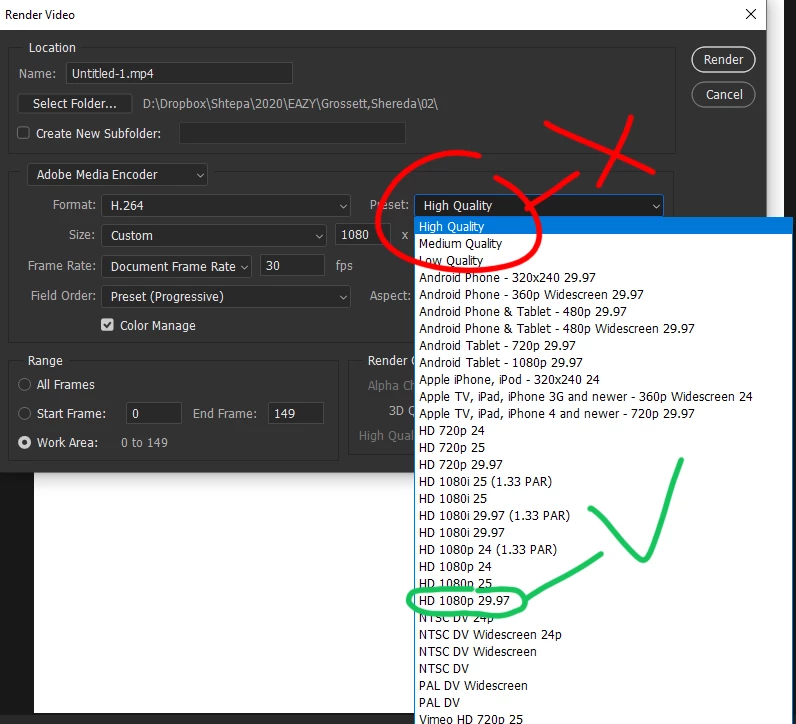
I found a solution to the problem.
The problem is the menu item "high quality" in CC 2019, CC 2020.

If you select HD1080p 29.97, then the video quality will be really high.

I think in the new versions of Photoshop the menu item "high quality" actually has 720p.
Thank you all for your help.


4 replies

JJMack
Community Expert
Community Expert
March 21, 2020

I just rendered this 1080p MP4 with a Photoshop 2020 version 21.1.1 video Time line for a 3D Animation It seems OK to me.

Earth-1080p 


JJMack
#Blackpaw
Participating Frequently
March 21, 2020

Awesome earth, JJMack!

So, your settings are basically the same as mine.


But my final video has good frames interspersed with a jolly lot of frames that look like this:


And, I should also mention, it doesn't matter what media player I play it on, either. It has been replicated on two different systems - a surface pro and a desktop PC, both windows 10.

All graphics cards are on the list of supported cards.

I can't think of where else to go on this. It's just been this sort of quality now for two years, for no apparent reason (like, I didn't change anything in my workflow other than updating PS) so I just stopped making time lapses in the end. 😞

#Blackpaw
Participating Frequently
March 23, 2020

I found a solution to the problem.
The problem is the menu item "high quality" in CC 2019, CC 2020.

If you select HD1080p 29.97, then the video quality will be really high.

I think in the new versions of Photoshop the menu item "high quality" actually has 720p.
Thank you all for your help.


Bang On! You're a total legend! I can't thank you enough for solving this issue!

Thank you thank you thank you!

🙂

#Blackpaw
Participating Frequently
March 21, 2020

I wonder have you found a solution for this problem? I haven't rendered a good video in over two years now on Photoshop. My rendering settings never changed but somewhere my videos went from rendering beautifully to rendering all pixelated. I wonder if this is to do with the computers I am working on (which have changed from Windows 7 to Windows 10, and have also become more powerful) or whether this is to do with amendments to the actual program itself?


- changing size of images in timelapse sequence doesn't fix

- changing/reducing/no post processing of images before creating sequence doesn't fix

- changing frame rates doesn't fix

- changing computers doesn't fix

- changing versions of PS doesn't fix (can only go back to 2019 and problem began about 2018 I think)

- changing any/all/every rendering setting doesn't fix - no combination yields good results.


Would love a solution to this issue!!

Kevin Stohlmeyer
Community Expert
Community Expert
February 19, 2020

Your settings look fine.

When you say "On another PC with similar performance video has good quality."  what do you mean?


If you mean that the rendered video appears ok on another PC then the issue is not with Photoshop, it is either the viewer you are using or the graphics card.


If you mean that rendering from Photoshop on another PC improves the quality of the video then verify the settings between the two.

Computer specs dont affect quality when rendering, just speed of render time. It does affect quality of playback if you have a subpar video card, outdated player, etc.

slvnk
slvnkAuthor
Inspiring
February 19, 2020

I play both video in same player. One video bad quality the second one is good.
I attach pic with two screenshot of player with video. Open with full size and you will see difference
Compare 

Kevin Stohlmeyer
Community Expert
Community Expert
February 18, 2020

Please include a screen shot of your Render Video settings.

slvnk
slvnkAuthor
Inspiring
February 18, 2020


I use same setting in both PC and all version.
and same .PSD for this test