
Copy link to clipboard
Copied
Hi,
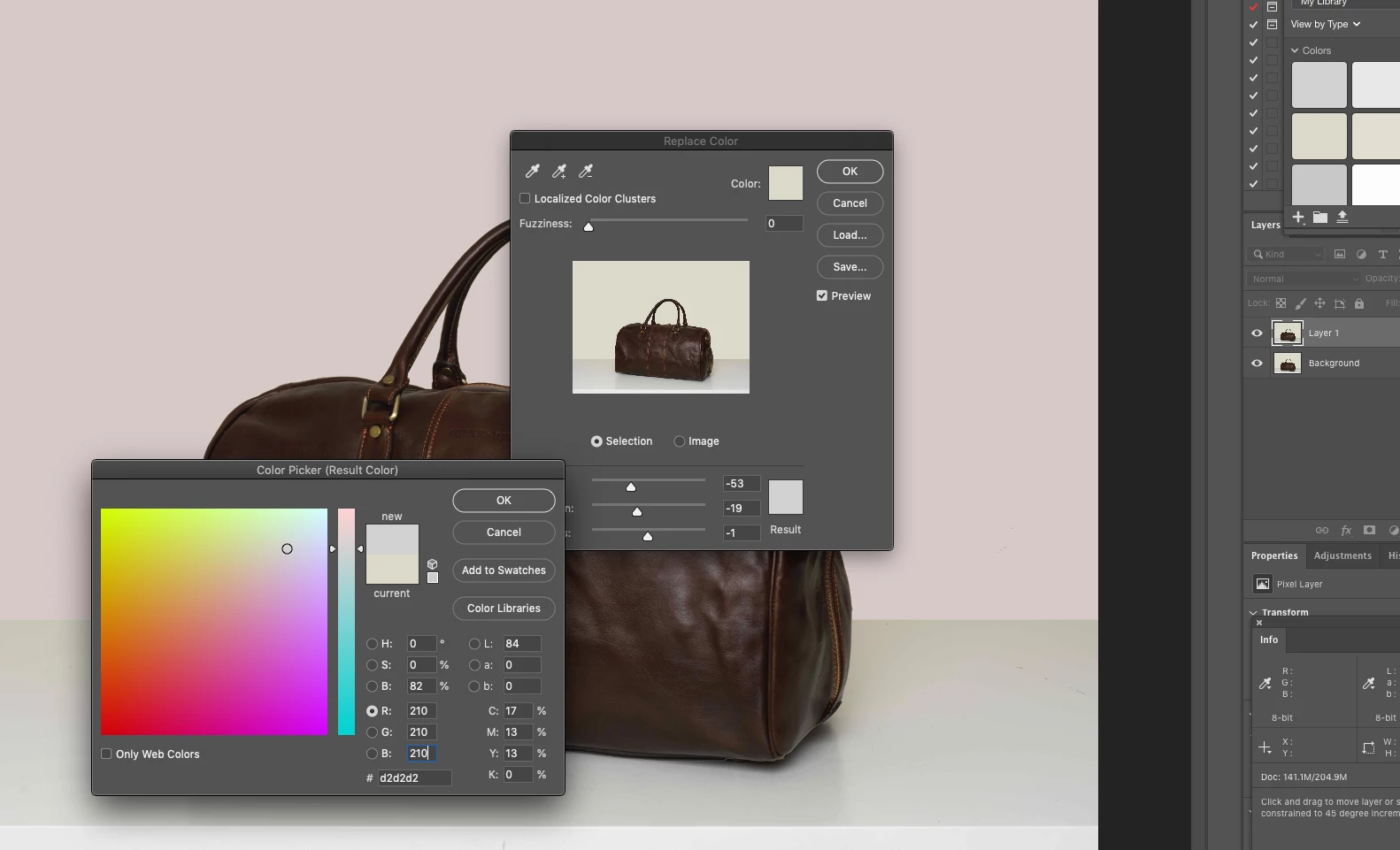
I am trying to use the Replace Color Tool in Photoshop 21.1.1 to change the background colour on a set of bag shots.
The background is currently R219 G217 B202 (yellowish) and I need to change it to 210,210,210 which is a light grey.
I select Image / Adjustments / Replace Color and click on the background and it is perfectly selected.
I click on the Result color and the color picker comes up and I dial in 210, 210,210.
The Color Picker shows the correct colour grey and the Result Color also shows the correct colour grey but the background is clearly pink.
Any clues to what I am doing wrong would be appreciated.
Copy link to clipboard
Copied
Two possible factors: Lack of color management and using Replace Color on almost identical colors being not the smartest way to work, i.e. the underlying algorithm not being able to calcluate the correct thresholds and channel shifts due to lack of contrast. Could be either of these things or both, so start checking and adapt your workflow. Annoying as it may be, you may need to actually isolate the bag using proper selections or manually creating a custom channel with image calculations on which to base your replacement.
Mylenium
Copy link to clipboard
Copied
Hi
is a neutral grey pinkish also? [I guess that’s a yes]
Are you on Windows? [I guess that’s a yes]
is so, please read on
At least once a week on this forum we read about this, or very similar issues of appearance differing between applications.
Unfortunately, with Microsoft hardware: Windows updates, Graphics Card updates and Display manufacturers have a frustratingly growing reputation for installing useless (corrupted) monitor display profiles.
I CAN happen with Macs but with far less likelyhood, it seems.
The issue can affect different applications in different ways, some not at all, some very badly.
The poor monitor display profile issue is hidden by some applications, specifically those that do not use colour management, such as Microsoft Windows "Photos".
Photoshop is correct, it’s the industry standard for viewing images, in my experience it's revealing an issue with the Monitor Display profile rather that causing it. Whatever you do, don't ignore it. As the issue isn’t caused by Photoshop, don’t change your Photoshop ‘color settings’ to try fix it.
If you want to rule out pretty much the only issue we ever see with Photoshop, you can reset preferences, I never read of a preferences issue causing this problem though:
To reset the preferences in Photoshop:Â
https://helpx.adobe.com/photoshop/using/preferences.html
Â
Note: Make sure that you back up all your custom presets, brushes & actions before restoring Photoshop's preferences. Migrate presets, actions, and settings
To find out if this is the issue, I recommend you to try setting the monitor profile for your own monitor display under “Device” in your Windows ‘color management’ control panel to sRGB. You can ADD sRGB if its not already listed.
And be sure to check “Use my settings for this device”.
(OR, if you have a wide gamut monitor display (check the spec online) it’s better to try Adobe RGB instead).
Quit and relaunch Photoshop after the control panel change, to ensure the new settings are applied.
If this change fixes the issue, it is recommended that you should now calibrate and profile the monitor properly using a calibration sensor like i1display pro, which will create and install it's own custom monitor profile. The software should install it’s profile correctly so there should be no need to manual set the control panel once you are doing this right.
Depending on the characteristics of your monitor display and your requirements, using sRGB or Adobe RGB here may be good enough - but custom calibration is a superior approach.
I hope this helps
if so, please "like" my reply and if you're OK now, please mark it as "correct", so that others who have similar issues can see the solution
thanks
neil barstow, colourmanagement.net :: adobe forum volunteer
[please do not use the reply button on a message in the thread, only use the one at the top of the page, to maintain chronological order]
Copy link to clipboard
Copied
I attach a better screen capture of the problem.
I have deleted the preference file and the result changed, but not to the correct value.
I am on Mac 10.14.6 and Photoshop 21.1.1
In summary the Replace Color Tool does not give the color shown in the Result box, even in preview.
The problem seems to be the Color Picker in the result section does not pass the picked value.
Get ready! An upgraded Adobe Community experience is coming in January.
Learn more