
Participating Frequently
June 18, 2020
Answered

Reset unwanted changes

  • June 18, 2020
  • 1 reply
  • 507 views

I'm using Photoshop 21.2.0. It's driving me crazy. I keep somehow making unwanted changes, and I can't ever figure out how to get things back the way they were before. First the Adjustments window came undocked and I can't seem to dock it again no matter what I do. Then the background of the photo I'm working on changed to black, which is inconvenient, as I'm doing astrophotography. So the image edges are always black as well (night sky). Perhaps most frustratingly. the Photoshop window itself has somehow gotten stretched, so that the image is too far down. I have to hit "View" and zoom out just to get to the bottom of the image and crop it. But that only works on my image, not on the window itself. I can't drag the window smaller because the bottom of it is off-screen. Can somebody please tell me how to undo unwanted changes as they happen? The program just gets harder and harder to use, and Googling directions never seems to produce the help I need. 
This topic has been closed for replies.
Correct answer jane-e

"but the question was how I can undo accidental changes"


Hi Catherine,


Panels

When panels become undocked, you can go to Window > Workspace > and Reset the current workspace (or use the Workspace switcher in the options bar. Details here:

https://helpx.adobe.com/photoshop/using/workspace-basics.html


Background

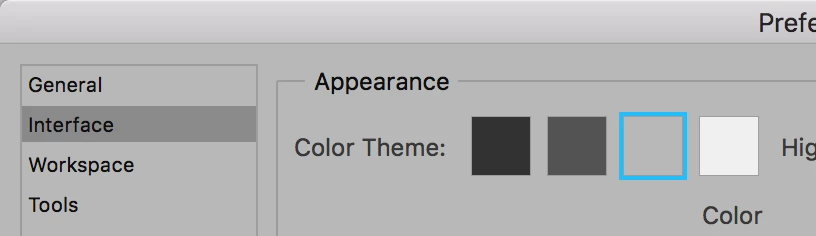
Do you mean the interface or something else? You can change the interface color in Preferences > Interface. The keyboard shortcuts are:

  • Darker: Cmd +Shift+F1 (Mac) or Ctrl+Shift+F1 (Windows)
  • Lighter: Cmd +Shift+F2 (Mac) or Ctrl+Shift+F2 (Windows)


Photoshop Window

Try Window > Arrange > Consolidate first. If that doesn't work and the application window needs to be resized, you can use any size or corner to make the window smaller. This happens to me sometimes when I have an overhead projector, and I usually resize from the top downwards and the left inwards since the bottom is off-screen, then I move the window into place.


Does this answer all of your questions? If not, ask again, and include a screen shot if it will help.


~ Jane


1 reply

JJMack
Community Expert
Community Expert
June 18, 2020

Just reinstall 21.1.3

JJMack
Participating Frequently
June 18, 2020

I appreciate your takimg the time to respond but the question was how I can undo accidental changes. I can't imagine muself reinstalling an earlier version every time I make a mistake. Also, I just upgraded, and two out of three of those problems came slong from the older version,

jane-e
Community Expert
jane-eCommunity ExpertCorrect answer
Community Expert
June 19, 2020

"but the question was how I can undo accidental changes"


Hi Catherine,


Panels

When panels become undocked, you can go to Window > Workspace > and Reset the current workspace (or use the Workspace switcher in the options bar. Details here:

https://helpx.adobe.com/photoshop/using/workspace-basics.html


Background

Do you mean the interface or something else? You can change the interface color in Preferences > Interface. The keyboard shortcuts are:

  • Darker: Cmd +Shift+F1 (Mac) or Ctrl+Shift+F1 (Windows)
  • Lighter: Cmd +Shift+F2 (Mac) or Ctrl+Shift+F2 (Windows)


Photoshop Window

Try Window > Arrange > Consolidate first. If that doesn't work and the application window needs to be resized, you can use any size or corner to make the window smaller. This happens to me sometimes when I have an overhead projector, and I usually resize from the top downwards and the left inwards since the bottom is off-screen, then I move the window into place.


Does this answer all of your questions? If not, ask again, and include a screen shot if it will help.


~ Jane