Participating Frequently
December 10, 2020
Answered

Resize DPI in batch

  • December 10, 2020
  • 4 replies
  • 27086 views

I need to resize hundreds of 12x8 images to 300 DPI.  How do I do this in batch.  I've tried to follow inst. to set the actions but I'm doing something wrong.  I don't want to change the dimensions only the resolution.  I'm using Photoshop CC 2019 on a Mac.  Thanks for any suggestions.
This topic has been closed for replies.
Correct answer Bojan Živković11378569

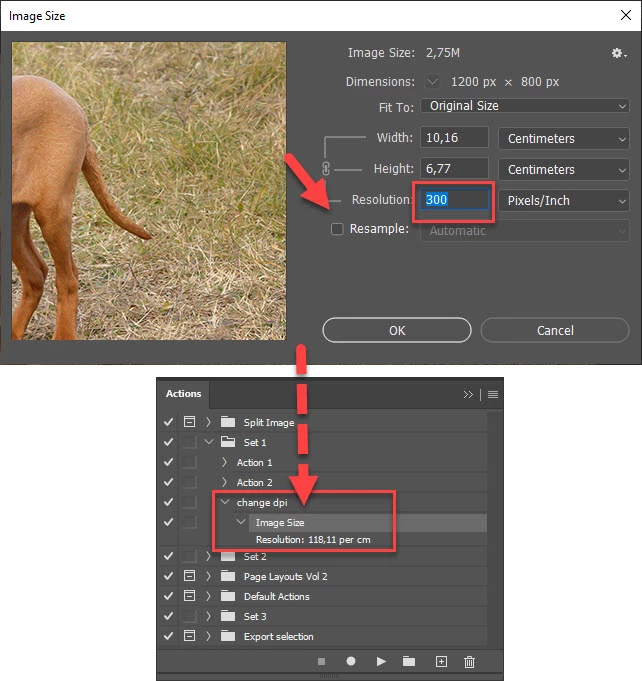
You need only one step in your action. When recording action go to Image > Image Size, uncheck Resample and change Resolution to 300. If your image has 300 pixel/inch then change to smaller number prior recording step in action. Photoshop will not record step properly if you do not make real change, retyping same number may fail to record any data.


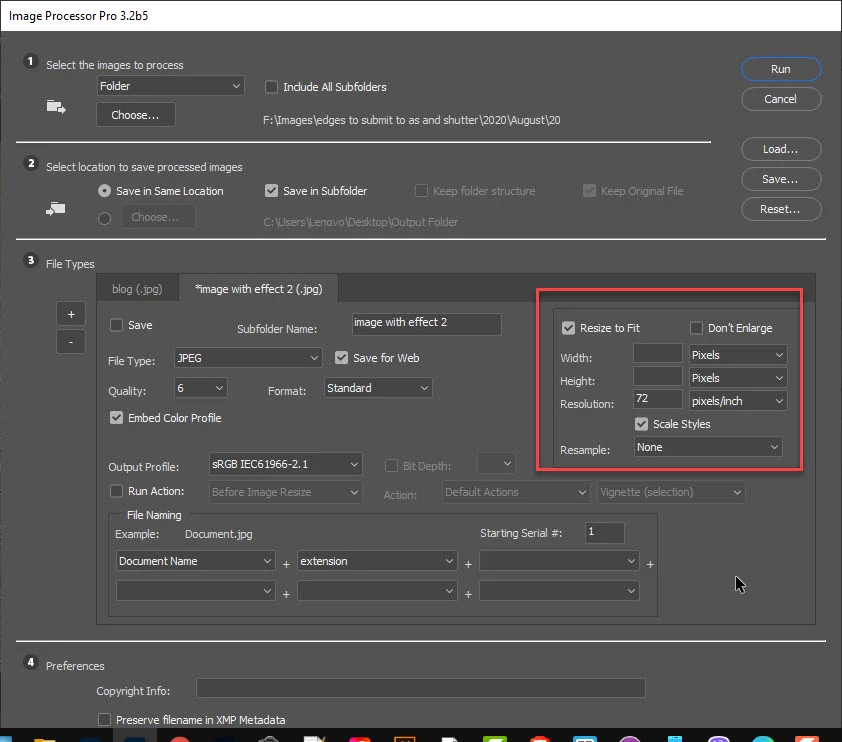
By the way, you can use Image Processor Pro https://sourceforge.net/projects/ps-scripts/files/Image%20Processor%20Pro/v3_2%20betas/ to change only Resolution without to record any action IPP has built in option for that.

4 replies

Bojan Živković11378569
Community Expert
Community Expert
December 11, 2020

It seems I missed to understand your problem. Do you have images with Resoltion greater than 300ppi? In that case you need to record additional step in action to change print dimensions on longer side to 12in what will automatically set smaller side to 8in. I am assuming that all your images are actually larger of what you need because (probably) you set print dimensions to 12 x 8 in what caused resolution to increase or you have missed point in resolution that it matters a lot when working with physical size not pixel dimensions.

If you have all images landscape then simply record additional step with Resample turned on and change Width to 12in. That is it, it will work with assumption mentioned above. If you have mixed orientation then you must record one more action which will be triggered by conditional step if image is vertical orientation. In that case, keep only step to change resolution and add conditional step to run action with single step to change either width or height depend on orientation of your image.

In case that you have all images in the same orientation then you can use easily and Image Processor Pro, just change unit to Inches, type units you need plus keep Resolution to 300.

I missed to change Resample to Automatic which will work just fine.

Participant
April 29, 2023

@17171815it appears that the v3.2b5 file doesn't play well with the latest Photoshop (v24.x). Is there an update, or supported software that you can point me to?

Participant
April 30, 2023
quote

@17171815it appears that the v3.2b5 file doesn't play well with the latest Photoshop (v24.x). Is there an update, or supported software that you can point me to?


By @PaullyJD


https://sourceforge.net/projects/ps-scripts/files/Image%20Processor%20Pro/v3_2%20betas/


@Stephen Marshyep, so that link shows v3.2b5 (release date 2016-02-03) as the latest of their releases, which works with PS/CC 2015.1.2, and we're up to PS 24.x where it doesn't seem to work

Stephen Marsh
Community Expert
Community Expert
December 11, 2020

I use ExifTool for such tasks, it does not process image data, only the metadata so it is very fast:


exiftool -overwrite_original -Photoshop:XResolution='300' -Photoshop:DisplayedUnitsX='inches' -Photoshop:YResolution='300' -Photoshop:DisplayedUnitsY='inches' -IFD0:XResolution='300' -IFD0:YResolution='300' -IFD0:ResolutionUnit='inches' -r 'mac path/to/folder or file'


rob day
Community Expert
Community Expert
December 11, 2020

Hi Stephen, the OP wants to resample to 300ppi and maintain the output dimensions—the file would have new pixel dimensions. Will changing metadata do that? Wouldn’t the resample require image processing?

Stephen Marsh
Community Expert
Community Expert
December 11, 2020

Hi Rob, I may have misunderstood as the screenshot had resample unchecked with the request to change the resolution not the dimensions.


This will obviously retain the current pixel dimensions, however, the print dimensions will change accordingly.


You are correct, a resample is required to retain the current print dimensions and also set the resolution to 300.

rob day
Community Expert
Community Expert
December 10, 2020

On OSX you can use shell scripts for basic image manipulation, which should be faster than batching in Photoshop because the files don’t have to open. You might try this AppleScript, it resamples the images in a selected folder to 300ppi.


--Resamples images in the selected folder to 300ppi via sips
--Rob Day 2020

set theres to 300.0
set f to (choose folder with prompt "Select folder with images")
tell application "Finder"
	set i to (every file in f)
	repeat with x in i
		try
			set n to name of x
			set thepath to quoted form of POSIX path of (f & n as string)
			--get the file’s ppi res
			set r to do shell script ("sips -g dpiWidth " & thepath & " ; ")
			set cr to word 2 of paragraph 2 of r as real
			--get the 300ppi scale percentage 
			set s to theres / cr
			--get the current width in pixels
			set pd to do shell script ("sips -g pixelWidth " & thepath & " ; ")
			set nw to (word 2 of paragraph 2 of pd as real) * s
			--resample and resize
			do shell script ("sips --resampleWidth " & nw & " " & thepath & " ; ")
			do shell script ("sips -s dpiHeight " & theres & " -s dpiWidth " & theres & " " & thepath & " ; ")
		end try
	end repeat
end tell


Bojan Živković11378569
Community Expert
Community Expert
December 10, 2020

You need only one step in your action. When recording action go to Image > Image Size, uncheck Resample and change Resolution to 300. If your image has 300 pixel/inch then change to smaller number prior recording step in action. Photoshop will not record step properly if you do not make real change, retyping same number may fail to record any data.


By the way, you can use Image Processor Pro https://sourceforge.net/projects/ps-scripts/files/Image%20Processor%20Pro/v3_2%20betas/ to change only Resolution without to record any action IPP has built in option for that.

jabodeelyAuthor
Participating Frequently
December 10, 2020

Thanks for the suggestion.  I tried it and when unchecking the resample it DOES change the image size from 15+ x 10+ from the 12 x 8 as needed.  I need to keep the images at 12x8 @ 300 DPI.  Any other suggestions?

Bojan Živković11378569
Community Expert
Community Expert
December 10, 2020

Perhaps you did something incorrect. Which processing option you are using? Photoshop action? Which script to batch process? Can you post screenshot with configuration inside batch dialogue?  Also plase post screenshot with action step expanded to see what is recorded.

If you are using Image Processor Pro please post screenshot of its window with configuration settings.

I have done same things many times and it can not resize image if not instructed, it just does not happen on its own.