
rhinestone mom
Participant
July 8, 2019
Answered

Resize layers to standardized measurement

  • July 8, 2019
  • 5 replies
  • 1921 views

There has to be an easy way of doing this but I can't find it! I have 3 images that I'm trying to fit onto a canvas. I have all 3 photos in a document as 3 separate layers. I know how to transform but I can't figure out a way to get exact measurements. In my case I'm trying to get each layer to the same 3" x 4" size. I don't care if it crops the photo somewhat to get that size. It's just about impossible to hit the nail on the head with any measurement when you're dragging a box. Is there somewhere that size can be typed in for a layer? I know you can do this for the entire document but can't find how to do it for a specific layer. I'm going to be doing this on a regular basis so I would love to create a template once I can get everything set up correctly. Thanks!
This topic has been closed for replies.
Correct answer Bojan Živković11378569

If I can understand you correctly then do the following:

  • Place your images or convert them to Smart Object layers so you can keep original dimensions.
  • Select Smart Object layer then press Ctrl + T or use Edit > Free Transform.
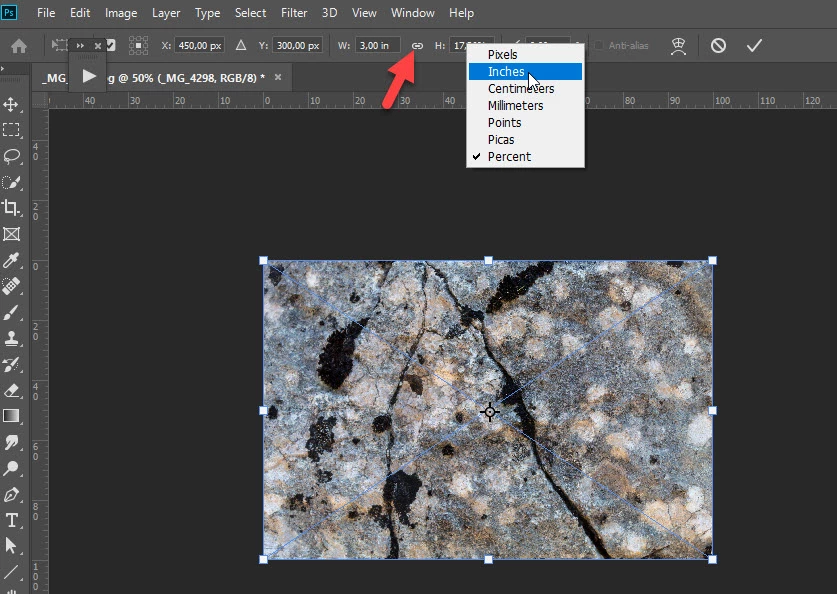
  • In the Options bar right click on text box next to W and choose Inches or any other measurement unit.
  • Repeat same operation for text field next to H or Height.
  • Type number inside text fields next to W and H.
  • Pay attention on link between W and H which will maintain aspect ratio and automatically calculate second dimension after typing one of them either W - width or H - height. It is marked with red arrow in my screenshot below.
  • And by the way, you can simply type 3in in the W or H field without changing measurement unit, just do not forget to type in for inches or cm, mm, px for other units.

5 replies

JJMack
Community Expert
Community Expert
July 9, 2019

It would be very easy to have as script to tile your image onto a canvas use a 3"x4" tiles size.  However Landscape images do not crop well into portrait images . To much Image content will be cropped off the resulting Portrait Image composition will not be acceptable. It would be best to only use Portrait images. when using a 3"x4" tile size. Here I selected three Portraits images  I could have selected any size image Landscape  and Portrait images. All would be sized to fill a 3"x4" tile any excess would be clipped off.

Paste Image Roll script and Picture Package support documentation This script is in my toolkit Free Photoshop Photo Collage and Mockup Toolkit

JJMack
Bojan Živković11378569
Community Expert
Community Expert
July 8, 2019

If I can understand you correctly then do the following:

  • Place your images or convert them to Smart Object layers so you can keep original dimensions.
  • Select Smart Object layer then press Ctrl + T or use Edit > Free Transform.
  • In the Options bar right click on text box next to W and choose Inches or any other measurement unit.
  • Repeat same operation for text field next to H or Height.
  • Type number inside text fields next to W and H.
  • Pay attention on link between W and H which will maintain aspect ratio and automatically calculate second dimension after typing one of them either W - width or H - height. It is marked with red arrow in my screenshot below.
  • And by the way, you can simply type 3in in the W or H field without changing measurement unit, just do not forget to type in for inches or cm, mm, px for other units.

rhinestone mom
Participant
July 8, 2019

Oh, I understand. The tool bar at the top with the width and height is what I am missing! I'll find that and add it in. Thanks so much!

melissapiccone
Community Expert
Community Expert
July 8, 2019

Sahil is saying you can create a new document that is the correct size and add your images to that document. You don't have to resize them first. Just drag and drop the pics into the new document or do a file, place.

Melissa Piccone | Adobe Trainer | Online Courses Author | Fine Artist
Sahil.Chawla
Adobe Employee
Adobe Employee
July 8, 2019

Hi there,

As you're looking to resize the images to 3 x 4 size, I believe it's in inches please correct me if I am wrong.

1. You can create a new document with 3 inches Width and 4 inches Height, then go to File > Place Embedded and place 1 image onto the document.

2. Once you have transformed the placed image go to File > Save as and save the image.

3. You can do this with all 3 images.

Regards,
Sahil

rhinestone mom
Participant
July 8, 2019

Ok. I think you are saying that I need to change each photo to my 3x4" (inch) size before adding them to my new document. I was trying to avoid that and keep that the original size. Thanks!!

melissapiccone
Community Expert
Community Expert
July 8, 2019

First of all, layers are the size of your document. So what you are asking is how to get your 3 images, which are on different layers to all be exactly 3" x 4".

I would use a layer mask. Make a layer mask. With your rectangular marquee, in the options bar, set it to fixed size, make your selection, choose new layer mask. Hold alt/ option to copy the layer mask to the other layers one at a time...

Melissa Piccone | Adobe Trainer | Online Courses Author | Fine Artist
rhinestone mom
Participant
July 8, 2019

Oh, I think I understand. I've never worked with masks before. I have extremely basic skills! I'll give it a whirl. Thanks!