
Resizing images results in weird black mosaic
So, this has been happening for a while now ever since I moved to a new laptop.
I wanted to bring it to people's attention because I believe it's worth noting.
This is a goofy thumbnail a client sent to me. It's just a regular jpeg. When upsizing the DPI it produced this. I have repeated this with many many other files. In fact, it does it every time whether upsizing or downsizing.
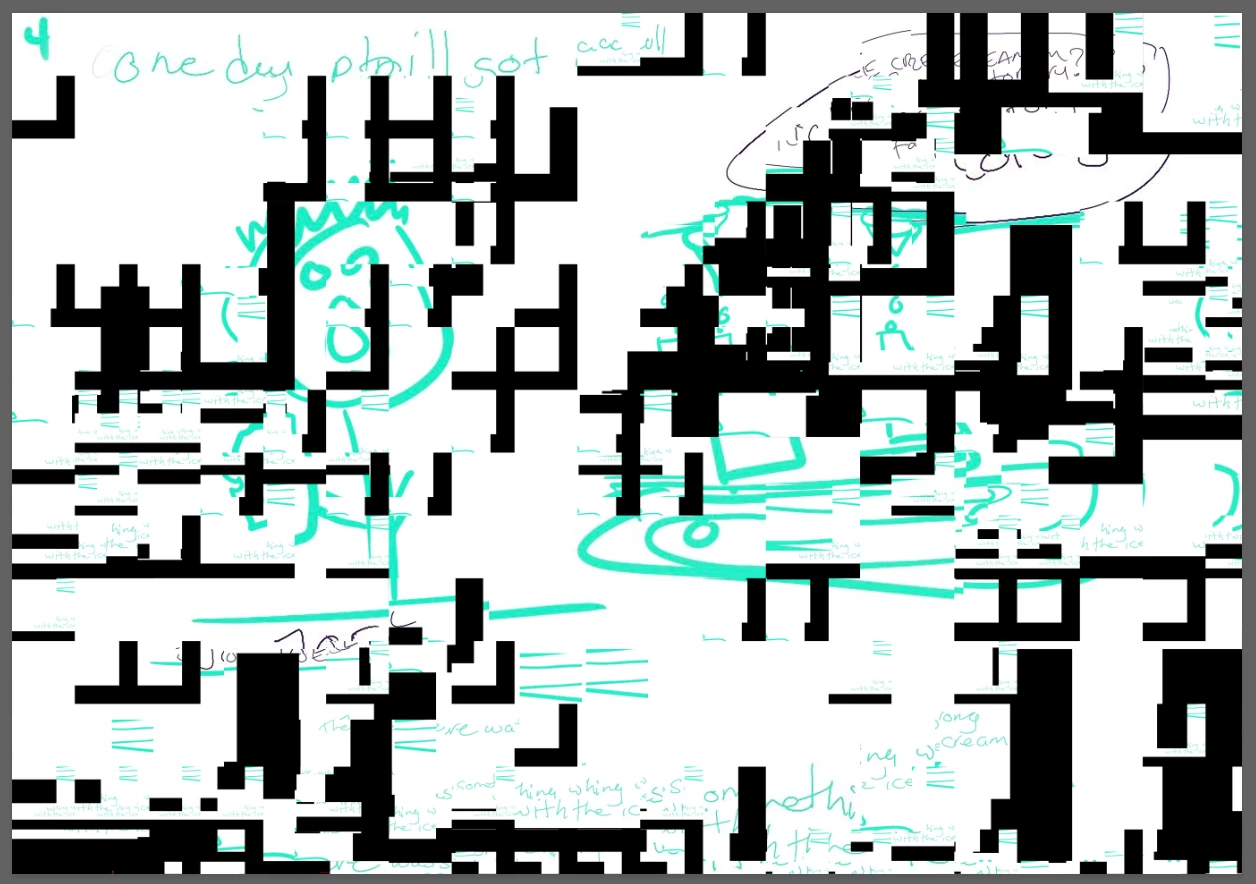
This version of PS worked just fine on my older tower. This is a really bizarre error to get. I do have the newest version of Photoshop installed separately but I really hate using it as it's a massive RAM hog, I am most comfortable using this older version.
Here's a bit of system info I copied.
------------------------------------------------------------------
Adobe Photoshop Version: 20.0.1 20181029.r.41 2018/010/29: 1197484 x64
Number of Launches: 33
Operating System: Windows 10 64-bit
Version: 10 or greater 10.0.22000.1761
System architecture: Intel CPU Family:6, Model:10, Stepping:3 with MMX, SSE Integer, SSE FP, SSE2, SSE3, SSE4.1, SSE4.2, AVX, AVX2, HyperThreading
Physical processor count: 14
Logical processor count: 20
Processor speed: 2688 MHz
Built-in memory: 16049 MB
Free memory: 10130 MB
Memory available to Photoshop: 14682 MB
Memory used by Photoshop: 69 % (nice)
Alias Layers: Disabled.
Modifier Palette: Enabled.
Highbeam: Disabled.
Image tile size: 1024K
Image cache levels: 4
------------------------------------------
Not sure what to do, or if it's fixable, I just thought it was weird and it kind of gets in the way of my workflow, obviously, since resizing files is kind of important.
 AdChoices