…the resoulution is high, but the physical dimensions of the file are quite small…their recent png file shows dimensions in inches as 0.789 x 1 with a resolution of 2850 ppi. Our actual print size is 7.5 x 10.5 inches.…we are trying to determine what the customer is doing on their end to have it come out this way and if we should have them do something different.
By @Beth23082061er6k
It turns out that 0.789 inches at 2850 ppi is the same number of pixels as 7.5 inches at 300 ppi. So when that 0.789 inch image is sized to 7.5 inches long without having to resample, it ends up at about 300 ppi, as shown in the demo below.
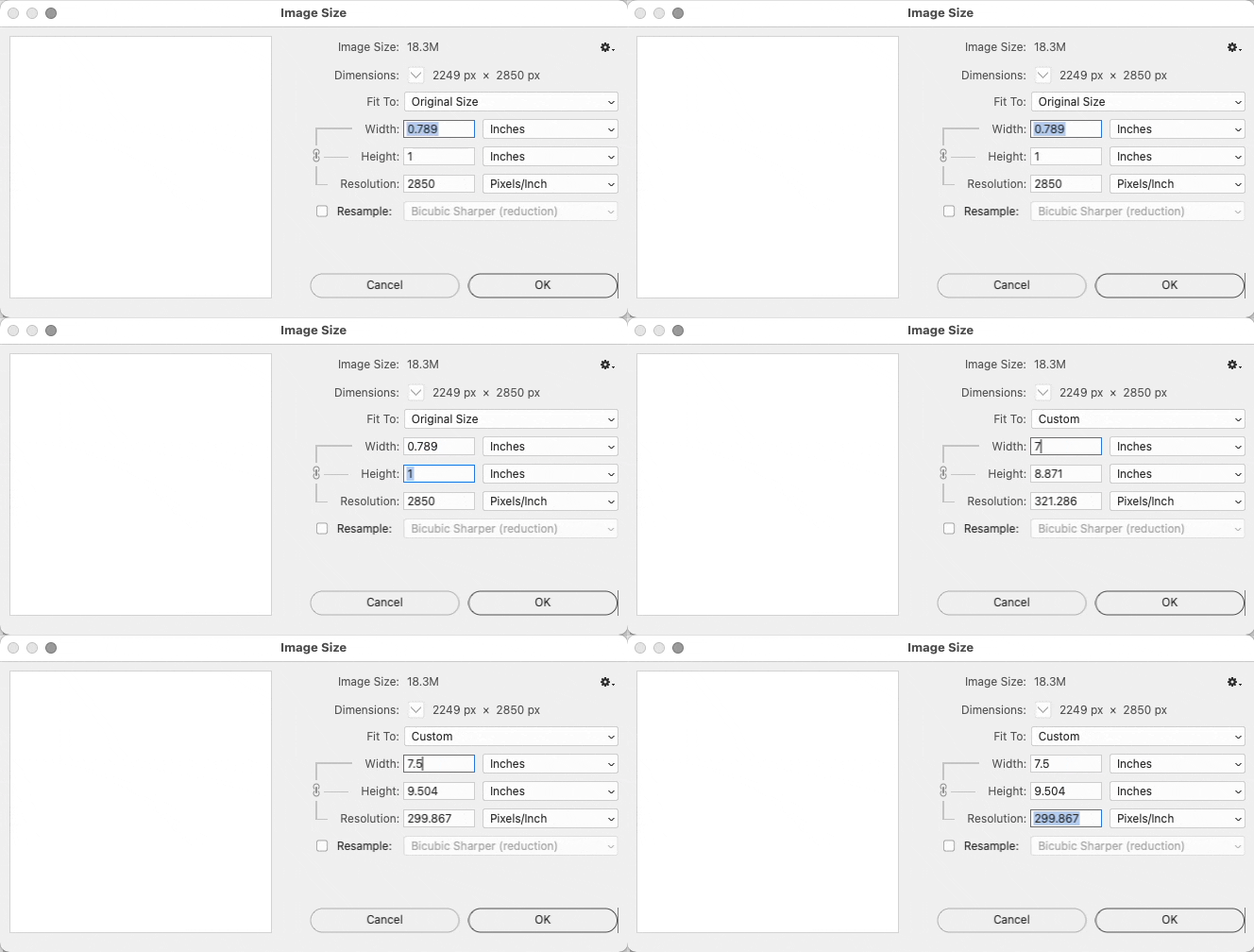
The length does not meet the requirement, it’s 9.5 inches long and not 10 inches long. That can happen if the original image has a different aspect ratio than 7.5 x 10.5.
I’m not sure how they ended up there. However, it’s very easy for someone to get it wrong if they don’t have a full understanding of how pixel dimensions, real world inches, and ppi actually interact. One way to ensure they get it right every time is to teach them this simple technique, shown in the demo below:
1. Select the Crop tool.
2. In the options bar, choose W x H x Resolution from the first menu. This will lock the Crop tool result to the exact specifications that are about to be entered.
3. Enter the intended print dimensions and resolution: 10.5 in, 7.5 in, 300 ppi.
4. Make any crop adjustments needed, and apply the crop. (You can apply the crop by clicking the check mark in the options bar, the Done button in the new Contextual Task Bar which is what I show, or press the Enter/Return key.)
At the end, you can see that the dimensions can be confirmed in the status bar at the bottom of the Photoshop document, if the status bar is set to display Document Dimensions. And then Image Size is opened to show it is also correct there.
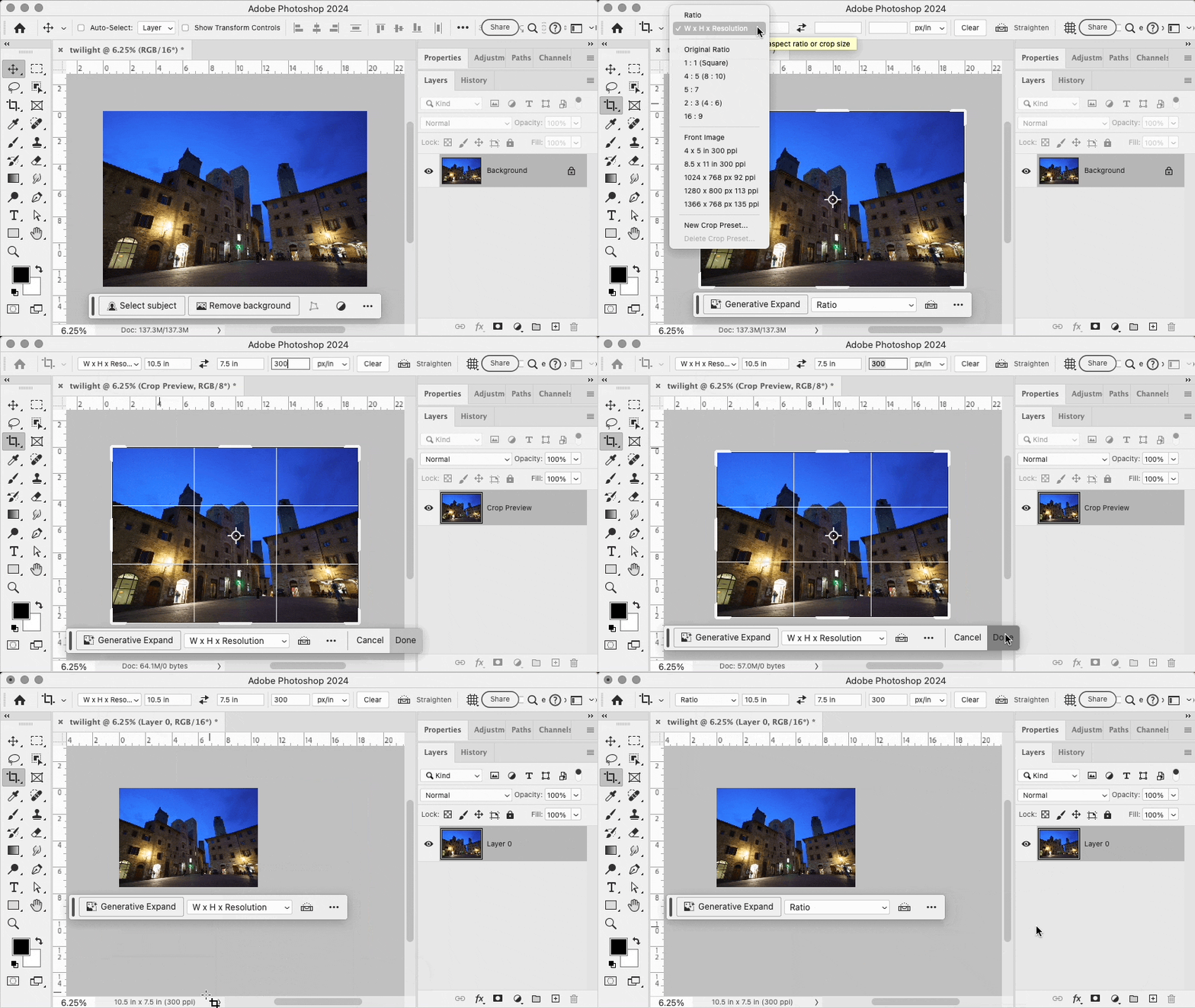
Why use the crop tool? Well, I noticed that if the original is the standard 3:2 aspect ratio image common in digital camera sensors, 10.5 x 7.5 inches is a different and narrower aspect ratio. This requires cutting off the ends of a 3:2 aspect ratio image, so the Crop tool can be used to compose within the final aspect ratio that has to result from the W x H x ppi values entered in the options bar.


 AdChoices