
coryo98169661
Participating Frequently
October 23, 2017
Question

Retina Display UI Scaling for Photoshop 2018

  • October 23, 2017
  • 10 replies
  • 28293 views

Hi there,

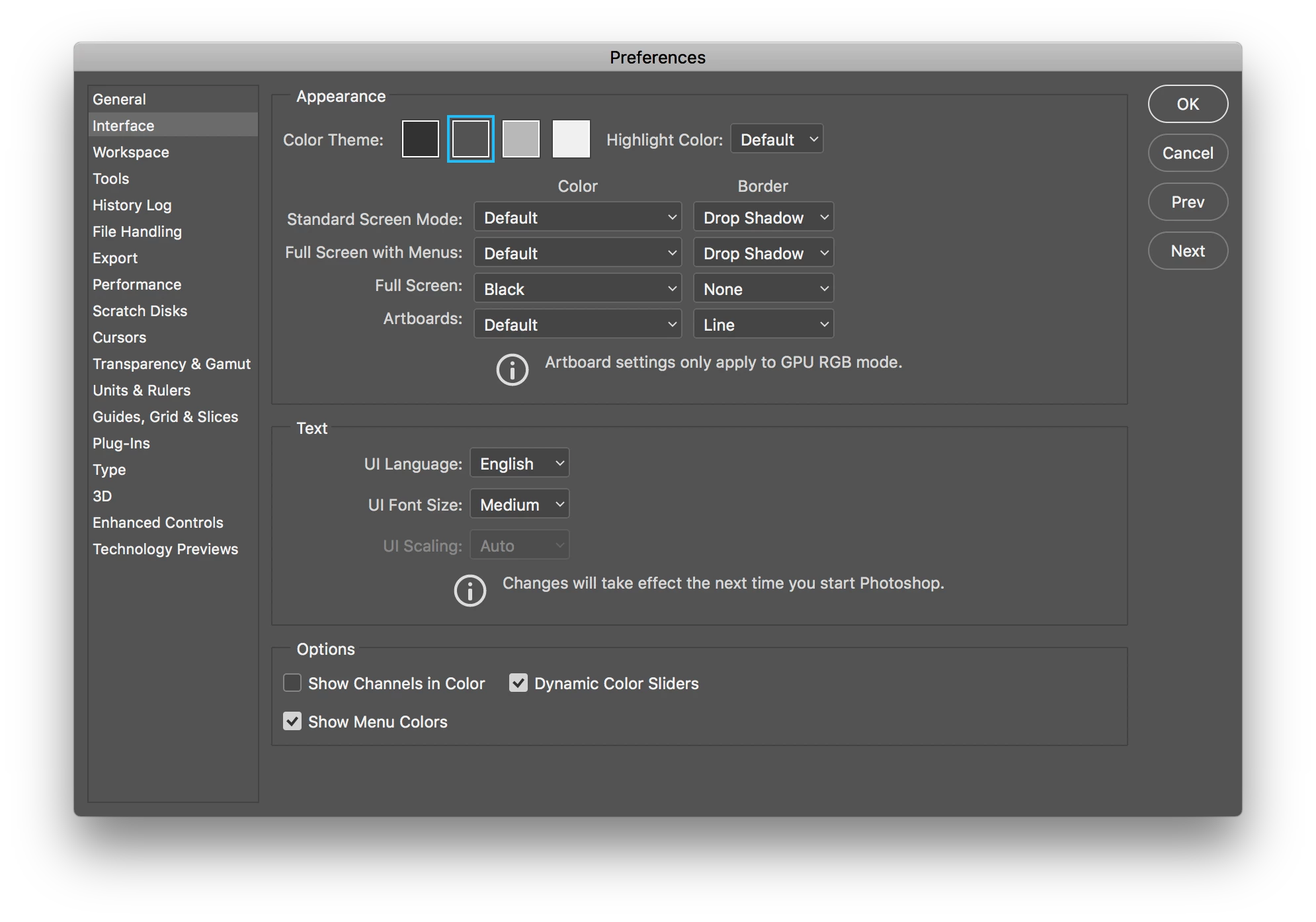
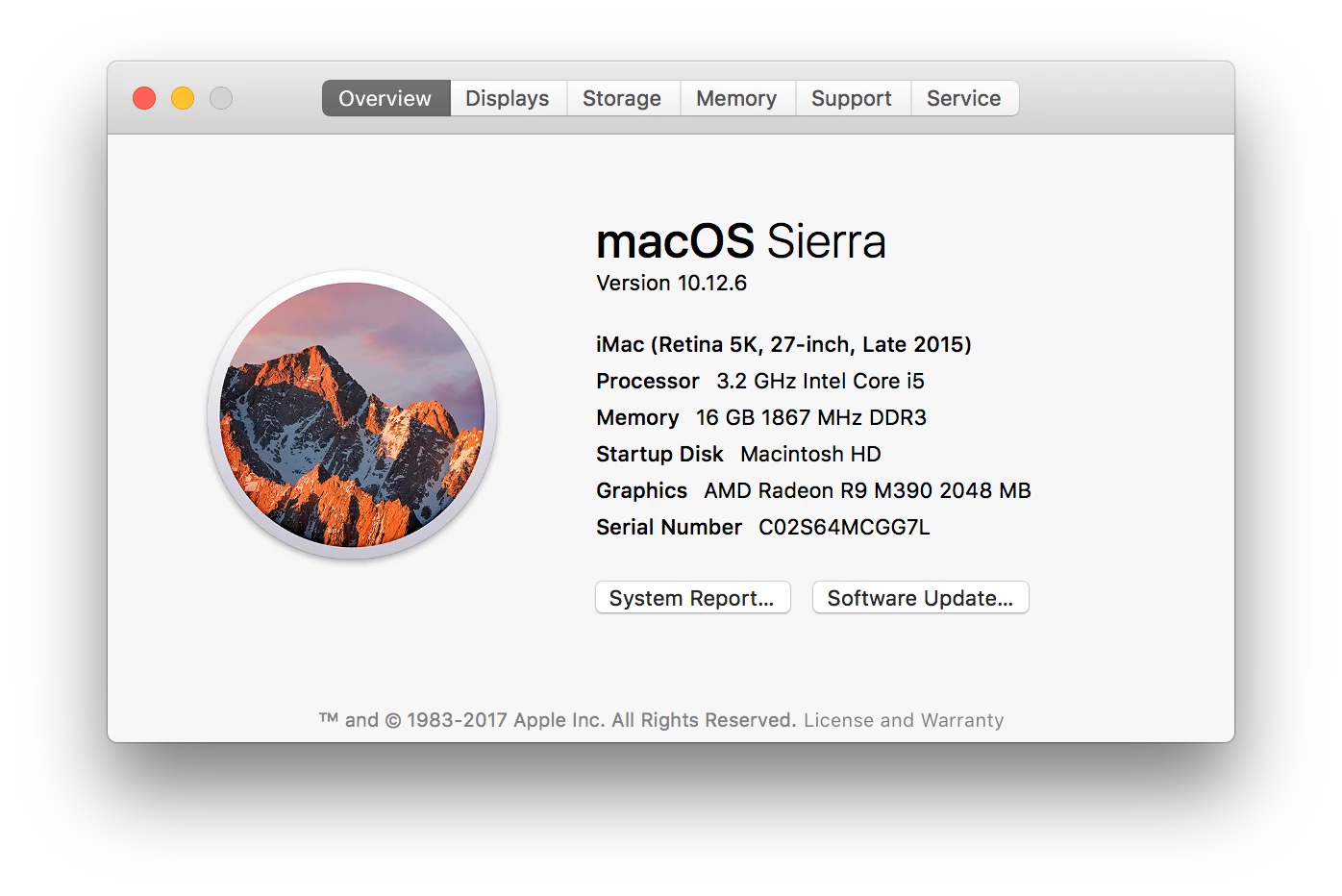
I'm working with a retina display iMac and I just updated to CC 2018. I'm noticing that when I zoom in at 100%, I'm actually getting a 50% view. I went to UI scaling under preferences and the dropdown is grayed out. How do I adjust the screen view for retina displays?
    This topic has been closed for replies.

    10 replies

    Participating Frequently
    June 23, 2020

    I'm using Photoshop 2020, with a new 27-inch (5120 x 2880) display on Catalina. And this issue STILL hasn't been solved by Adobe since 2017?


    The only solution I found was to change the info for PS to open in Low Resolution mode.

    Conrad_C
    Community Expert
    Community Expert
    June 23, 2020

    The reason it has not changed is that it is not wrong.


    As long as 100% is defined as one image pixel to one screen pixel, 100% will be about half the size on Retina (Mac) and HiDPI (Windows) desktop displays that have a 2x scaling factor. The pixel density is twice as much, so images must appear half the size.


    Other photo applications do the same thing and also will not change. Affinity Photo, Pixelmator, Gimp, etc. all define 100% the same way.


    But it sounds like what everybody wants is to redefine "100%" so that it no longer means one image pixel to one screen pixel. This can be done using the View > Print Size command instead as long as you also change the Print Resolution and Screen Resolution values in the Preferences > Units & Rulers panel so that Print Size shows your image at a simulated 72 ppi or 96 ppi on your 220+ ppi Retina/HiDPI display.


    Note that web browsers automatically enlarge web images by 2x to compensate for the 2x pixel density of Retina/HiDPI displays. But because of this, those images are not using the true, full resolution of the display — the same disadvantage of putting Photoshop into Low Resolution mode. This is also not a good strategy if you are trying to create images for websites properly coded to take full advantage of the resolution of 2x scale factor displays.

    Conrad_C
    Community Expert
    Community Expert
    July 16, 2020

    Sorry I should have been clearer. The linear dimensions are about 1/2 of what they should be. So horizontally and vertically 2 pixels in the image are being displayed as 1 on screen at 100% so 4 pixels (area) in the image are being displayed as just 1 on screen. There's definitely something wrong.


    There is nothing wrong, nothing to redefine, and nothing being redefined. Please read my earlier reply in this thread that explained this already. 100% has always meant one image pixel to one screen pixel, in Photoshop and other non-Adobe image editors, on both Mac and Windows.


    Few people noticed that “100%” has slowly gotten smaller over the last 30 years, as displays have gone from 72 ppi in the 1980s to 90-100 ppi in the 1990s and 120+ ppi since then. Everyone finally noticed when Retina (Mac) and HiDPI (Windows) made a huge jump, doubling the pixel density roughly 10 years ago. Instead of pixels getting a little smaller, they suddenly became a lot smaller: By one-half.


    The notion of 100% as equalling “Actual Size” has not been accurate for 30 years, and Retina/HiDPI has finally made us all face up to it. If what we want is “size as seen in web browsers” then define a keyboard shortcut for 200% and use that instead. Because if a web site is not coded for Retina/HiDPI displays, web browsers will artificially blow up web graphics by 2x or else they will look half the size we expect. Measure the actual displayed pixel measurements yourself: A web browser displays a 600 x 400 pixel image using 1200 x 800 pixels on a Retina/HiDPI display. It looks “right,” but only because the browser is using just 1/2 of the full resolution of the display or else the 600 x 400 web graphic would look too small by 1/2.


    Photoshop (and other image editors from other companies) do not apply artificial scaling, they show it pixel for pixel, as they always have for 30 years. Now, if a web page is actually coded to recognize Retina/HiDPI displays, it will find out the scale factor of that display, such as 2x for Mac Retina. Then, to use the full resolution of the display, it would then show 2x pixel density graphics to them instead of the usual 1x. For web sites like that, Photoshop and a web browser would agree as far as 100% magnification. And for that type of site you would, correctly, supply 1200 x 800 px graphics that appear at 600 x 400 @2x pixel density in a web browser. The 1200 x 800 px version for 2x would display at the same size as 600 x 400 px for 1x displays. In other words, web browsers are enlarging images by 2x to make up for web sites that aren’t set up for Retina displays. If you understand that, you understand why Photoshop is not wrong.


    mavc116 wrote:

    “The linear dimensions are about 1/2 of what they should be. So horizontally and vertically 2 pixels in the image are being displayed as 1 on screen at 100% so 4 pixels (area) in the image are being displayed as just 1 on screen. There's definitely something wrong.”


    No, look more closely. If you create an image in Photoshop as 600 x 400 pixels, and you measure the actual pixels it is using on a Retina display, you will find that at 100% is in fact using 600 x 400 pixels…even though it looks half as big as you expect. That is because of the 2x pixel density of Retina/HiDPI. 2x pixel density means the linear dimensions of each pixel are half as large as (traditional) 1x.


    The math works out fine too, because it’s linear vs area like you said. If we forget about computers for a sec and think of floor area for instance,  1 x 1 linear feet equals 1 square foot, but 2 x 2 feet equals 4 square feet…not 2 sq ft. Therefore, the 1 x 1 area should look 1/4 as large as the 2 x 2 area, and the same applies to pixels. And so one Retina/HiDPI display pixel @2x takes up the same area as 1/4 of one traditional pixel @1x.

    Inspiring
    February 1, 2019

    I understand what everyone is saying here but isn't one solution, the one I use, to set the DPI of the image file to 222?

    I create a 1920x1080 image at 222 dpi in Photoshop CC 2018.  When I open it on my 5K iMac at 100% it looks right to me.  The rulers at the top of the UI are accurate, 1 inch = 1 inch.

    Am I missing some reason this isnt right.

    SonseraeLeese
    Known Participant
    March 18, 2020

    Here it is March 2020 and the problem still isn't fixed by Adobe. That just stinks, The UI scaling button is greyed out and the icons are just too small to see when opening up files.

    Participant
    June 18, 2018

    Note the complete lack of 19.x support for Mac here: HiDPI and Retina Display support FAQ for Photoshop

    Steve Jobs was right over 10 years ago. Adobe are a lazy company, which is why Flash was never supported on the iPhone. Seems like nothing has changed.

    cheris96055495
    Inspiring
    April 20, 2018

    Please fix. It is so hard to work when converting websites. Very very difficult.

    D Fosse
    Community Expert
    Community Expert
    January 27, 2018

    I don't understand what you did or didn't do here - but just so it's clear: the UI scaling is now set in Windows display scaling, and Photoshop should pick that up automatically - while, of course, leaving the image window unaffected as it should be.

    I'm not clear on whether the PS Preferences setting now does anything at all, or is just redundant.

    Marcello777
    Participant
    January 27, 2018

    Adobe just released a new updated version of Photoshop CC (end of January 2018) - and the app's  UI scaling  just DOES NOT WORK. Period.

    The steps you mention above in this thread do not apply here - it is apparently A BUG within the software...

    I use PS CC on Windows 10 with custom screen resolution. The app simply renders HUGE UI tabs and menu characters - and REFUSES to switch to the smaller-UI-element layout that was there before, just minutes ago (before I updated Photoshop CC) running without a slightest problem...

    This is the case EVEN DESPITE I CHANGED UI SCALING SEVERAL TIMES - TO 100% WHERE IT SHOULD BE !!

    UI scaling feature in the Interface Menu simply has NO EFFECT, whatever value you set it on....\

    Adobe, this truly is NON-PROFESSIONAL.

    I depend on this software, I teach graphic design - and I am in the middle of creating a new course on GD with the 100% scaled layout in all of my videos. I cannot work with this UI scaling, it is not possible to explain things that I already started explaining using the smaller 100% scaled UI interface!

    Now, you LITERALLY MADE ME STOP my daily work (halt what I do for a living) FOR A NON-SPECIFIED TIME PERIOD - just because you most likely forgot to test and adjust the UI scaling feature in your newest update - which contains other new functions, btw., that I DO NOT NEED AT ALL - while simply killing the one core feature I REALLY NEED FOR MY WORK !!!!!!!!

    Please issue a new update with the UI scaling functionality working ASAP ...

    N.B. Can't believe I am paying for a program that has such lousy programmed UI scaling error (bug). Photoshop used to be so much better and more reliable when it was sold as a stand alone, non subscription-based, software.

    Really, really disappointed. So many people depend on this app to work flawlessly, and UI scaling is one of its core features :-(

    Participant
    February 21, 2018

    Any progress on this, or is Adobe bsing like normal?

    lanieldee1
    Participant
    March 22, 2018

    I feel the question isn't being answered here but please point me to the right answer if you know of one? I open photoshop (cc2018), my macbook 13" resolution is 2560x1600. I create a new document and put in 2560x1600, the document at 100% is smaller than 75% of the screen. Why is that?

    November 15, 2017

    Hey! I think I found the fix. Right click and look at info for photoshop app. Check open in Low resolution.

    coryo98169661
    Participating Frequently
    November 15, 2017

    Awesome! UI Scaling is still grayed out but at this point, unnecessary. Thanks so much Amy!

    Participant
    June 30, 2019

    I have the exact same option as the one originsally posted but I don't think this is a UI issue. Surely all that will do is change the size of all your menus and UI elements and NOT affect the size your seeing an image at? In other words, I don't think you will see a DPI PPI diffrerance, just smaller or larger UI elements.

    November 15, 2017

    I also have the same problem. I understand that the pixels are smaller on retina screens, but when designing, seeing the images at a smaller size isn't really helpful for me when trying to imagine how another user (without retina) would view the image. In CC 2017, I was able to change the preferences back so that things were low resolution(200%) as default.

    Updated to CC 2018 yesetrday, and it seems like the option is now greyed out and cant seem to find a way to fix it. Coryo, would love to see if you find a fix.

    D Fosse
    Community Expert
    Community Expert
    October 31, 2017

    coryo98169661  wrote

    I'm noticing that when I zoom in at 100%, I'm actually getting a 50% view.

    No, what you're actually getting, is a true 100% view - one image pixel mapped to exactly one screen pixel.

    The other native Mac apps - just like most consumer-oriented apps - give you a 200% view, one image pixel mapped to four screen pixels. They do that to avoid complaints like this, and have everything display at the physical size people are used to.

    Set Photoshop to view at 200%, and they will match, because that's what it is in those other apps.

    coryo98169661
    Participating Frequently
    October 31, 2017

    Thanks for your reply D Fosse.

    Perhaps it is a true view pixel to pixel, but it doesn't seem to scale properly with a retina display. I'm a graphic designer and I know what 1920 pixels looks like on a screen, and I'm definitely getting half of that at 100% view.

    Besides that, I still don't understand why I'm not able to adjust the scaling settings in Preferences>Interface. Regardless fo what Adobe thinks I should be seeing, I would like to have control over what I want to see.

    D Fosse
    Community Expert
    Community Expert
    October 31, 2017

    A 5K retina screen is 5120 x 2880 pixels.

    This is how a 1920 x 1080 pixel image looks on a 5K retina screen, at 100% view:

    If your 1920 image doesn't look like this, it's scaled up and not displaying at 100%

    100% has nothing to do with physical size. It just maps pixel to pixel. And on a high resolution screen those pixels are smaller. That's the whole point of a high resolution screen.

    Mohit Goyal
    Community Manager
    Community Manager
    October 31, 2017

    Hi coryo,

    Were you able to adjust the UI Scaling in Photoshop CC 2017? If yes, then please reinstall Photoshop CC 2018 and check if that helps.

    Regards,

    Mohit

    coryo98169661
    Participating Frequently
    October 31, 2017

    Hi Mohit,

    Thanks for the reply. I was indeed able to adjust the scaling via the Preferences>Interface menu in CC 2017 but am no longer able to do so in CC 2018. I'll try reinstalling and see if that helps.

    Cheers!