Participant
January 27, 2024
Answered

Return to initial crop?

  • January 27, 2024
  • 5 replies
  • 4381 views

Seems like this should be super-simple, but an hour of searching and I've got nothing.


Sometimes in the middle of a project, I'll crop to zoom in on a specific element, and do a quick export.  Once that's done, I want to go back to the initial crop.  The one that shows all the pixels in the image, in my original aspect ratio.  


Is there a quick way to do this?  Just say, "Hey Photoshop, crop back to show the whole image."  The only ways I've found to do this involve tedious click and dragging of the crop boundaries, and it's very easy to miss some of the image, or bring in transparency from the edge.


Appreciate any help on this, thanks.

Correct answer Conrad_C
quote

Sometimes in the middle of a project, I'll crop to zoom in on a specific element, and do a quick export.  Once that's done, I want to go back to the initial crop.  The one that shows all the pixels in the image, in my original aspect ratio. 

By @pseudoclever


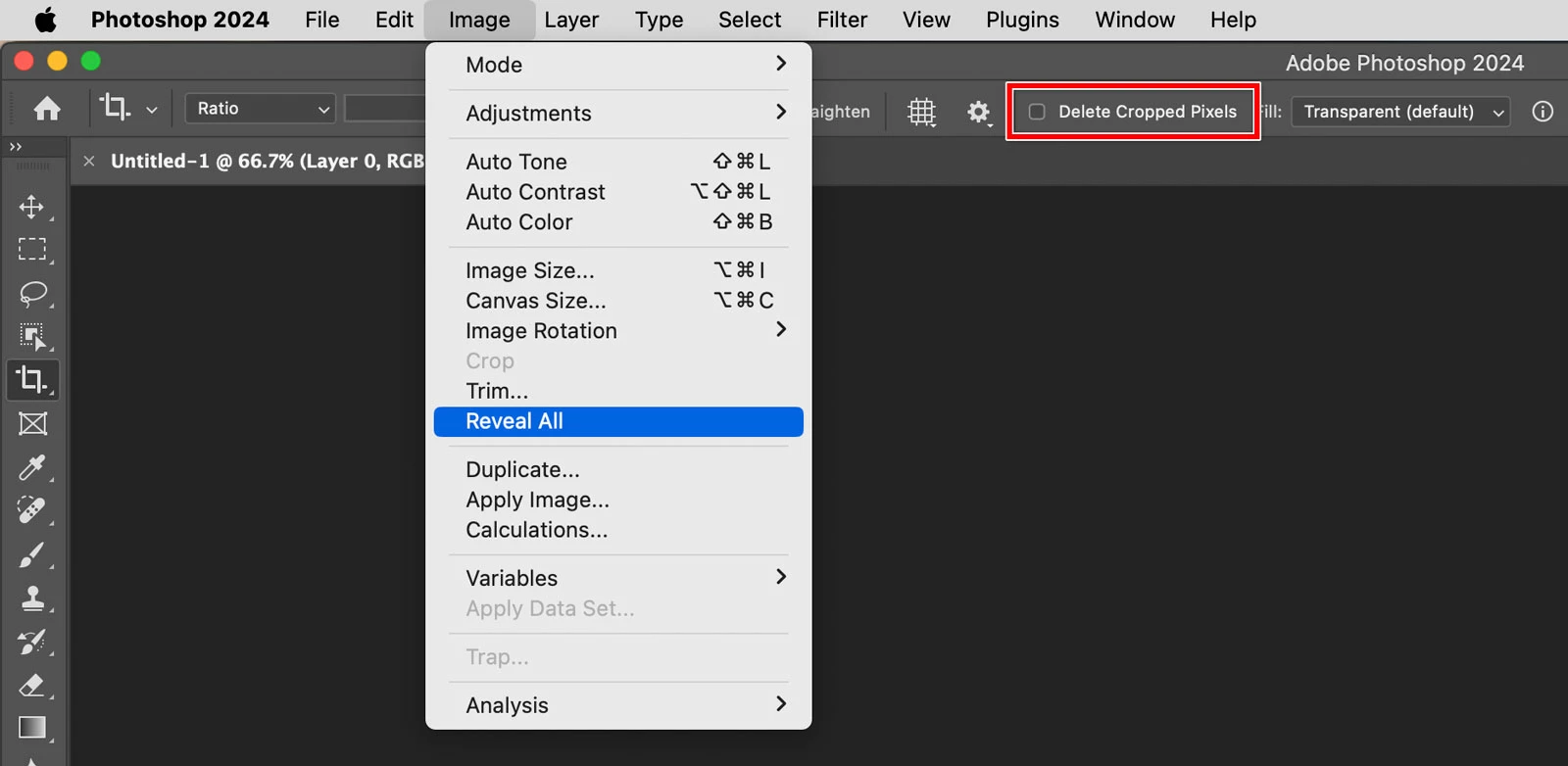
There is a command that does this: Image > Reveal All.


Technically, that doesn’t restore any previous crop, it restores all available non-transparent (Opacity > 0%) pixels that are currently hidden outside the canvas. That means you might not get the exact original canvas size if the original content had a large area of transparency between the pixels and the canvas edge. But if you work with images such as camera photos that are normally opaque from edge to edge, then Reveal All will always restore the original crop.


However – this is very important – Reveal All works only if, in the Crop tool options bar, Delete Cropped Pixels was disabled while you were cropping. If Delete Cropped Pixels was enabled, then the cropped pixels were not kept, so you can’t go back except through Undo or the History panel. If Delete Cropped Pixels was disabled, cropped pixels are only hidden, and you’ll notice in the Layers panel that there is no Background layer because the document isn’t flattened. That’s so Photoshop can hang on to the cropped pixels outside the visible canvas area, in case you want them back later.


So just make sure Delete Cropped Pixels is disabled, and you should be able to use Image >  Reveal All after cropping.

(FYI, the opposite of Reveal All is Trim, which removes all contiguous pixels of the same color value, starting in from the edges…useful for removing extra space.)

 

5 replies

Participating Frequently
August 16, 2024

I'm looking for a solution as well. I used to be able to do what you describe in previous versions of Adobe CC, but in the last few updates (maybe 2022-2024), I can't do it anymore. 


What I used to do was:

Uncheck "Delete Cropped Pixels" > Crop > Confirm Crop > Save & Close file.


Then later, after re-opening file:

Crop Tool > Click anywhere on the canvas > Crop that I selected would show up, but the part cropped out would be visible, and I could change the crop. Can't do that anymore.


Per another user's suggestion on this thread, I tried the "Image > Reveal All" button just now after hitting crop and keeping that window open. Didn't work. Only "undo" works, and that of course only works if you haven't closed the file!


It's as if the "Delete Cropped Pixels" feature is on regardless of whether you turn it on or off.

davescm
Community Expert
Community Expert
January 27, 2024

There is a way to ensure you restore to an exact earlier crop.

1. Just before you crop for export go to the history panel and take a snapshot.

2. Make your crop as required and export etc.

3. Go to the snapshot in the history panel and all is restored to where it was when you took it.


Dave

Conrad_C
Community Expert
Conrad_CCommunity ExpertCorrect answer
Community Expert
January 27, 2024
quote

Sometimes in the middle of a project, I'll crop to zoom in on a specific element, and do a quick export.  Once that's done, I want to go back to the initial crop.  The one that shows all the pixels in the image, in my original aspect ratio. 

By @pseudoclever


There is a command that does this: Image > Reveal All.


Technically, that doesn’t restore any previous crop, it restores all available non-transparent (Opacity > 0%) pixels that are currently hidden outside the canvas. That means you might not get the exact original canvas size if the original content had a large area of transparency between the pixels and the canvas edge. But if you work with images such as camera photos that are normally opaque from edge to edge, then Reveal All will always restore the original crop.


However – this is very important – Reveal All works only if, in the Crop tool options bar, Delete Cropped Pixels was disabled while you were cropping. If Delete Cropped Pixels was enabled, then the cropped pixels were not kept, so you can’t go back except through Undo or the History panel. If Delete Cropped Pixels was disabled, cropped pixels are only hidden, and you’ll notice in the Layers panel that there is no Background layer because the document isn’t flattened. That’s so Photoshop can hang on to the cropped pixels outside the visible canvas area, in case you want them back later.


So just make sure Delete Cropped Pixels is disabled, and you should be able to use Image >  Reveal All after cropping.

(FYI, the opposite of Reveal All is Trim, which removes all contiguous pixels of the same color value, starting in from the edges…useful for removing extra space.)


Participating Frequently
August 16, 2024

Unfortunately, this is not working for me.


I unchecked Deleted Cropped Pixels, Made and confirmed the Crop, and immediately tried Image > Reveal All. Did not reveal all. Only undo is bringing back the previous area.

Per Berntsen
Community Expert
Community Expert
January 27, 2024

Not quite sure if this answers your question, but ...

  • Press Escape to cancel the current crop.
  • Then control-click on the image (with the crop tool), and you get a crop box that covers the whole image.
Participant
January 27, 2024

This seems to undo a crop if you haven't finalized it yet.  I'm looking to go back and restore the parts lost to cropping even if you've done other things since the crop.  (With Delete Pixels turned OFF, obviously.)


The best solution I have so far is to go to Image->Reveal All.  This sometimes adds transparent pixels around the edges, but those can be easily trimmed.

Derek Cross
Community Expert
Community Expert
January 27, 2024

Have you tried Windows > Navigator and then press on the Spacebar to select the Hand tool to move around the image?

Just a thought,