campbellma
Inspiring
October 15, 2013
Answered

Right to Left glitch in Photoshop CS6, and NO Text direction button.

  • October 15, 2013
  • 10 replies
  • 230206 views

On a windows 7 machine I am having issues with Photoshop CS6 13.0.1 x64 Extended writing in the wrong direction, its goinf RTL instead of LTR. And the Text direction button that is suppsed to be in the Paragraphs palette is missing. I deleted preferences twice and that didnt change anything. I switched back and forth between Midles Eastern and East Asian, and that did nothing as well. I look at my laptop MBP (MAC OS X 10.6), which has PS CS6 Extended 13.0.5 x64, and I dont have the problem with it being locked in RTL, however, my laptop doesnt have the text direction button either, and doing the previous methods did not give me that option. Is there something special I have to download in order to get it or something?

Here is what the button looks like:
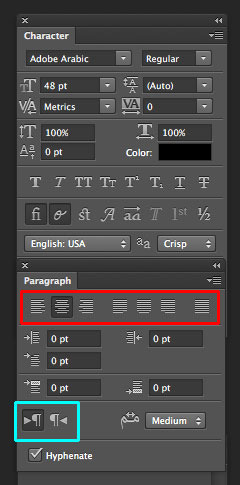
https://d37wxxhohlp07s.cloudfront.net/s3_images/733316/r2l.jpg?1335995842

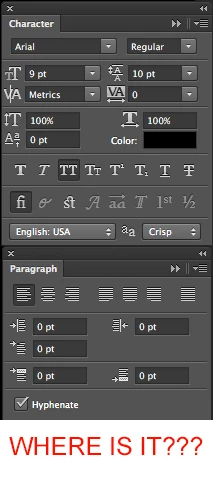
Here is what I have:

Just so you know I hav read this thread, and tried all of the Methods and NONE of them worked for EITHER Operating System.

Also here is a Video for Windows 7 and a video for MAC OS X and the do opposite methods switching to either to East Asian or Middle East(both videos do the oppposite).

This topic has been closed for replies.
Correct answer Eking

Hi there,

I got The answer you were looking for!

1) First of all you should go to Edit => Preferences  => Type

2) In "Choose Text Engine Options" select "Middle Eastern"

3) Close Photoshop and open it again

4) Go to Type => Language Options and select "Middle Eastern Features" !

there you go!

now you will be able to see the Text direction option in "Paragraph" menu.

Enjoy,

Eking.

10 replies

Participant
August 27, 2020

I don't have type either


Emara
Participant
February 12, 2018

Thanks a lot...!

amithak19562875
Participant
September 7, 2017

Thank you for your answer. That helped me too.

Thanks a lot...!

Participant
February 12, 2017

Thank you Veryyyyyyyyy Much

Participant
March 11, 2016

Perfect! Thanks a lot!

Participant
December 17, 2015

I had the same problem.

All you need to do is to re-install the English - Arabic or English - Hebrew version of all your softwares and you will be fine.

Go to the Preferences on the Creative Cloud application.

Then choose the Language English - Arabic or English - Hebrew

and the install all your apps again. Done.

Below is other ways people have solved it.

InDesign CC left-to-right text setting

Participant
December 7, 2019

TNX BRO THAT HELPD ALOT

silk-m
Community Expert
Community Expert
December 7, 2019

Hi,

In Photoshop 2020, the direction button is displayed with the following settings even in “en-US”.


--Susumu Iwasaki
EkingCorrect answer
Participant
August 1, 2014

Hi there,

I got The answer you were looking for!

1) First of all you should go to Edit => Preferences  => Type

2) In "Choose Text Engine Options" select "Middle Eastern"

3) Close Photoshop and open it again

4) Go to Type => Language Options and select "Middle Eastern Features" !

there you go!

now you will be able to see the Text direction option in "Paragraph" menu.

Enjoy,

Eking.

Participant
March 30, 2016

Hello,

I have the same problem and i did all way you have been post but still do not got the Text Direction Button, what i can do?


Type of Machine:

  • HP laptop with original windows 10

what i try to do:

  • I change my language option to middle eastern feature
  • I change language on creative cloud prefrence

Thanks

Participant
January 7, 2017

You can try to re-install your creative cloud software and then install all your required software with the step above.

Goodluck.

Participant
June 12, 2014

I had the exact same problem. Tried switching Text Engines and so on. Nothing worked.

Then I just selected from the menu: Type > Language Options > Middle Eastern Features [Default Features was previously selected] and the orientation button appeared in the text panel [see attached img].

I hope this helps as I still have no clue of the reason this happens.

campbellma
Inspiring
June 12, 2014

I still dont get that I get this:

A Kinosku Set and Mojikumi Set options, with drop down menus and they have NOTHING to do with right to left

I still think it is related to my license being educational.

campbellma
Inspiring
October 17, 2013

I am now thinking it might be a license thing, but I would like someone from Adobe to confirm this (and possible explain why this is). I am a student, and I use the student license, furthermore the Windows 7 PC I was using was a school computer which is using an educational liscense(all of the computers at school which use and Educational Volumne License are missing this Text Direction button). However another student has the full version and has the Text direction, and when he makes files and brings them school, sometimes his files gives an error when he opens it and it says this photohosp file was made with a different text engine, and then procedes to get stuck in RTL. He has Windows 8 PC and the full version of PS CS6, that is the only reason I think of that is different.

Participant
November 26, 2013

I just came across this problem, and here's what i did which solved it:

In Preferences, changed the Text Engine to East Asian and then restarted PS.

Changed it back to Middle Eastern and then restarted PS.

Then Clicked on Middle Eastern Features under Menu > Language Options. Then the buttons appeared.

I hope this helps you.

campbellma
Inspiring
December 4, 2013

The buttons never appear for me at home or in school. Are you using an educational License?

Noel Carboni
Legend
October 15, 2013

I don't have a good idea why you're seeing what you're seeing, but did you try closing/quitting and restarting Photoshop after making the changes in the Preference - Type panel?

For what it's worth, I don't see the right to left or left to right buttons, or that other field to the right of them either.

-Noel

Trevor.Dennis
Community Expert
Community Expert
October 15, 2013

I think this is usually linked to Photoshop> Preferences > Type > Middle eastern & South Asian

If it is checked, turn it off.

campbellma
Inspiring
October 15, 2013

I only have East Asia and Middle East as a option and Tried with both on both computers and niether worked.