Answered

This is a limitation of working with a pixel grid. The main problem is that the line is only 12 pixels long. That’s a very coarse resolution. How can a 12-pixel line be rotated? On a 12x12 grid, a line like that can only look good at multiples of 45 degrees. At any other angle, it’s impossible for the squares to line up exactly so you have to make some decisions. We don’t notice this when the pixel density is so high that our eye thinks the grid disappears into smoothness, but we do notice when the pixel grid is this coarse.
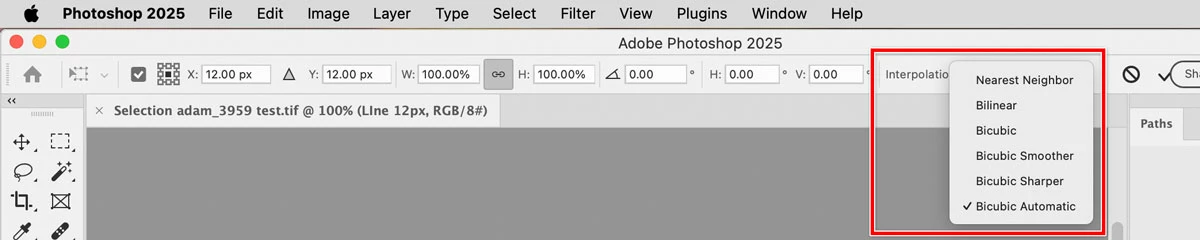
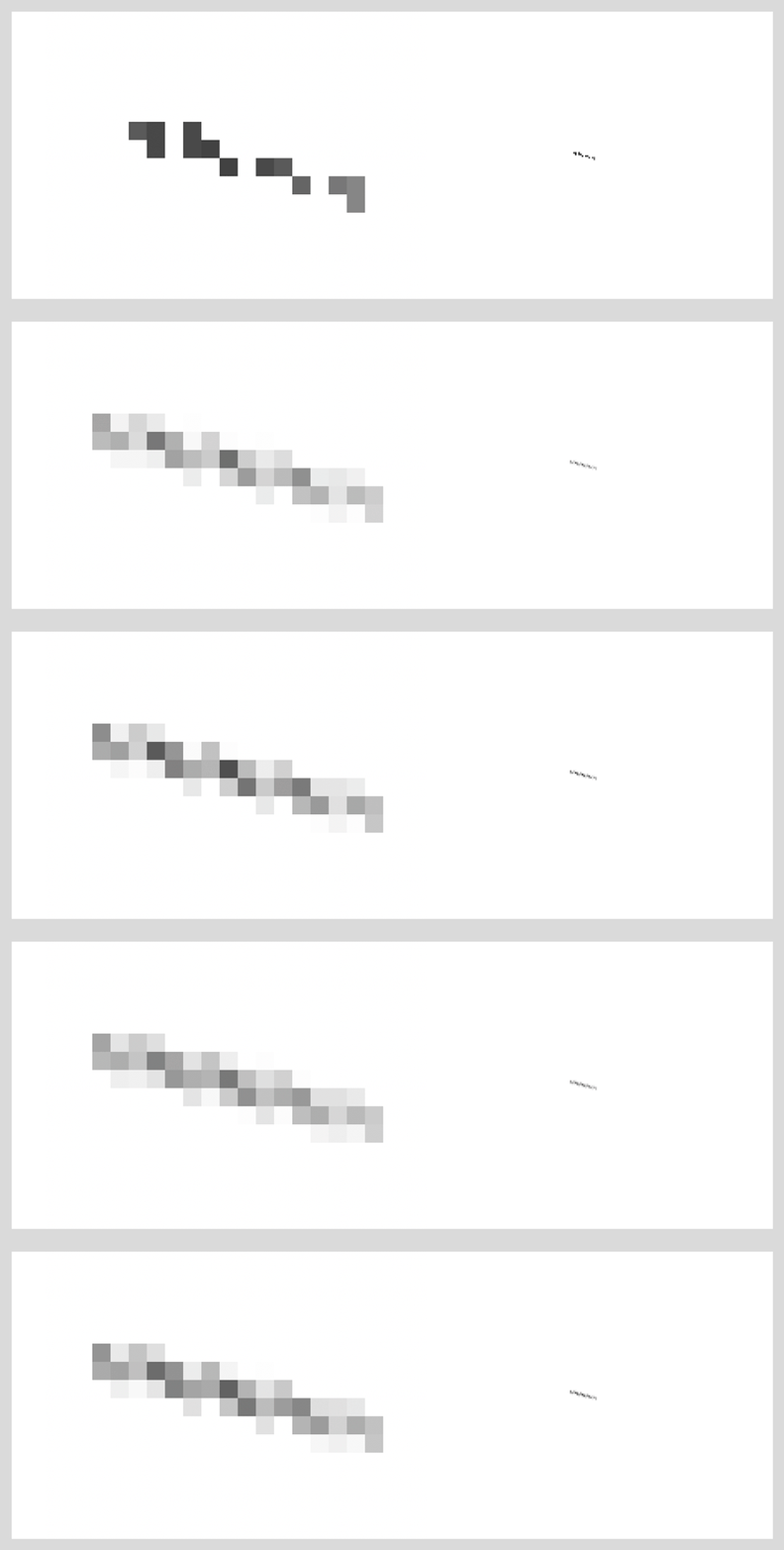
Photoshop already has a way to address this problem. In the example below, I rotated your line -30 degrees using Edit > Free Transform, and I tried different Interpolation methods in the options bar. Those are available when Free Transform is active for a pixel selection.
The demo below shows the results of trying each interpolation method. The reason I show both the magnified pixels and a smaller version on the right is to show what those interpolation methods are designed to do. They are not designed to make the pixels look right at your 3200%, because nobody looks at the pixels that big in the final medium. They’re designed to make the pixels look good at actual size, so that’s why I show the smaller version on the right. You can see how subtle variations in interpoliation and anti-aliasing are different options for using gray shades to trying to optically preserve the shape appearance at the final pixel density. (Nearest Neighbor uses no anti-aliasing, so it fails the most.)
You should pick an interpolation method that makes your line look the best when zoomed back out to the final pixel density.
Also, your second screen shot appears to be in an uncommitted state (Free Transform is adjusted but not yet fully applied), where the final pixels are approximated. The results below are how the rotation is rendered after committing the transformation. I noticed that it doesn’t preview the exact interpolation method until Free Transform is committed.
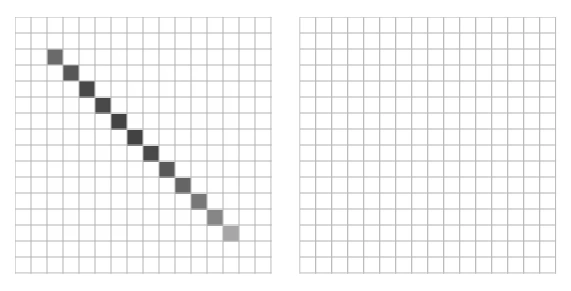
Now, if you think this all looks terrible and the programmers must be idiots, you’re welcome to try to do better. Below is the pixel grid you’re dealing with. In the empty grid on the right, which squares would you fill in to acceptably preserve the look of your line at the final pixel density, at the rotation angle you want? What colors would each of the 12* squares need to be? If you’ve ever played with Legos, you know that if you only have 12 square bricks, curves and most diagonals are almost impossible to reproduce without looking chunky and broken. That’s the challenge. Have fun!
*Keep in mind that on a grid this coarse, if a line starts out at 12 pixels, to make a rotated line look right at different angles you might have to fill in more or fewer than 12 squares. And if you anti-alias your solution you’ll fill in a lot more than 12 squares, as shown in the interpolation examples above.
Because this is just how pixel images work, you’ll find that it works the same way in every other image editor you try, from any software company.
Sign up
Already have an account? Login
To post, reply, or follow discussions, please sign in with your Adobe ID.
Sign inSign in to Adobe Community
To post, reply, or follow discussions, please sign in with your Adobe ID.
Sign inEnter your E-mail address. We'll send you an e-mail with instructions to reset your password.
 AdChoices