
Doc_Pit
Inspiring
April 7, 2025
Answered

Rotation using 3D in Photoshop 18

  • April 7, 2025
  • 3 replies
  • 3413 views

The thrust of my question is this:  Is there any way to rotate a pixel image in Photoshop?  (By "rotate,"  I mean turn it at any angle, not just Image>Image Rotation.) Example: If I have a photographic image of a man facing forward, is there any way to rotate that image, e.g., 20d on the Y axis and 5d on the X axis?  I know that in earlier versions of Photoshop (I believe until v18), it was possible to convert, say, 2D text to a 3D object and rotate it in the 3D module at any angle.  I don't know whether the same could be done with just any photographic element.  Perspective Warp can do that to some extent with geometric images (e.g., buildings), but I haven't been successful in finding a way to get a similar effect with figures (humans, animals).  I'm contemplating installing the earlier v18 and experimenting.  However, if I know it's simply not possible to do that, I would save myself some time.  (I'm assuming the v18 3D module would even work with current hardware.)  Alternatively, is there any third party software that can import a .psd file, rotate an image, then export it back to Photoshop?  Please don't reply: "Take two aspirin and lie down for a while."
Correct answer Conrad_C

Photoshop has several perspective tools, and many of them aren’t the right ones for this task. For example, Perspective Warp is for altering or correcting perspective, but not for introducing it. Some might suggest Vanishing Point, but that’s not the right tool for this either.


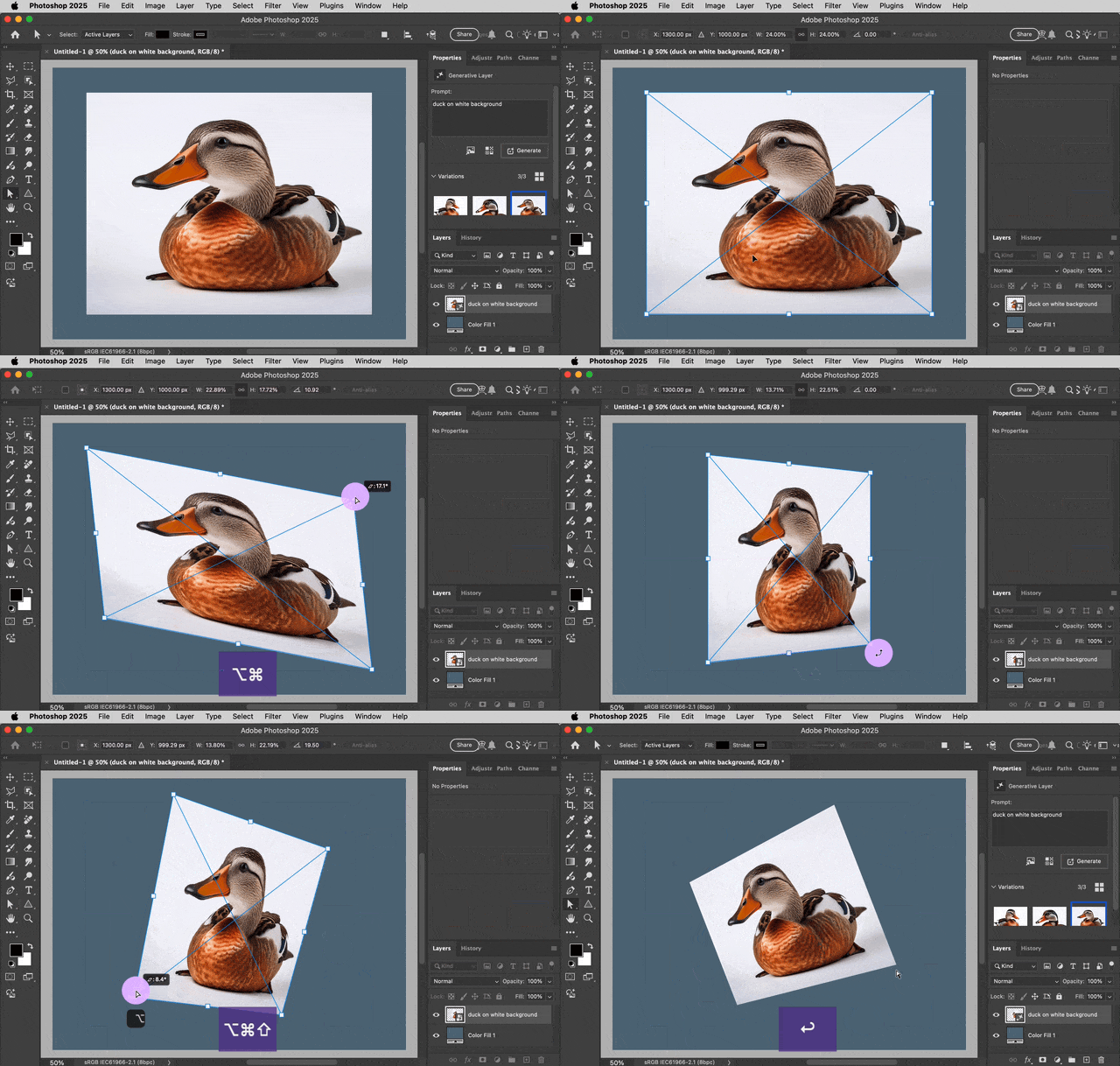
If you’re using a version of Photoshop that doesn’t have the 3D menu, one thing you can do is take advantage of the advanced shortcuts for Free Transform, which I show in the demo below. They should work in your version because they’re not new.


After choosing Edit > Free Transform, when you drag a handle, by default that handle will scale the layer, but by holding down different modifier keys, you can introduce skewing and control whether the edit is proportional along both axes. You can see this by looking in the purple box to see which keys are being held down. Those are icons for the Mac keyboard shortcuts Option, Command, and Shift, so for Windows think of them as Alt, Ctrl, and Shift.


Alt transforms from center, Ctrl introduces skew, and Shift toggles constraining the transformation. You can hold down any combination of those three keys depending on what you want. To rotate, drag slightly outside the transform controls.


If this seems too complicated, the same functions are available individually on the Edit > Transform submenu: Scale, Rotate, Skew, Distort, Perspective. If you find it easier to use the individual commands, that’s OK of course. But then you’d have to keep switching commands depending on what you need to do next. By learning the Free Transform modifier keys, as long as the layer is in Free Transform mode you can use any of those commands at any time without the hassle of having to switch Transform commands all the time.


Normally, before doing this kind of thing, I’ll first convert the layer to a Smart Object so that later edits don’t degrade the layer’s quality. I didn’t do that step for this demo.

3 replies

davescm
Community Expert
Community Expert
April 7, 2025

You can give the impression of a slight rotation using the techniques shown by Conrad above, but to give full rotation you would need to create a 3D model of the person, unwrap it, texture then light and render it. That is beyond the scope of Photoshop even when it had 3D functionality.
For modelling, working purely from a single 2D image would not be enough, as it would not have the information to model and texture those angles hidden from view, which is why 3D scanners take images all around their subject and combine them to make surface models and textures.

Dave

barbara_a7746676
Community Expert
Community Expert
April 7, 2025

Photoshop cannot rotate in three dimensional space as you would like.

Conrad_C
Community Expert
Conrad_CCommunity ExpertCorrect answer
Community Expert
April 7, 2025

Photoshop has several perspective tools, and many of them aren’t the right ones for this task. For example, Perspective Warp is for altering or correcting perspective, but not for introducing it. Some might suggest Vanishing Point, but that’s not the right tool for this either.


If you’re using a version of Photoshop that doesn’t have the 3D menu, one thing you can do is take advantage of the advanced shortcuts for Free Transform, which I show in the demo below. They should work in your version because they’re not new.


After choosing Edit > Free Transform, when you drag a handle, by default that handle will scale the layer, but by holding down different modifier keys, you can introduce skewing and control whether the edit is proportional along both axes. You can see this by looking in the purple box to see which keys are being held down. Those are icons for the Mac keyboard shortcuts Option, Command, and Shift, so for Windows think of them as Alt, Ctrl, and Shift.


Alt transforms from center, Ctrl introduces skew, and Shift toggles constraining the transformation. You can hold down any combination of those three keys depending on what you want. To rotate, drag slightly outside the transform controls.


If this seems too complicated, the same functions are available individually on the Edit > Transform submenu: Scale, Rotate, Skew, Distort, Perspective. If you find it easier to use the individual commands, that’s OK of course. But then you’d have to keep switching commands depending on what you need to do next. By learning the Free Transform modifier keys, as long as the layer is in Free Transform mode you can use any of those commands at any time without the hassle of having to switch Transform commands all the time.


Normally, before doing this kind of thing, I’ll first convert the layer to a Smart Object so that later edits don’t degrade the layer’s quality. I didn’t do that step for this demo.

Doc_Pit
Doc_PitAuthor
Inspiring
April 7, 2025

I never thought of skewing as a form of rotation, but, yes, it does give the impression of a slight rotation, which usually is all I need.  I've worked with the distortion tools, but your response incentivizes me to upgrade my skills.  Many thanks to you, barbara_a, and davescm for your responses.  Over the years, this forum has been a gold mine for me.

Conrad_C
Community Expert
Community Expert
April 7, 2025

I should point out that it isn’t just skewing that provides the 3D rotation effect. It’s more the effect you get by mashing all three keys (Alt, Ctrl, Shift) while dragging a corner handle, which skews the opposite handle in the opposite direction so that it creates that keystone distortion. This is actually the purpose of the command Edit > Transform > Perspective; holding down the three keys in Free Transform mode is of course just the shortcut for that. 


Ultimately, davescm is right that this is just a workaround and doesn’t let you do real 3D things like apply a 3D light to that “rotated” layer if you wanted to.