Exit
  • Global community
    • Language:
      • Deutsch
      • English
      • Español
      • Français
      • Português
  • 日本語コミュニティ
  • 한국 커뮤니티
0

Same hex code generates different color output in two different files. Seemingly same color space.

New Here ,
Nov 19, 2021 Nov 19, 2021

I'm editing a PSD, hex code in question is 1d2c5c

color settings screenshot from that file:
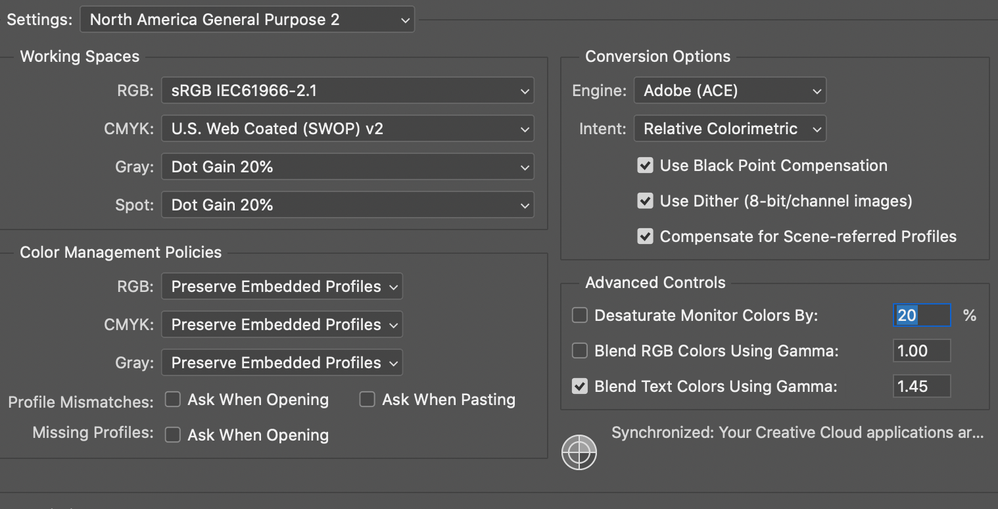
Screen Shot 2021-11-19 at 1.16.06 PM.png

I place that image in a different PSD, hex code when color dropped is now 0f2357, original code of 1d2c5c looks way off.

screenshot of color settings in that file:

Screen Shot 2021-11-19 at 1.18.33 PM.png

This has happened to me several times before when one file is a self-created psd and the other is an image file that I'm editing, but whenever I check the color settings it's always the same settings.

I feel like there has to be something that I'm missing, but I'm not sure what. All of the advice I find is to check color settings, which I have and they're the same.

TOPICS
macOS
3.2K
Translate
Report
Community guidelines
Be kind and respectful, give credit to the original source of content, and search for duplicates before posting. Learn more
community guidelines
Adobe
Community Expert ,
Nov 19, 2021 Nov 19, 2021

Those two screenshots show your default colour settings not the particular colour profile for your two individual documents. To see that look at the bottom left of the Photoshop window and set it to Document Profile.


2021-11-19_19-48-36.jpg


Dave

Translate
Report
Community guidelines
Be kind and respectful, give credit to the original source of content, and search for duplicates before posting. Learn more
community guidelines
New Here ,
Nov 19, 2021 Nov 19, 2021

Ok good to know... Thanks!

Those are the same as well though.

Screen Shot 2021-11-19 at 2.02.42 PM.png

Screen Shot 2021-11-19 at 2.02.54 PM.png

I tried taking the image file that I'd been editing and plopping the layers into a brand new self-created PSD file with the same dimensions (also the same colorspace as the screenshots above) and placed that file where I need it and lo and behold THAT works fine. Still don't understand why two supposedly same colorspace files would generate different results.

Translate
Report
Community guidelines
Be kind and respectful, give credit to the original source of content, and search for duplicates before posting. Learn more
community guidelines
Community Expert ,
Nov 19, 2021 Nov 19, 2021

If the same number produces different colors, the two color spaces are by definition not the same. That's what a color space does - define numbers as specific colors.


If you take screenshots, the original document color space no longer applies. A screenshot is in monitor color space. To bring it correctly into a working document, you need to first assign your monitor profile, then convert into the target color space of the document.


You also need to make sure there actually is a document profile. As long as there is, it will always override your working space.

Translate
Report
Community guidelines
Be kind and respectful, give credit to the original source of content, and search for duplicates before posting. Learn more
community guidelines
Community Expert ,
Nov 19, 2021 Nov 19, 2021

If the two files are reporting that they are using same colorspace but are showing a different result for the same pixel values then one of the documents may have a corrupted colour profile. It would also explain why a third document works OK.


Dave

Translate
Report
Community guidelines
Be kind and respectful, give credit to the original source of content, and search for duplicates before posting. Learn more
community guidelines
Community Expert ,
Nov 20, 2021 Nov 20, 2021

This is pretty much defintiely a color profile issue


neilB

Translate
Report
Community guidelines
Be kind and respectful, give credit to the original source of content, and search for duplicates before posting. Learn more
community guidelines
Community Expert ,
Nov 20, 2021 Nov 20, 2021
LATEST

Could you please post screenshots of both images with the pertinent Panels (Toolbar, Layers, Options Bar, Status Bar, …) visible? 

Translate
Report
Community guidelines
Be kind and respectful, give credit to the original source of content, and search for duplicates before posting. Learn more
community guidelines