
Inspiring
July 12, 2017
Answered

Same vector mask for multiple layer groups.

  • July 12, 2017
  • 2 replies
  • 1990 views

Is there a way to use the same vector mask for multiple layer groups?

I have several groups that are marked as .png so that they automatically export to .png files. I use a separate but identical vector mask for each group. This works, however it's very time-consuming to keep all the masks "in-sync". It would be great to be able to use one vector mask for all the groups. Can this be done?
    This topic has been closed for replies.
    Correct answer c.pfaffenbichler

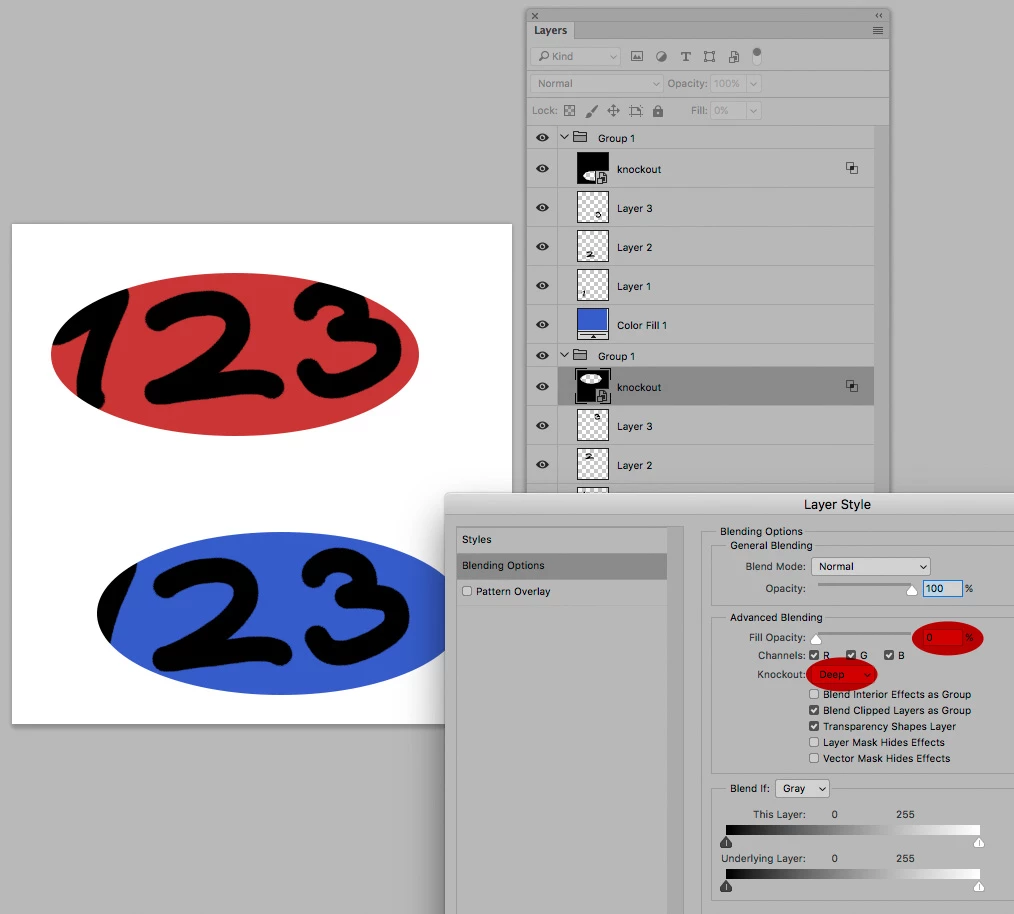
    Sorry, I'm not familiar with Knock-out Layers. Could you please post a screenshot?


    The Group needs to have a Blend Mode other than »Pass Through«.

    2 replies

    davescm
    Community Expert
    Community Expert
    July 12, 2017

    Hi
    Without seeing you layer structure it is hard to see if this would apply but can you not just nest the groups within a larger group and apply the vector mask to that?

    Dave

    Inspiring
    July 12, 2017

    Dave, thank you for the suggestion, but this won't work because I have several groups that are marked as .png so that they automatically export to .png files. So, if I combine those groups into a "super-group" and use a mask on that group, it will be ignored when the .png files are created.

    c.pfaffenbichler
    Community Expert
    Community Expert
    July 12, 2017

    The Smart Object as a Knock-out Layer in Groups (set to Blend Mode other than »Pass Through«) could also work and not cause problems if the Group contains Groups itself.

    rayek.elfin
    Legend
    July 12, 2017

    Well, sort of. Layer masks are quite limited in Photoshop, and the only work-around is to create your vector mask, convert that layer to a smart object, and use that smart object as a clipping mask. To re-use the same mask, duplicate the smart object, and use as a clipping mask again.

    Trouble with this method: in-place, real-time editing of your masks is impossible, which is awkward when you need to precisely edit the mask based on the existing content in the master document.

    One would think the developers would have improved the layer mask system in the second decade of the 21st century (at least allow for instancing layer masks across the layer stack), but nothing really changed since Photoshop 4/5. A shame. Other image editors do a better job now, and Photoshop is left behind in this regard.

    c.pfaffenbichler
    Community Expert
    Community Expert
    July 12, 2017
    Well, sort of. Layer masks are quite limited in Photoshop, and the only work-around is to create your vector mask, convert that layer to a smart object, and use that smart object as a clipping mask. To re-use the same mask, duplicate the smart object, and use as a clipping mask again.

    Another option would be to use a Knockout-Layer instead of a Clipping Mask.