
Participant
May 16, 2021
Answered

Save As choices not showing PNG option

  • May 16, 2021
  • 5 replies
  • 51452 views

I was trying to same my photoshop image as a PNG file.  I saved a file I was working on earlier today in the PNG format but this evening that option was gone.  I updated my photoshop thinking that might have been the problem but it still is not there.  I need to save this image as a PNG format to upload to another company that needs it in that format.  How do I get the PNG format saving option back?
Correct answer jane-e

Hi @paulathorne 

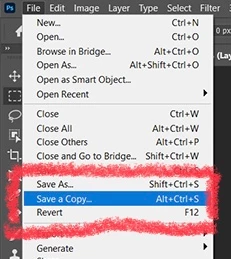
To clarify, it's not "Save as Copy", but rather "Save a Copy". In 22.4, it's here:

~ Jane

5 replies

Participant
December 8, 2023

Hi! I had the same problem... and I discovered that I was trying to save a CMYK format file to a .png format, and that won't work. When I changed the format to RGB the .png option once again displayed. Hope that helps! 😊

Participant
March 17, 2024

I tried that but it's still not showing a transparent background. Please help.

LoKk1_
Participant
June 18, 2021

I found a better solution. This brings back all the new feature to the old ones.
Go to Preferences -> File Management and check on the top right "Enable Previous Save as name" and check the Do not add "copy" etc..
After that you can "save as" like before with PNG and JPEG etc.. showing like before 🙂 Sorry for bad translations I have Italian Client

John Waller
Community Expert
Community Expert
June 18, 2021

That works. Just bear in mind that it works in 22.4.2 where Legacy Save As was introduced.


The original question here arose from an earlier version 22.4 when Save a Copy was first introduced and Legacy Save As did not exist.

Participant
May 17, 2021

The Save A Copy option should be located under File and right under Save As. This is in the newest version recently updated.

KR Seals
Community Expert
Community Expert
May 17, 2021

@paulathorne "Save As" is located in the "File" menu right under "Save".

When I do a Save As, I am seeing PNG as a file format for saving. But if you have any layers, you will not see the PNG format option.

Right under "Save As" you will "Save A Copy " where you will see PNG as a file option. When you do that, PS will flatten the image and save it as a PNG. I just did that and opened it in PS 22.4 and verified the PNG has been flattened with just one layer.

Edited to add: Jane beat me to the answer 🙂

Ken Seals - Nikon Z 9, Z 8, 14mm-800mm. Computer Win 11 Pro, I7-14700K, 64GB, RTX3070TI. Travel machine: 2021 MacBook Pro M1 MAX 64GB. All Adobe apps.
gener7
Community Expert
Community Expert
May 16, 2021

Use the "Save a Copy" button. Click the "more info" button for further details. You might have added a layer that disqualified it from being saved back as a .png I could also suggest flattening the file, but you wouldn't be able to edit it.

Participant
May 17, 2021

I don't see the "Save as Copy" option in the File menu.  Where is that choice located?

jane-e
Community Expert
jane-eCommunity ExpertCorrect answer
Community Expert
May 17, 2021

Hi @paulathorne 

To clarify, it's not "Save as Copy", but rather "Save a Copy". In 22.4, it's here:

~ Jane