
Participating Frequently
August 29, 2013
Answered

Save in file location?

  • August 29, 2013
  • 2 replies
  • 5275 views

Hey all. I'm really confident with actions, but new to scripting. I'm looking write something to 'save as' a file into the open file's location. So whatever file I'm working on, when I run the action or script it will save to the current folder. I haven't found a way to do this with actions so I want to know if I can with scripts.

For example, on the desktop I have a test1 folder and test2 folder. I can record an action to save an open image from test1 to test1, but then open images from test2 go back into test1. My work around right now is another action (file/automate/batch) to run the saving action and open the dialog box where I can direct it where to save.

I appreciate any help.

-Matt
This topic has been closed for replies.
Correct answer JJMack

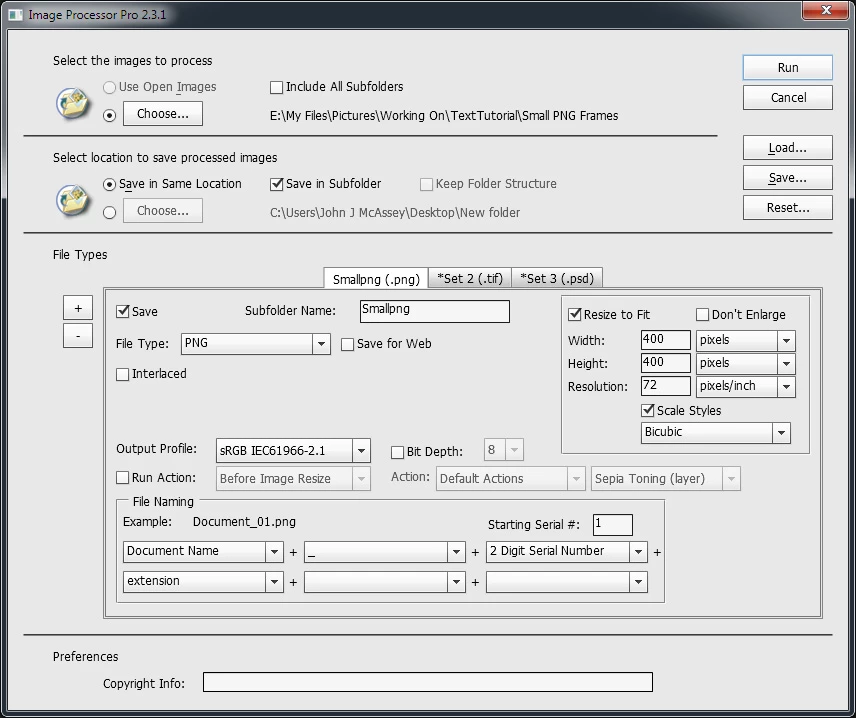
I can think of two scripts that are available that you may want to check out. The Image Processor script that ships with Photoshop found under menu File>Scripts>Image Processor...  The second one you need to download and install. Download is on Russell Browns Web Site. The script name is Image Processor Pro... its a plug-in script once installed you will find it under menu File>Automate>Image Processor Pro.... These scripts can process collection of files from various sources. From the Bridge, Open Documents in Photoshop, or files In a folder or tree.  Output files can be saved to the same location of the document being process associated file.

2 replies

c.pfaffenbichler
Community Expert
Community Expert
August 30, 2013

Does this help?

// 2013, use it at your own risk;

#target photoshop;

if (app.documents.length > 0) {

var thedoc = app.activeDocument;

// getting the name;

var docName = thedoc.name;

try {

var basename = docName.match(/(.*)\.[^\.]+$/)[1];

}

catch (e) {

var basename = docName;

};

//getting the location;

try {

var docPath = thedoc.path;

}

catch (e) {

var docPath = "~/Desktop";

};

// psd options;

psdOpts = new PhotoshopSaveOptions();

psdOpts.embedColorProfile = true;

psdOpts.alphaChannels = true;

psdOpts.layers = true;

psdOpts.spotColors = true;

// check if file of that name exists;

if (File(docPath+"/"+basename+".psd").exists == true) {

var theConfirm = confirm ("file exists; overwrite?", true, "file exists");

if (theConfirm == true) {

thedoc.saveAs((new File(docPath+"/"+basename+".psd")),psdOpts,false);

}

}

else {

//save psd:

thedoc.saveAs((new File(docPath+"/"+basename+".psd")),psdOpts,false);

}

};

//that’s it; thanks to xbytor;

JJMack
Community Expert
Community Expert
August 30, 2013

Most actions that are batched do not open files an only need a Save As if the need to set the file type to be saved.  When the do contain a Save As step these steps are often over road by the batch option.

Input file are from a folder and optionally image file in lower levels, or open file ,or files selected in the bridge, or imported.

Output files may be saved by the action being batch but most to the time it the batch processor that saves the output files. Over riding save as commands or overwriting the input file using the save on close option or saved into an output folder set by the user. For the batch processor can set output file name using user set options.  It hard to name output file well in actions for they cant not use  logic  to retrieve document names and generate output names based on document names.

A script can do just about anything you want to do. One can open files from where ever and save file any where it has write athority.

JJMack
mschuenkeAuthor
Participating Frequently
August 30, 2013

Thanks for the reply. I understand how the batch works, as that is how I have been saving files. Mine is set to use open files and save to a folder, which is where I hit the choose option and select the folder where the open files live. Looks like scripts are the answer because I need to have the save destination be a variable. Something like save to open file location, does that exist in a script?

JJMack
Community Expert
Community Expert
August 31, 2013

I tried out Russell's Processor and it seems like that'll work! Do you happen to know if you can have it overwrite files?

You could try making a feature request to xbytor. He is the person that is maintaining that script. His email is on Dr. Brown's web site where you downloaded Image Processor Pro. Even if he doesn't want to add that feature he may be able to tell you how to modify the script so you can have a local version that overwrites existing files.

If you want to try to modify the script yourself I think if you find the line( around line 8892 )

outfile = ImageProcessor.createUniqueFileName(outfile, saveOpts._saveForWeb);

and add this line right above that line

if(outfile.exists) outfile.remove();

the script will always overwrite.


Just remember if you do delete and replace files you could possible loose something you can not recovered except from backup which you may on may not have.  An other approach would be to rename the original file for possible deletion. Like rename original.ext to original.ext.4deletion. Neither way is ideal for both ways have a problem.

Remember if in a folder there are different file type with like name for example original.jpg and original.PSD and a Image Processor Pro run was setup to save PSD files for image files in that folder.  When the jpeg file is processed the like named psd file would be deleted or renamed by the mod made.. Then a new originalname.PSD would be saved with the modifications made to the jpeg document.  Then that new originalname.PSD would then be processes by the script for that file would be in the list of files to process. So the new originalname.PSD would be opened and processed deleted or renamed and a new new originalname.pds with a different modification would be saved.

What you wind up with using the delete mod is your original.jpg and an originalname.PSD That may be nothing like you wanted and your original layered PSD file was deleted never processed and lost. If you used the rename approach the script should fail during the second rename when it tries to rename the new originalname.PSD to originalname.PSD.4deletion for that file now exists.

If the file list has a different sort order where the psd file is processed first the Layered PSD file still gets deleted and and replaced with the modifications made to the jpeg document a file you wanted and you still have your original jpg file and the original psd file is still lost.  The rename mod should still bomb on the second rename.

There is no easy solution for often you save different file type for an image and you may have then a single folder. Paul's picture processor has a an source image file type filter you may be able to use his processor to filter a source file type extension and save the same file type. Maybe even replacing source files. I have not tested it.

Picture Processor II dialog:

I just did a quick test and Paul's Picture Processor can be used to filter file types and replace the filtered files.

Source folder = target folder jpg to jpg test dialog settings

http://www.ps-bridge-scripts.talktalk.net/

Download Zip File

bridge support

Download Zip File

Message was edited by: JJMack

JJMack