
Participant
June 4, 2024
Answered

Saving an opened image as webp on opened image's folder with medium quality through an action

  • June 4, 2024
  • 1 reply
  • 619 views

[Windows, latest Photoshop version] I am looking to create an action that simply saves the current image that I have opened in Photoshop, saving it as webP [quality amount] , under the [current opened image name].webp and under [current opened image location].
so basically automate the save as WebP function.

[ Long story short - By doing that through recording actions someone was clever enough to create it so that it saves specific name values and specific destinations [In:], which considering what actions do, is questionable that it was made to operate this way. But who I am I to question the product team of Adobe that left it like this for years? ]
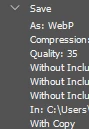

If someone has figured out a way or knows how I can achieve this through an action please feel free to let me know. I will only request if possible to make it an exact answer to this response and not a general referral to different posts, general guides, and scripts, as this is confusing and didn't get me anywhere so far.
[I am not great with technology]

If it's a combined way with scripts + actions, it would be really helpful a step by step process to understand where does the action starts, where does the script comes and at which point the recording stops.

Sorry if this is asking too much but I am really struggling to understand why this is not included in a native way to begin with and therefore we need external ways and walkarounds to make something so simple complicated.

Many thanks in advance and most importantly thank you for your time reading this.

This topic has been closed for replies.
Correct answer Stephen Marsh

At the end of the script, change it from:


DialogModes.ALL


To:


DialogModes.NO


You should receive a prompt to select the output location if the file is unsaved, but if saved then it should just save the WebP version to the same location as the open file (I set an app.beep(); in the script so that you know that it worked). Note that existing WebP files with the same name will be silently overwritten, extra code confirming the overwrite could be added if needed.

1 reply

Stephen Marsh
Community Expert
Community Expert
June 4, 2024

@Bot365887978mbe – You can try this script that I made in another topic:


/*
Save A Copy as WebP.jsx
v1.0 - 19th December 2023, Stephen Marsh
v1.0B - 10th February 2024 - Added a check for RGB mode, otherwise the save would silently fail
https://community.adobe.com/t5/photoshop-ecosystem-discussions/fastest-way-to-exporting-as-webp-in-photoshop/m-p/14304703
*/

#target photoshop

    (function () {

        // Ensure that version 2022 or later is being used
        var versionNumber = app.version.split(".");
        var versionCheck = parseInt(versionNumber);

        // Fail
        if (versionCheck < 23) {
            alert("You must use Photoshop 2022 or later to save using native WebP format...");

        // Pass
        } else {

            // Fail
            if (activeDocument.mode !== DocumentMode.RGB) {
                alert("The current document mode isn't RGB!");

            // Pass
            } else {

                try {
                    var outputPath = activeDocument.path.fsName;
                } catch (e) {
                    var outputPath = Folder.selectDialog("Unsaved file, select the output folder:");
                }
                var WebPDocName = activeDocument.name.replace(/\.[^\.]+$/, '');
                saveWebP(35, false, false, false, new File(outputPath + "/" + WebPDocName + ".webp"), true, true);
                app.beep();
            }
        }

        function saveWebP(quality, includeXMPData, includeEXIFData, includePsExtras, saveTo, copy, lowerCase) {
            function s2t(s) {
                return app.stringIDToTypeID(s);
            }
            var descriptor = new ActionDescriptor();
            var descriptor2 = new ActionDescriptor();
            descriptor2.putEnumerated(s2t("compression"), s2t("WebPCompression"), s2t("compressionLossy"));
            descriptor2.putInteger(s2t("quality"), quality);
            descriptor2.putBoolean(s2t("includeXMPData"), includeXMPData);
            descriptor2.putBoolean(s2t("includeEXIFData"), includeEXIFData);
            descriptor2.putBoolean(s2t("includePsExtras"), includePsExtras);
            descriptor.putObject(s2t("as"), s2t("WebPFormat"), descriptor2);
            descriptor.putPath(s2t("in"), saveTo);
            descriptor.putBoolean(s2t("copy"), copy);
            descriptor.putBoolean(s2t("lowerCase"), lowerCase);
            descriptor.putEnumerated(s2t("saveStage"), s2t("saveStageType"), s2t("saveSucceeded"));
            executeAction(s2t("save"), descriptor, DialogModes.ALL);
        }

    }());


https://prepression.blogspot.com/2017/11/downloading-and-installing-adobe-scripts.html


Participant
June 4, 2024

Hi @Stephen Marsh , thank you so much for your quick response!
I added the script and recorded an action running it. It works great!

May I ask if there is a way to set it to automatically save the image according to the open image name and folder, with a specific quality, without prompting me to verify the save as action manually?

Stephen Marsh
Community Expert
Stephen MarshCommunity ExpertCorrect answer
Community Expert
June 4, 2024

At the end of the script, change it from:


DialogModes.ALL


To:


DialogModes.NO


You should receive a prompt to select the output location if the file is unsaved, but if saved then it should just save the WebP version to the same location as the open file (I set an app.beep(); in the script so that you know that it worked). Note that existing WebP files with the same name will be silently overwritten, extra code confirming the overwrite could be added if needed.