Participant
August 31, 2017
Answered

Scaling an image in video timeline?

  • August 31, 2017
  • 3 replies
  • 21772 views

Hi,

I'm trying to create a video slideshow and I want to scale some images. However I can only change the position of an image and not it's size. Any ideas how to overcome this?

    This topic has been closed for replies.
    Correct answer Vishu_Aggarwal

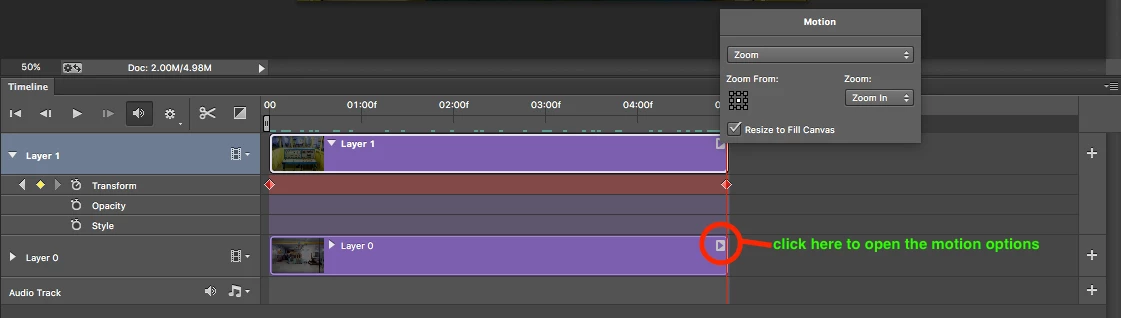
    You can use the motion option (on right side end of each layer )  inside the Photoshop timeline. This option will also convert the layer to Smart object automatically once you choose the ZOOM option or any one of them inside the motion options.

    Screenshot and video for Reference.
    3 replies

    Trevor.Dennis
    Community Expert
    Community Expert
    September 1, 2017

    You shouldn't be having any problems.  If you start with the required document size (I used 1920x1080 here) and select the Motion workspace and create a new video, then Place Embedded each new still, and according to your Preference settings, they will come in as Smart Objects, or normal layers.  You can select and Free Transform any of those layers at any time just as you can with a non-video document.  In this case you can see all three images as I overlapped them around the CTI (Current Time Indicator)

    Photoshop is a terrible program to make slideshows with though.  Even Powerpoint is better.  Now if you could lay your hands on Premiere Pro, that would be a different story!   ProShow Gold does a nice job as well.

    Participant
    September 2, 2022

    I found by converting a video into a smart object to resize flattens the video. Thus, losing the ability to play the video all together. Is there away to resize the video, and keep the video intact?


    For example: I'm creating a marketing IG highlight (1080 x 1920), and I want a video to play as a backdrop of animated text. When I import an mp4 video file, it fits to the width of the artboard format. I want to crop the video to the height to bleed of the artboard. Thanks in advanced!

    c.pfaffenbichler
    Community Expert
    Community Expert
    August 31, 2017

    c.pfaffenbichler
    Community Expert
    Community Expert
    August 31, 2017

    Is the object a Smart Object?

    Then »Transform« should be available in the Timeline Panel.

    Please post a screenshot including all pertinent Panels.

    Participant
    August 31, 2017

    Thanks c.pfaffenbichler

    I tried the image as a smart object before posting but still doesn't work. Also my timeline appears to be different to yours as the word "Transform" is replaced with "Position" whether it is because I'm using PScc I don't know.

    mmmmmmmm?

    thanks anyway

    michelew83603738
    Community Expert
    Community Expert
    August 31, 2017

    On the layers panel itself, convert the object to a Smart Object (right click on the layer or pull down the layer panel menu) and then once it is a Smart Object, just go to Edit>Transform like you would any other image to scale it (or use the shortcut Ctrl/Cmd + T)