
Participant
March 9, 2023
Answered

Scratch disk doesn’t change

  • March 9, 2023
  • 1 reply
  • 1630 views

Hi,


So I've been having the common full scratch disk whilst saving a large project problem. I've had it before, but previously it somehow worked after a few attempts, or clearing a bit of space. This time I've tried multiple things, still doesn't work. My main issue is that I've set my D:\ disk as the scratch disk which has nearly 400 gb on it, but for some reason when I'm saving my file it still uses  C:\ as scratch, as the memory keeps going down on it rather than D:\. I have just under 30gb on my C:\ and that's after clearing some space, but it's still not enough, and to be honest it shouldn't even be using this space if it's set to scratch D, right?


Has anyone encountered this previously? I tried re-setting all preferences, setting both disks as scratch disks, restarting my laptop, and even reinstalling PS, nothing helped. I'm running on Windows 11 with PS version 24.2 (just updated).
This topic has been closed for replies.
Correct answer D Fosse

Why is it so awkward haha. Unfortunately my C drive is only 100gb so it's pretty difficult to keep it higher. I assume if my temp files for Adobe were re-routed to my D drive this should solve it, right?


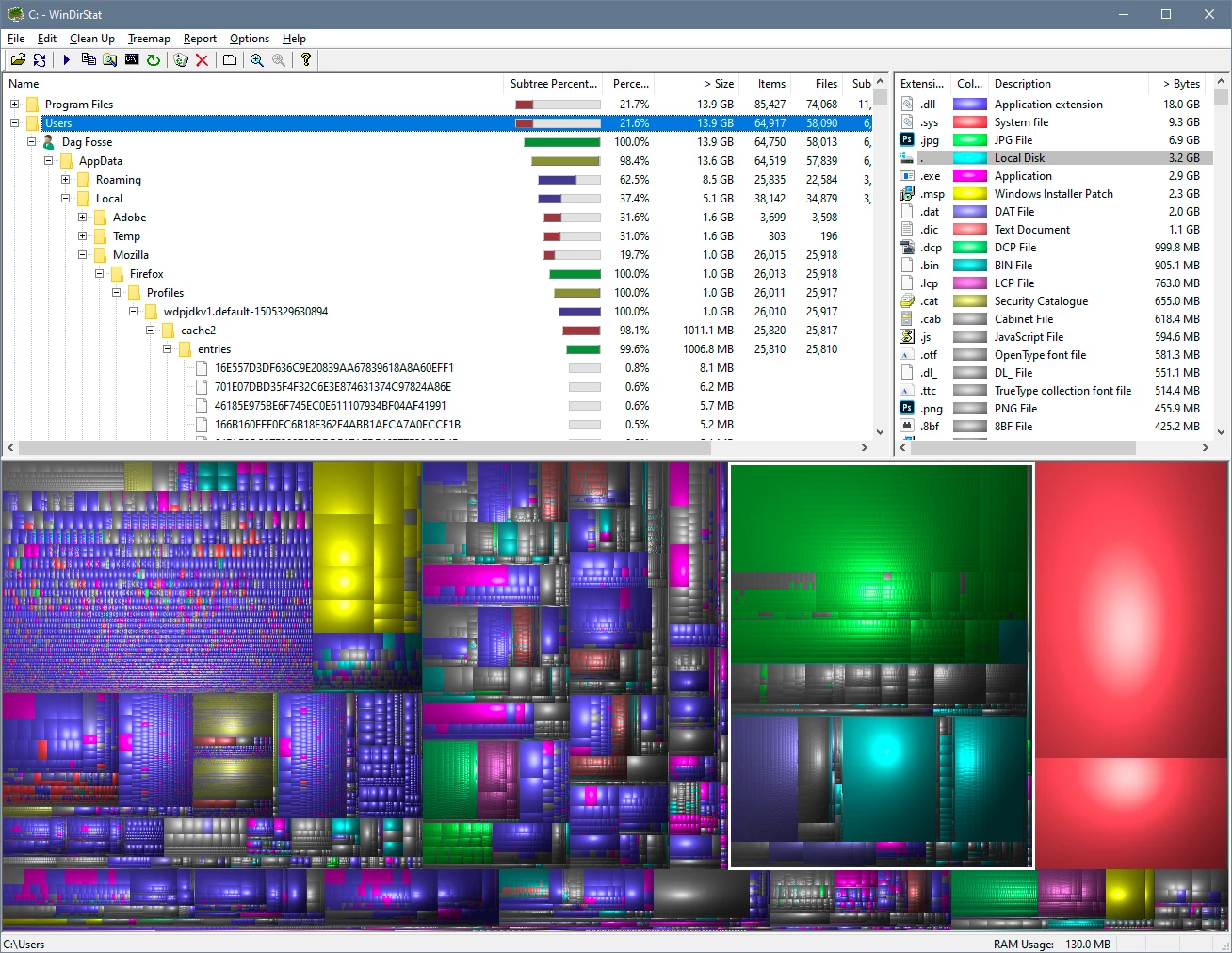
If you really want to clear house, download WinDirStat (free):


You can disable hibernation in Windows, that's the big red blobs gone. You should also move the Bridge cache to D. Depending on how big your archive is, that can be several 10s of GB right there. And then you can possibly also look at moving system TEMP.


What you should probably not do, is install applications on D. There isn't much to save on that, but some possible problems. The user account will always be on C, and large parts of the installation go there regardless.

1 reply

Ged_Traynor
Community Expert
Community Expert
March 9, 2023

Hi

That error message is not related to the scratch disk, how large is the file you're trying to save, Photoshop is telling you there's not enough space to save the file to location you're trying to save it too, with under 30GB of free space on the C drive you should really try to free up more space on the C drive or start saving your files to the D drive

Participant
March 9, 2023

I wish that was the case haha, as I am indeed saving it to my D drive. I'm trying to save a large .PDF file for print. I'm literally refreshing and watching my memory slowly go down in my C disk as it's saving, even tho I'm saving it to my D disk. As soon as memory runs out in my C disk, I get that error and the memory reappears.

D Fosse
Community Expert
Community Expert
March 9, 2023

Photoshop uses what is known as "safe save" procedure, which means that a copy is first saved to the system TEMP directory, and when this is complete and checked, the original is replaced.


The system TEMP directory is normally on your system drive (I suppose it's possible to move it, but under most circumstances there's no need to).


So you're back to where you started. You just need to clear out more space.


This is independent from the scratch disk. The same applies to smart objects: when open, they are stored in system TEMP.