
Inspiring
March 4, 2022
Answered

Scratch disk not reflecting actual space available

  • March 4, 2022
  • 4 replies
  • 990 views

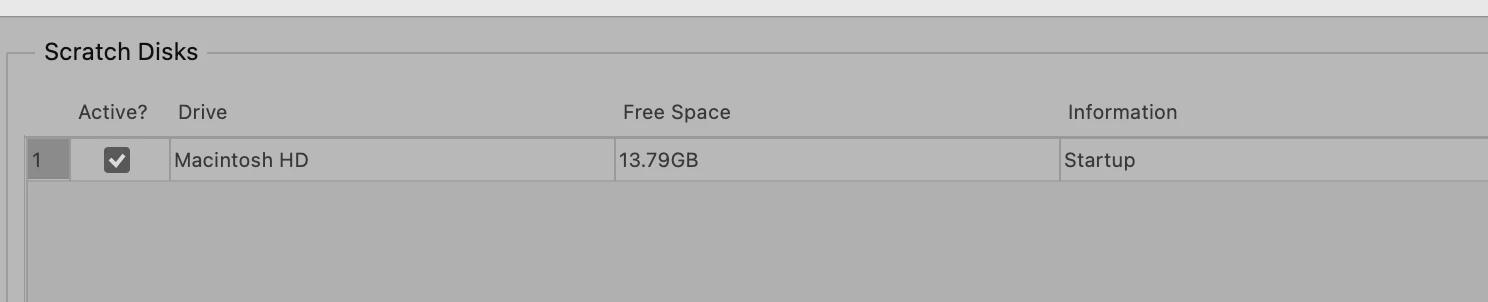
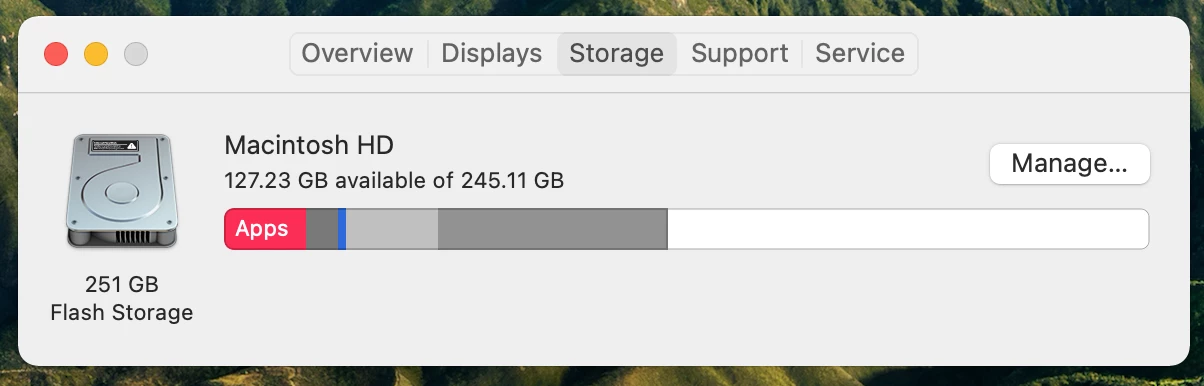
Getting "scratch disk full" messages in photoshop constantly. Photoshop telling me there's usually between 8-13gb of space (Macintosh HD), about this mac says there's 127gb free space. How do I rectify this?
  

This topic has been closed for replies.
Correct answer StaceyMortensen

I updated from Big Sur to Monterey and that fixed the problem. In case anyone else looking for an answer finds this thread. I now have 144gb free space for the scratch disks. No external hard drives required. 

4 replies

Brad @ Roaring Mouse
Community Expert
Community Expert
March 7, 2022

You are experiencing the difference between actual free space and purgeable free space.

When you look at what's Available in Disk Utility (or simply getting Information (Cmd-I) on the drive on the desktop), what you are seeing is the "potential" free space, which is the sum of the "actual" free space + "purgeable" (what Apple's OS could glean if it purges unnecessary "stuff"). Time Machine snapshots can be part of that, as mentioned, but it's not the whole story.

Unfortunately for you, Photoshop can only make scratch disks out of REAL free space.

In your case...

...your reported "Available" is the total of actual free space and the purgeable, so 117 less 112 equals about 9 GB.


There are some utilities out there that can help clean out some of this purgeable data, and you can help a bit by selecting Manage.

The bad news here is that your drive is actually starting to get full, so unless you have an external to act as a second Scratch Disk, you're situation is not going to get better unless you start removing things.


Legend
March 7, 2022

Also understand that a computer with 8GB of physical RAM is going to need more scratch disk space than one with 16GB. My suggestion is to get an external hard drive, both for backups and for more breathing room.

Conrad_C
Community Expert
Community Expert
March 4, 2022

You may be running into a quirk with how macOS reports free space for APFS volumes, especially if local Time Machine snapshots exist. Read the following articles and see if deleting some old local snapshots both frees up more space, and maybe brings the two different free space amounts closer together.


Explainer: Disk free space – this explains why a Mac might report multiple, different amounts of free space simultaneously.


Managing snapshots: how to stop them eating free space


Inspiring
March 4, 2022

Thank you. I'm trying to see if there are any snapshots I can delete but I'm not seeing anything.


Conrad_C
Community Expert
Community Expert
March 5, 2022

The snapshots list doesn’t seem to be displayed. Make sure you have chosen View > Show APFS Snapshots.


Inspiring
March 4, 2022

Hi!

I'm using Photoshop 2022 23.2.1 and macOS Big Sur 11.1

I didn't have any documents open when checking the scratch disk space.

I updated the permissions and restarted as per your instructions and nothing changed.


Sameer K
Community Manager
Community Manager
March 4, 2022

Hi there,


Thanks for reaching out. Sorry for the trouble with Photoshop. We are here to help.

 Could you please confirm the version of Photoshop you are working on along with the exact version of the operating system you are working on? Are you seeing 13GB available in Photoshop when you have any documents open in Photoshop, or there are no documents open when you are checking the scratch disk?


From launching Photoshop to opening documents, the scratch space Photoshop reserves can temporarily grow. If you have any documents open please close them and then check Scratch Disk in Preferences.

Please ensure Photoshop has required permissions to access the storage of your macOS machine by following these steps:

  1.  Go to the System Preferences for your Mac, then Security and Privacy, then select the Privacy tab.  
  2. Then select Accessibility from the list to the left & check if Photoshop is added to the list with a checkmark in front of it.  
  3. If Photoshop is not a part of the list, please add it by unlocking the window first using the lock at the bottom left, then clicking the + Icon & navigating to the Applications folder.  
  4. Also, grant permissions to Photoshop under Full disk access found in the same list as Accessibility.

5. Once done, restart the Mac & check if it helps.


Please let us know if this helps.

Regards,

Sameer K
