Participant
August 23, 2025
Answered

Script to export multiple images from image selection in psd

  • August 23, 2025
  • 2 replies
  • 618 views

Hi everyone, hope you are all well!


I have been assigned to make layoutfiles from scanned contactsheets.

This process, if done manually, is very time consuming.


My current workflow is the following:

1. Open up contactsheet

2. Make selection of first image on contactsheet

3. Crop

4. Save as new file

5. Go one step back

6. Make selection of next image

7. Crop

8. Save as new file

And then just eat sleep repeat... I am currently doing this to a lot of contactsheet.


Does anyone have any sugestions to a better workflow?


I thought of a possible script where I could manually select all images in the ps file and then export all of these selections as individual files. Would this be possible?

I have a lot more to go so I am available if there are any questions to the process..


I hope anyone out there can help me.


Kind regards

Magny, dk


Correct answer Stephen Marsh

@Hans2552601244ud 


Here is a script to save each path defined area as a separate PSD file.


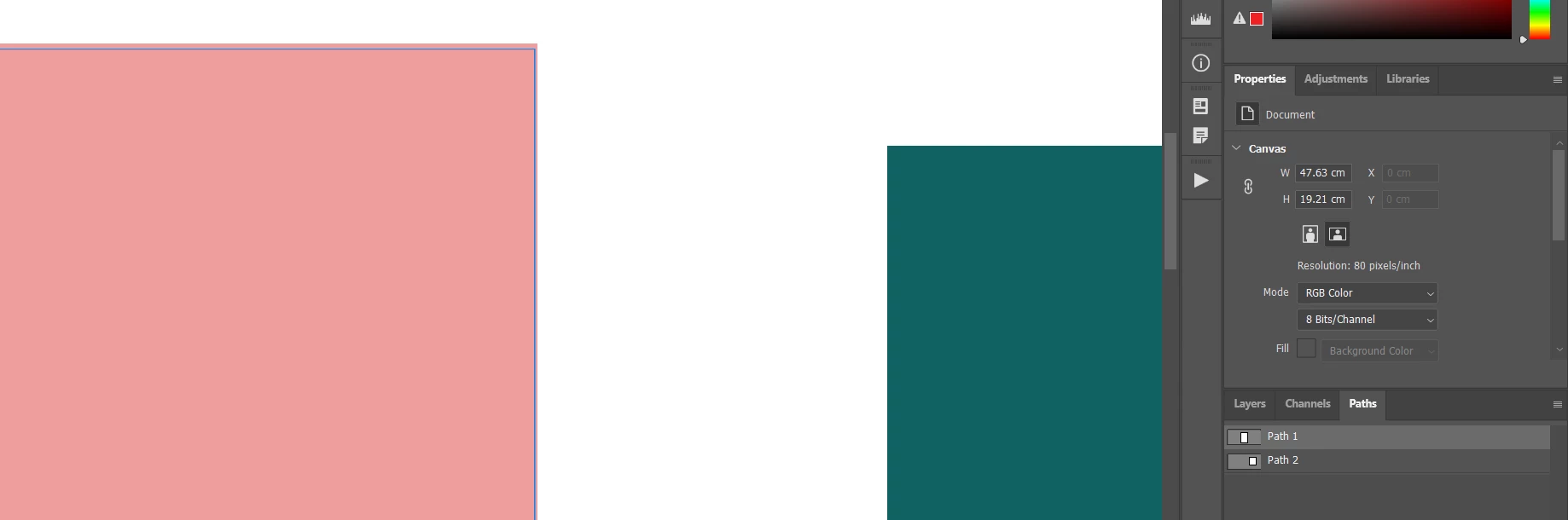
Here you can see that each path defines the area to crop and save as an image:


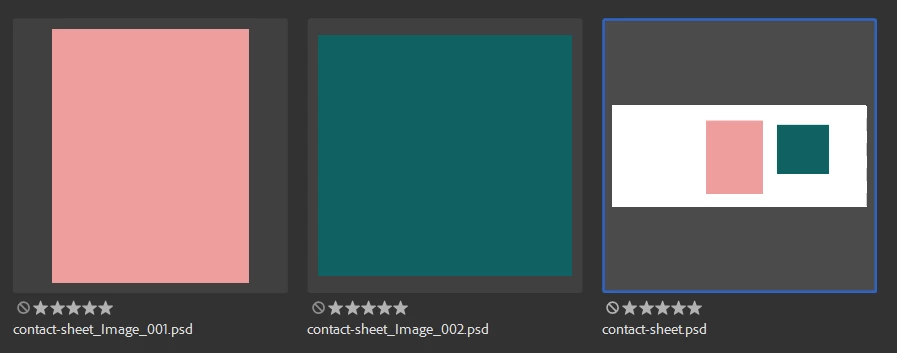
Here are thumbs of the original file and the output:


/*
Save Multiple Path Defined Areas As Separate Files.jsx
Stephen Marsh
v1.0 - 27th August 2025: Initial release
https://community.adobe.com/t5/photoshop-ecosystem-discussions/script-to-export-multiple-images-from-image-selection-in-psd/td-p/15472805
*/

#target photoshop

if (!documents.length) {
    alert("A document must be open to run this script!");
    exit();
}

var origDoc = app.activeDocument;
var normalPaths = [];

// Determine save folder: use doc path or default to desktop
var saveFolder;
if (origDoc.fullName) {
    saveFolder = origDoc.fullName.parent;
} else {
    saveFolder = Folder.desktop;
}

// Collect all normal paths
for (var i = 0; i < origDoc.pathItems.length; i++) {
    var path = origDoc.pathItems[i];
    if (path.kind == PathKind.NORMALPATH) {
        normalPaths.push(path);
    }
}

if (normalPaths.length === 0) {
    alert("Script aborted - no saved normal paths found!");
    exit();
}

var savedCount = 0;

// Loop through each path and process
for (var j = 0; j < normalPaths.length; j++) {
    var pathName = normalPaths[j].name;
    var tempDoc = origDoc.duplicate();
    tempDoc = app.activeDocument;
    try {
        tempDoc.pathItems.getByName(pathName).select();
    } catch (e) {
        alert("Could not select path: " + pathName);
        tempDoc.close(SaveOptions.DONOTSAVECHANGES);
        continue;
    }
    setSelectionToActivePath();
    crop();
    removeAllPaths(tempDoc);
    // Sequential numbering padded to 3 digits
    var seqNum = ("000" + (savedCount + 1)).slice(-3);
    var docBaseName = origDoc.name.replace(/\.[^\.]+$/, ""); // Remove extension
    var savePSDName = File(saveFolder + "/" + docBaseName + "_Image_" + seqNum + ".psd");
    // Save
    savePSD(savePSDName);
    savedCount++;
    tempDoc.close(SaveOptions.DONOTSAVECHANGES);
}

// End of script notification
app.beep();
alert("Script completed!" + "\n" + savedCount + " PSD files saved to:" + "\n" + saveFolder.fsName);


///// Functions /////

function setSelectionToActivePath() {
    try {
        var c2t = function (s) { return app.charIDToTypeID(s); };
        var s2t = function (s) { return app.stringIDToTypeID(s); };
        var descriptor = new ActionDescriptor();
        var reference = new ActionReference();
        var reference2 = new ActionReference();
        reference.putProperty(s2t("channel"), s2t("selection"));
        descriptor.putReference(c2t("null"), reference);
        reference2.putEnumerated(s2t("path"), s2t("ordinal"), s2t("targetEnum"));
        descriptor.putReference(s2t("to"), reference2);
        descriptor.putInteger(s2t("version"), 1);
        descriptor.putBoolean(s2t("vectorMaskParams"), true);
        executeAction(s2t("set"), descriptor, DialogModes.NO);
    } catch (e) {
        alert("Selection from path function error: " + e);
    }
}

function crop() {
    try {
        var s2t = function (s) { return app.stringIDToTypeID(s); };
        var descriptor = new ActionDescriptor();
        descriptor.putBoolean(s2t("delete"), true);
        executeAction(s2t("crop"), descriptor, DialogModes.NO);
    } catch (e) {
        alert("Crop function error: " + e);
    }
}

function removeAllPaths(doc) {
    try {
        for (var i = doc.pathItems.length - 1; i >= 0; i--) {
            doc.pathItems[i].remove();
        }
    } catch (e) {
        alert("Error removing paths: " + e);
    }
}

function savePSD(saveFile) {
    var psdSaveOptions = new PhotoshopSaveOptions();
    psdSaveOptions.embedColorProfile = true;
    psdSaveOptions.alphaChannels = true;
    psdSaveOptions.layers = true;
    psdSaveOptions.spotColors = true;
    activeDocument.saveAs(saveFile, psdSaveOptions, true, Extension.LOWERCASE);
}


  1. Copy the code text to the clipboard
  2. Open a new blank file in a plain-text editor (not in a word processor)
  3. Paste the code in
  4. Save as a plain text format file – .txt
  5. Rename the saved file extension from .txt to .jsx
  6. Install or browse to the .jsx file to run (see below)

https://prepression.blogspot.com/2017/11/downloading-and-installing-adobe-scripts.html


2 replies

Stephen Marsh
Community Expert
Stephen MarshCommunity ExpertCorrect answer
Community Expert
August 27, 2025

@Hans2552601244ud 


Here is a script to save each path defined area as a separate PSD file.


Here you can see that each path defines the area to crop and save as an image:


Here are thumbs of the original file and the output:


/*
Save Multiple Path Defined Areas As Separate Files.jsx
Stephen Marsh
v1.0 - 27th August 2025: Initial release
https://community.adobe.com/t5/photoshop-ecosystem-discussions/script-to-export-multiple-images-from-image-selection-in-psd/td-p/15472805
*/

#target photoshop

if (!documents.length) {
    alert("A document must be open to run this script!");
    exit();
}

var origDoc = app.activeDocument;
var normalPaths = [];

// Determine save folder: use doc path or default to desktop
var saveFolder;
if (origDoc.fullName) {
    saveFolder = origDoc.fullName.parent;
} else {
    saveFolder = Folder.desktop;
}

// Collect all normal paths
for (var i = 0; i < origDoc.pathItems.length; i++) {
    var path = origDoc.pathItems[i];
    if (path.kind == PathKind.NORMALPATH) {
        normalPaths.push(path);
    }
}

if (normalPaths.length === 0) {
    alert("Script aborted - no saved normal paths found!");
    exit();
}

var savedCount = 0;

// Loop through each path and process
for (var j = 0; j < normalPaths.length; j++) {
    var pathName = normalPaths[j].name;
    var tempDoc = origDoc.duplicate();
    tempDoc = app.activeDocument;
    try {
        tempDoc.pathItems.getByName(pathName).select();
    } catch (e) {
        alert("Could not select path: " + pathName);
        tempDoc.close(SaveOptions.DONOTSAVECHANGES);
        continue;
    }
    setSelectionToActivePath();
    crop();
    removeAllPaths(tempDoc);
    // Sequential numbering padded to 3 digits
    var seqNum = ("000" + (savedCount + 1)).slice(-3);
    var docBaseName = origDoc.name.replace(/\.[^\.]+$/, ""); // Remove extension
    var savePSDName = File(saveFolder + "/" + docBaseName + "_Image_" + seqNum + ".psd");
    // Save
    savePSD(savePSDName);
    savedCount++;
    tempDoc.close(SaveOptions.DONOTSAVECHANGES);
}

// End of script notification
app.beep();
alert("Script completed!" + "\n" + savedCount + " PSD files saved to:" + "\n" + saveFolder.fsName);


///// Functions /////

function setSelectionToActivePath() {
    try {
        var c2t = function (s) { return app.charIDToTypeID(s); };
        var s2t = function (s) { return app.stringIDToTypeID(s); };
        var descriptor = new ActionDescriptor();
        var reference = new ActionReference();
        var reference2 = new ActionReference();
        reference.putProperty(s2t("channel"), s2t("selection"));
        descriptor.putReference(c2t("null"), reference);
        reference2.putEnumerated(s2t("path"), s2t("ordinal"), s2t("targetEnum"));
        descriptor.putReference(s2t("to"), reference2);
        descriptor.putInteger(s2t("version"), 1);
        descriptor.putBoolean(s2t("vectorMaskParams"), true);
        executeAction(s2t("set"), descriptor, DialogModes.NO);
    } catch (e) {
        alert("Selection from path function error: " + e);
    }
}

function crop() {
    try {
        var s2t = function (s) { return app.stringIDToTypeID(s); };
        var descriptor = new ActionDescriptor();
        descriptor.putBoolean(s2t("delete"), true);
        executeAction(s2t("crop"), descriptor, DialogModes.NO);
    } catch (e) {
        alert("Crop function error: " + e);
    }
}

function removeAllPaths(doc) {
    try {
        for (var i = doc.pathItems.length - 1; i >= 0; i--) {
            doc.pathItems[i].remove();
        }
    } catch (e) {
        alert("Error removing paths: " + e);
    }
}

function savePSD(saveFile) {
    var psdSaveOptions = new PhotoshopSaveOptions();
    psdSaveOptions.embedColorProfile = true;
    psdSaveOptions.alphaChannels = true;
    psdSaveOptions.layers = true;
    psdSaveOptions.spotColors = true;
    activeDocument.saveAs(saveFile, psdSaveOptions, true, Extension.LOWERCASE);
}


  1. Copy the code text to the clipboard
  2. Open a new blank file in a plain-text editor (not in a word processor)
  3. Paste the code in
  4. Save as a plain text format file – .txt
  5. Rename the saved file extension from .txt to .jsx
  6. Install or browse to the .jsx file to run (see below)

https://prepression.blogspot.com/2017/11/downloading-and-installing-adobe-scripts.html


Stephen Marsh
Community Expert
Community Expert
August 23, 2025

You can select each contact sheet image, then Ctrl/Cmd + Shift + J to a new layer, then go back to the original layer and reapeat. Then select all the required layers in the layers panel, right-click and then Export As, or use Export Layers to Files or other scripts to do the same.


For scripting, yes, the multiple selections can be converted to a path, then a script can then identify and work with each path separately. Here's an example that could be modified:


https://community.adobe.com/t5/photoshop-ecosystem-discussions/how-do-i-seperate-subjects-into-different-seperate-files-automatically/m-p/14449644


That being said, have you looked at fhe Crop & Straighten Photos command as an alternative (hopefully it will not try to straighten)?

Participant
August 24, 2025

Hi

Yes, I tried the Crop & Straighten Photos command and it is quite random. So that is not the answer..


Thank you for the tip on exporting the layers..

I think I will have to go with that solution as I have not been able to get the script to work properly.


Kind regards

Magny


Stephen Marsh
Community Expert
Community Expert
August 24, 2025

That script was just an example of the general concept, it would require modifications for your particular case.


Can you provide one or more examples of the files that you're working on?


Is the layout consistent? Do all of the contact sheets have the same number of columns and rows and the same size thumbnails and orientation?