Known Participant
March 22, 2017
Answered

Seeking advice on blending two images
  • March 22, 2017
  • 2 replies
  • 1073 views

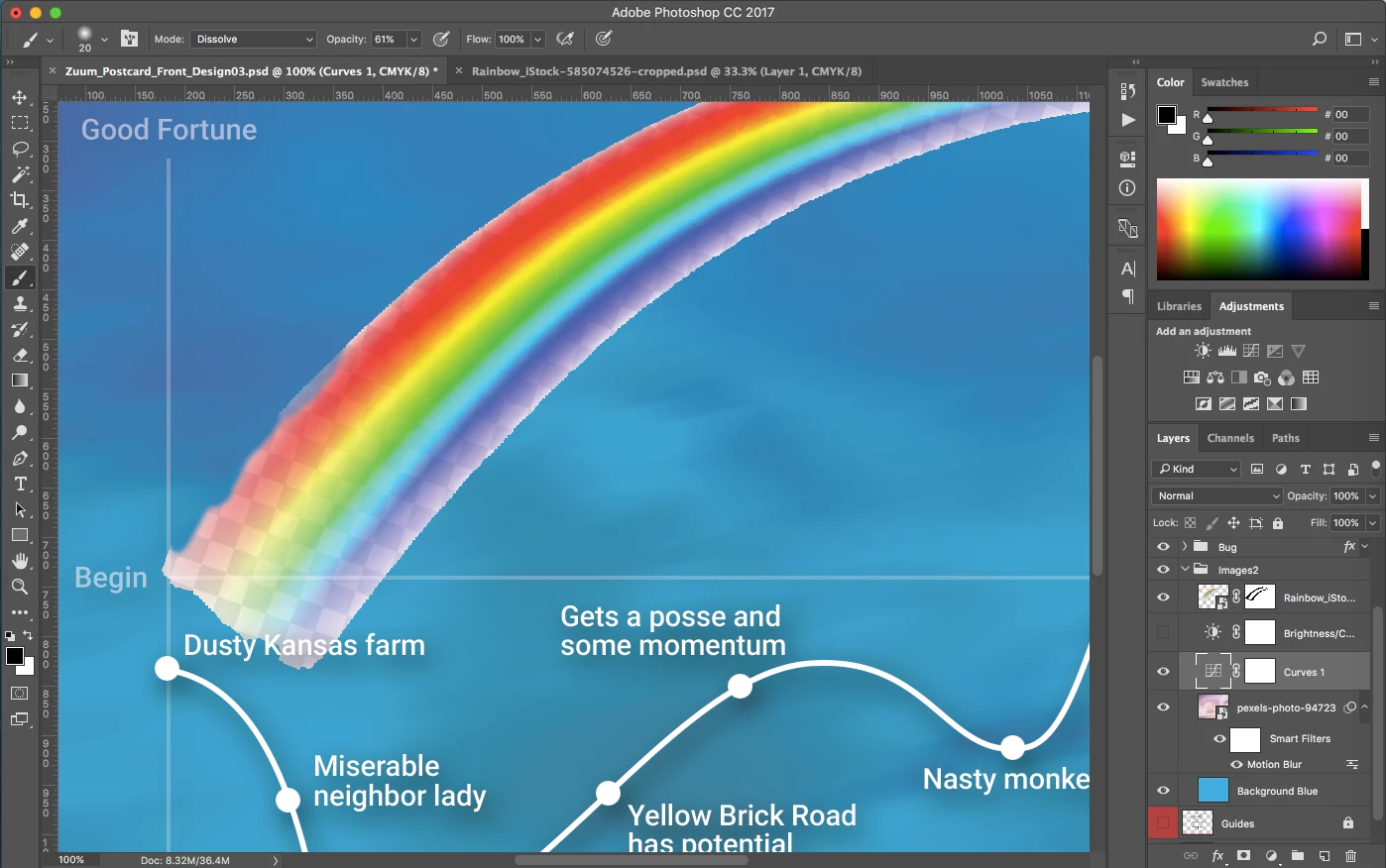
Per this screen grab of my workspace, I’m trying to blend the rainbow into the sky.

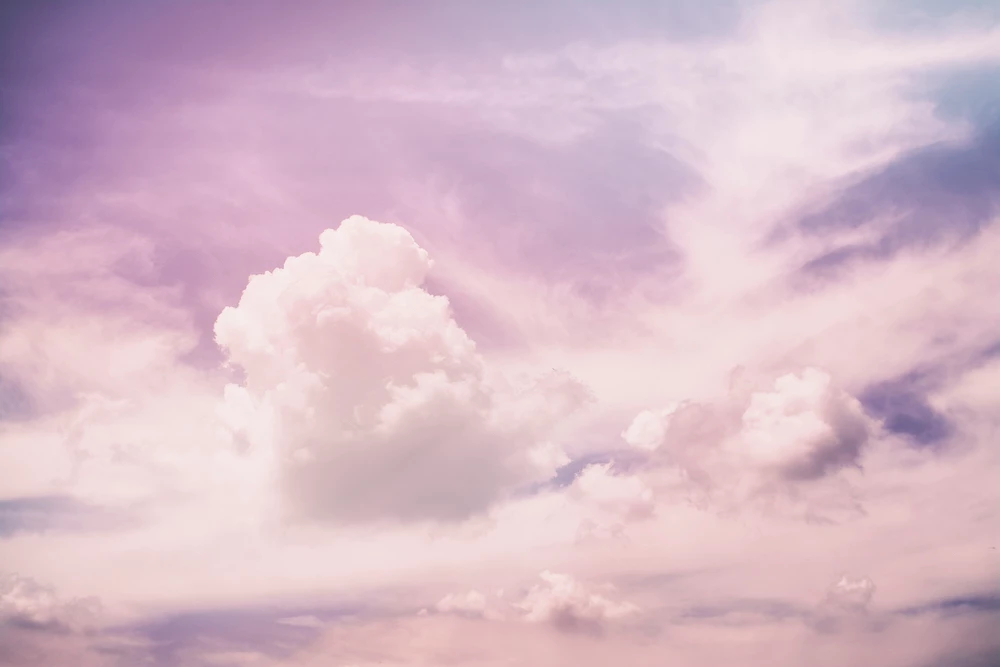
Sky image (resized for uploading) So far I've used motion blur, curves and the Background Blue layer to modify the cloud background image below into the above look.
From there, I’m trying to make the rainbow look like part of the sky. The rainbow image was uploaded from an EPS file. I thought the EPS had a transparent background, indicated by the checkerboard background on both the original image and the imported image. But the checkerboard is obviously showing through and blocking the sky. Did I do something wrong in bringing in that original EPS file? If the rainbow image was truly transparent, then it would be easier to blend into the sky image.


My other question would be the best place in the Layers window to put the Background Blue layer, and the ideal setting for it to tint the entire piece light blue. I'm assuming the cloud and rainbow images should be blended first, and then the blue brought in, all though I'd like to make sure the blue doesn't override the rainbow colors.

Greatly appreciate anyone's input on this.
This topic has been closed for replies.
Correct answer Trevor.Dennis

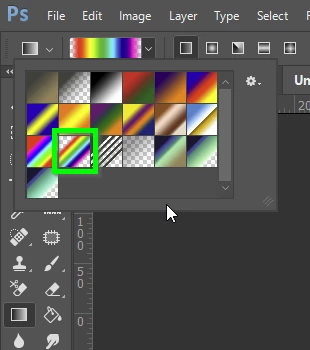
I'm wondering if you know there is an excellent tool for making rainbows in Photoshop using this Gradient preset?

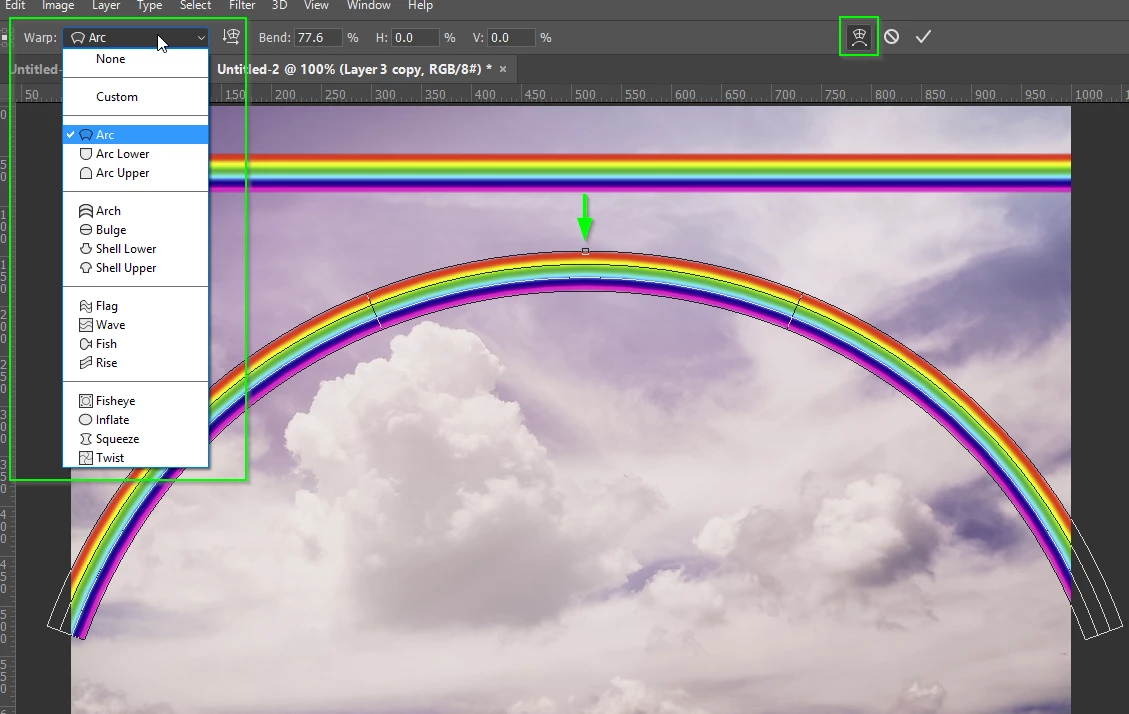
Dragging vertically to give you the thickness will produce the straight rainbow, which can be warped with Free Transform.  Then click on the Warp icon (top right) and then the warp options (top left) and choose Arc.  Drag to get the required arc with the centre handle, and give it some Gaussian blur and adjust opacity.

This will eliminate those nasty aliasing artifacts in your screen shot.

2 replies

Trevor.Dennis
Community Expert
Trevor.DennisCommunity ExpertCorrect answer
Community Expert
April 4, 2017

I'm wondering if you know there is an excellent tool for making rainbows in Photoshop using this Gradient preset?

Dragging vertically to give you the thickness will produce the straight rainbow, which can be warped with Free Transform.  Then click on the Warp icon (top right) and then the warp options (top left) and choose Arc.  Drag to get the required arc with the centre handle, and give it some Gaussian blur and adjust opacity.

This will eliminate those nasty aliasing artifacts in your screen shot.

_d_2Author
Known Participant
April 5, 2017

I did not know that, but thank you for that information. I'm definitely going to try!

Inspiring
March 22, 2017

You need to use a good quality png of rainbow in tthis image like i have done it.The image you are using have broken pixels which is not looking good at all.

And if you want to put the graph part you have to cut out separately.Let me know the outcome.

_d_2Author
Known Participant
April 4, 2017

Thanks, Bahaar.

If I take the EPS doc and convert it to a PNG with a transparent background, then bring that into PS, that should work, correct?

I'm curious about when you say the image I'm using has broken pixels. I'm not sure what you mean by that.

Thanks for your help!