
Participating Frequently
January 23, 2023
Question

Select and mask glitch problem

  • January 23, 2023
  • 3 replies
  • 1298 views

Hi,

I'm using photoshop CC 2023 on macOS Ventura 13.1.

I've been having this issue for a while and it really makes my work harder.

When use the Select and Mask tool, with the refine edge brush (I tried changing the brush size but nothing works), I always get a lot of glitches like you can see on the screenshot below.
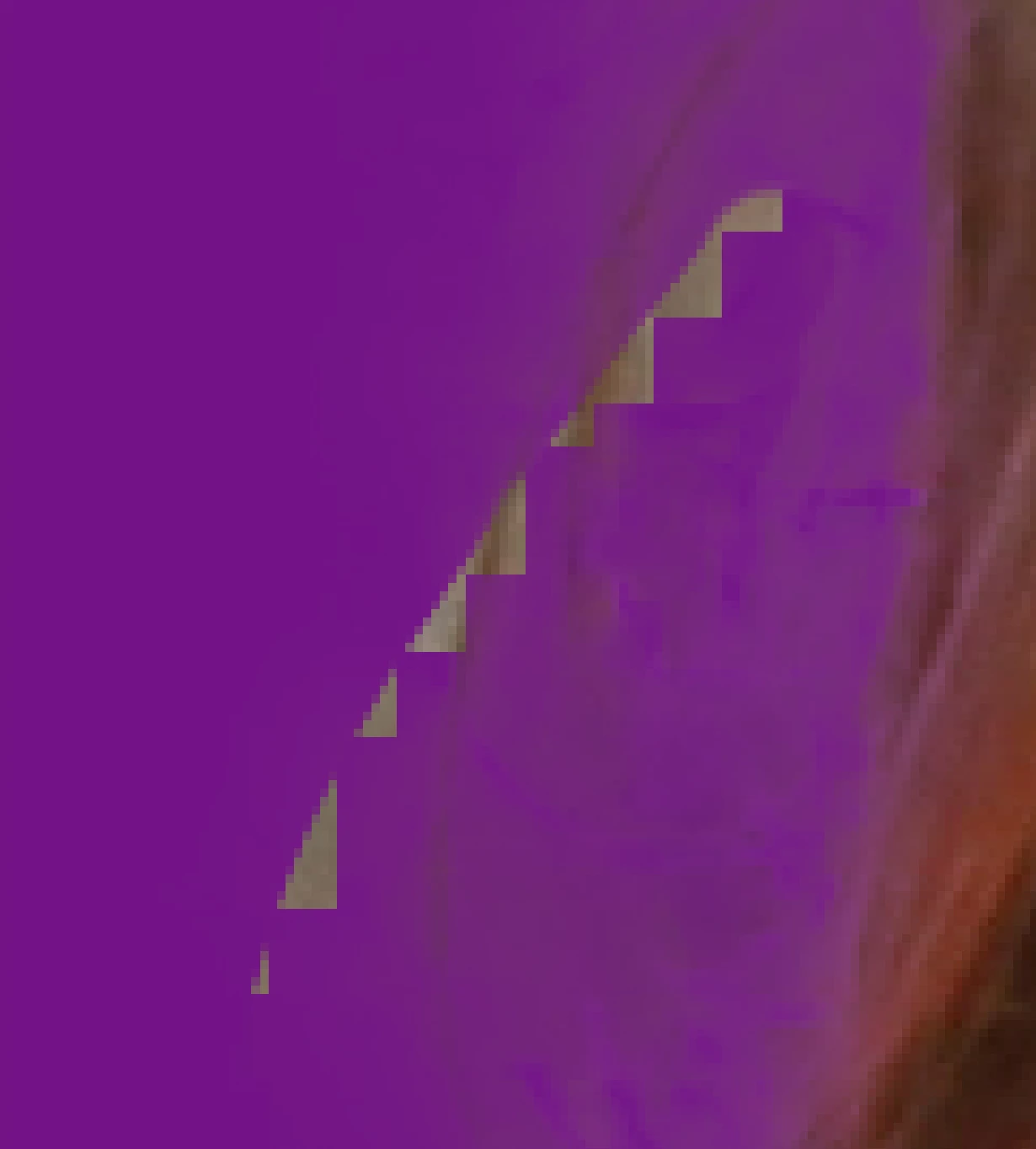
I don't know if it's a performance problem and how to verify this.

It only happens on my computer at home, not the one at the office, but it's the exact same computer.


Here are the specs of my mac : 

Processeur : 3,6 GHz Intel Core i9 8 cœurs

Graphisme : Radeon Pro 580X 8 Go

Mémoire : 32 Go 2667 MHz DDR4


I hope someone can help me with that, thanks a lot

This topic has been closed for replies.

3 replies

Participating Frequently
November 23, 2023

Just found this thread - I have had the same/similar issue for quite some time now - at least a year. And across PS settings resets, GPU driver updates, and even after upgrading video card (for unrelated reasons). On Windows with Nvidia GPU. Seems not to affect the actual mask result, though, but us super annoying. See screenshot. The weird zaggy-artifacts are in fixed place, regardless of brushing. Happens on different areas of the image.

melissapiccone
Community Expert
Community Expert
January 26, 2023

I have the same issue. I'm on a Macbook Pro Monterey 12.6. Also 32GB RAM. It's been doing it for a little while. I have to use the regular brush tool to fix it, going over it again doesn't help. That's weird that it only happens on one computer... 

Melissa Piccone | Adobe Trainer | Online Courses Author | Fine Artist
Sameer K
Community Manager
Community Manager
January 24, 2023

Welcome to the Photoshop community. I'll help you figure this out.

Ensure there are no stale preferences in your Photoshop. Go to the location of the preference folder mentioned below and rename it to backup. https://helpx.adobe.com/photoshop/using/preferences.html


  • macOS: In the Finder, hold down the Option key when using the Go menu > Library > Go to Preferences/Adobe Photoshop [version] Settings
  • Rename the Adobe Photoshop folder by adding a .old at the end. (Adobe Photoshop 2023 > Rename > Adobe Photoshop 2023. old)


These changes will give a fresh start to Photoshop as a fresh install. Let me know how it goes.

Thanks!

Sameer K

Participating Frequently
January 24, 2023

Hi Sameer,

Unfortunetly I've already tried to reset all the preferences and it didn't help.
I saw on other posts that it solved the problem with some users and that it didn't work for others.

I really don't know what could be wrong... it even does it on photos with a very contrasted background that should be easy to work with.