kentmcpherson
Inspiring
December 8, 2016
Answered

Select and Mask problems

  • December 8, 2016
  • 3 replies
  • 4338 views

I have watched many videos on using the new Select and Mask function on PS CC 2017.  I've  watched Scott Kelby's

Adobe Photoshop CC In-Depth: Compositing and Masking Hair Made Easy class on Kelbyone several times!  I makes a rough selection and then use the Refine Edge Brush and voila!  The hair is magically selected properly.  I've watched several other videos that all show the same thing.  But this NEVER works for me  When I trace the outline of the hair on the person in my picture, it just makes a total mess out of it.   Totally frustrated with this tool that so many people make look so easy but isn't.   I've tried the radius slider, smart radius, and lots of other things too but with no luck. 

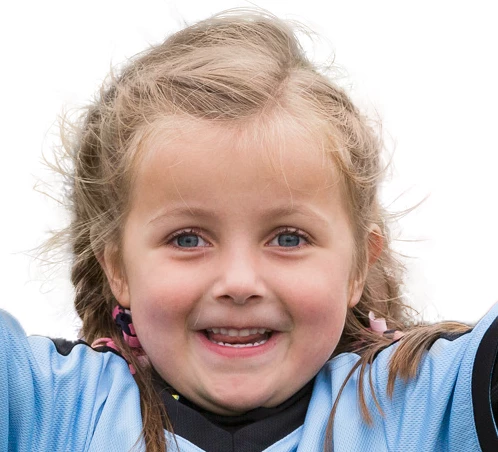
This is the picture I'm working on.  I'm trying to extract my granddaughter in the center.

    This topic has been closed for replies.
    Correct answer davescm

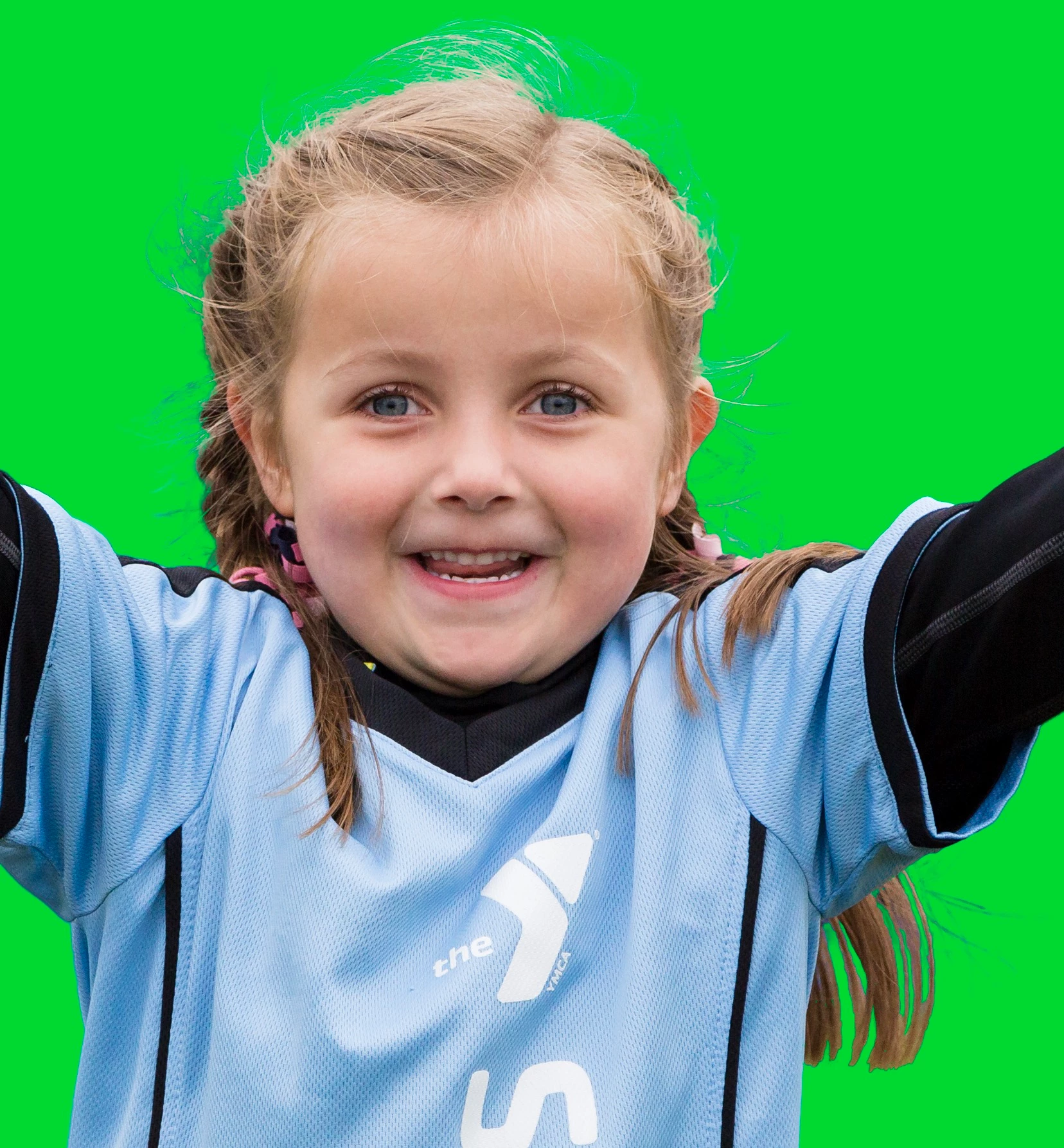
    Here is my next very careful attempt using Dave's guidance.  I put a green layer behind her so the hair issues would show up better.  You see how the wispy part of her hair looks "cloudy" I'll call it? I generally use onion skinner the red overlay view.   I can do the main part of her without any trouble pretty quickly.  But the wispy parts of her hair still look terrible to me. 

    Hi Kent

    Your mask is probably good enough to put on a real world background but let me see if I can help by doing the mask again and showing the steps

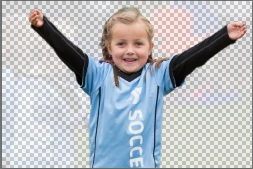
    1. Open the image in Select and Mask and with onion skin view and transparency about 78% do an initial selection with the quick selection tool:
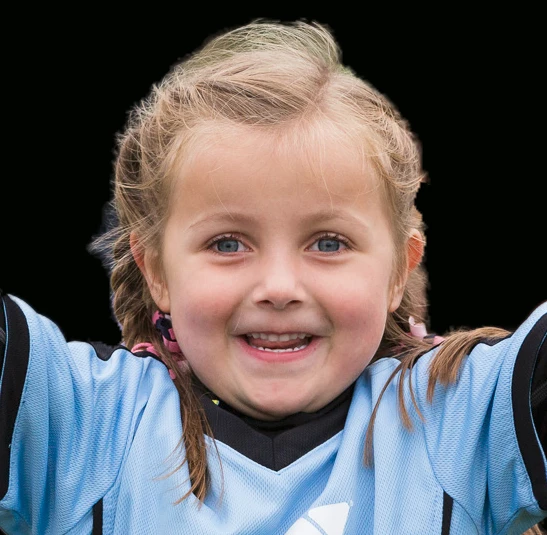
    2. Switch to the On Black view mode and check for any missed areas or areas that should not have been included (they show up much
    better against black or white) .

    Correct these first with the quick select and normal brush tools. Remember holding down Alt whilst brushing takes away
    from selection.

    That gets this far :
    3. Go to the refine edge brush – set size to 10px Hardness to 100% and spacing to 1%.

    Smart Radius is off and Radius is set at 0%.

    I work with High Quality Preview on – which works as longs as your video card supports it.

    4. Brush carefully round the hair edges  opacity reduced to around 77% so that you can see the edge.

    5. Switch to Show edge and go carefully round any areas you have missed
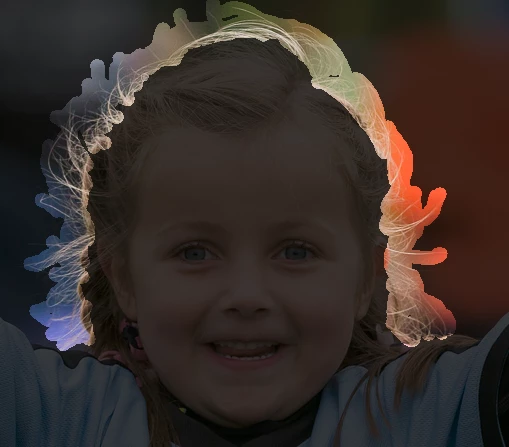
    6. Use the Alt key with the refine edge brush  and take out any areas which are not edges .
    You may need to reduce the brush size.

    A couple of iterations of steps 4-6 gets to here
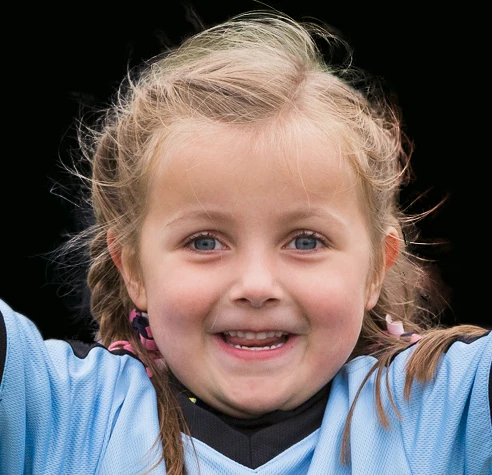
    7 Now without checking Decontaminate colours output to new layer with layer mask
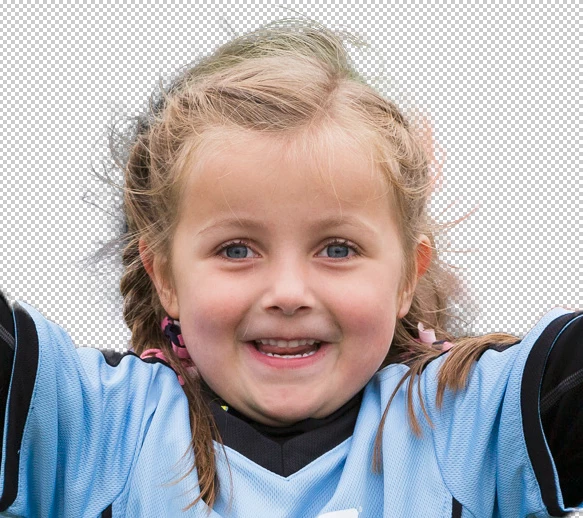
    8. ­Although there are some edges which are semi transparent on many real new backgrounds that mask as it stands will work – as longs as we address the edge colours.

    So let us take three examples

    A On a real picture :

    All I did was add a layer with a blending mode of  colour and a second with a blending mode of  luminosity. Both of these were clipped to the image layer so that they only affected the masked layer not the background.
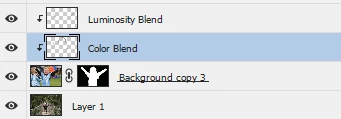
    I brushed onto these to address any contamination from the old – but it was minimal
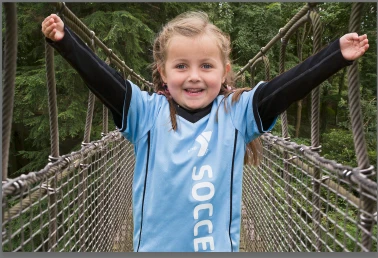
    B : On black – same as before but a little more to do with luminosity layer just to avoid the hard edges

    C: On White . This was the hardest and required just a little more work.

    Before doing anything it looked like this

    I got the mask – in channels – set a brush to Overlay blending mode and opacity at  50% and brushed round some of the less than sharp areas with black and white to sharpen up the mask a bit . Brush White on the white parts and black on the dark. You will see the contrast improve.

    Just as I had in the other examples I added two layers, one with color and one with luminosity blending mode (both clipped to the image layer. This time, on the luminosity layer, I brushed round the edge hair with a soft brush set to 25% to lighten the hair strands. Hair in a photo  is semi-transparent and blonde hair against a white background should be very light.

    The result was below :

    I hope this helps you

    Dave

    3 replies

    photocafe
    Participant
    April 17, 2017

    Adobe has completely messed up the masking tools.  I sincerely wish for you to stop changing things that make the program overly complex and take away the value of using brushes effectively for composites.  I will no doubt, like others, have to spend hours relearning something which was virtually unchanged for years, for good reason.  A process that took about 4 steps now takes double the number of steps.  Please stop trying acting like Microsoft.  Just because people don't have the ability to paint and draw doesn't mean that everything in your program should be geared to them.

    davescm
    Community Expert
    Community Expert
    April 17, 2017

    What have Adobe taken away?

    Select and Mask has been added, but the old tools are still available. Even the old refine edge is still available if you want to use it (with an initial selection made, Shift click on the menu item Select and Mask )

    Dave

    photocafe
    Participant
    April 17, 2017

    1) When you wanted to use selection tools in the past from the tool bar you could do so and make selections and still have all the tools on the standard bar available when you went into mask mode- by merely clicking on the masking preference now no longer on the tool bar) and your selection would be loaded- without vanishing all the tools.  Secondly, when painting in or out a mask, the standard shortcut by hitting the x key could change you from negative to positive painting.  Now, you either have to select that from the clumsy bar or some other more complicated manner.  Third, when you go into the select and mask mode all other menus disappear.  The preferences for the new select and mask panel are confusing and unnecessary. I fail to see the improvement for complex selections, and apparently a few others feel the same way.  Why would they remove the masking option from the standard tool bar?

    davescm
    Community Expert
    Community Expert
    December 8, 2016

    It does a reasonable job with that pic.
    I selected the main areas with the quick selection tool - then used refine edge with a small brush (10px : Hardness 100% : Spacing 1%) and edge detection set to 0px, Smart Radius unchecked  . I worked at 100% and painted only round the hair edges. Flicking the "Show Edges" on and off quickly allows you to see if you are using refine edge where you need it - or if you have included any areas that should not be refined. Holding the Alt key whilst brushing allows you to remove areas from edge refinement.
    This was where I painted for the refine edge

    I tend not to use Decontaminate colours but prefer to use a layer set to blending mode color  later to match the colours to the destination. Just brush the new colours on. Similarly I set a second layer to luminosity and brushed with a dark brush round the sleeves which had a bright edge.

    Hope that helps

    Dave

    kentmcpherson
    Inspiring
    December 8, 2016

    Dave, your instructions like Scott Kelby's seem very clear and easy to follow.  I set my settings as you said and this is what I end up with that looks nothing as good as yours.  Why is this not working for me? 

    davescm
    Community Expert
    davescmCommunity ExpertCorrect answer
    Community Expert
    December 8, 2016

    Here is my next very careful attempt using Dave's guidance.  I put a green layer behind her so the hair issues would show up better.  You see how the wispy part of her hair looks "cloudy" I'll call it? I generally use onion skinner the red overlay view.   I can do the main part of her without any trouble pretty quickly.  But the wispy parts of her hair still look terrible to me. 


    Hi Kent

    Your mask is probably good enough to put on a real world background but let me see if I can help by doing the mask again and showing the steps

    1. Open the image in Select and Mask and with onion skin view and transparency about 78% do an initial selection with the quick selection tool:

    2. Switch to the On Black view mode and check for any missed areas or areas that should not have been included (they show up much
    better against black or white) .

    Correct these first with the quick select and normal brush tools. Remember holding down Alt whilst brushing takes away
    from selection.

    That gets this far :

    3. Go to the refine edge brush – set size to 10px Hardness to 100% and spacing to 1%.

    Smart Radius is off and Radius is set at 0%.

    I work with High Quality Preview on – which works as longs as your video card supports it.

    4. Brush carefully round the hair edges  opacity reduced to around 77% so that you can see the edge.

    5. Switch to Show edge and go carefully round any areas you have missed

    6. Use the Alt key with the refine edge brush  and take out any areas which are not edges .
    You may need to reduce the brush size.

    A couple of iterations of steps 4-6 gets to here

    7 Now without checking Decontaminate colours output to new layer with layer mask

    8. ­Although there are some edges which are semi transparent on many real new backgrounds that mask as it stands will work – as longs as we address the edge colours.

    So let us take three examples

    A On a real picture :

    All I did was add a layer with a blending mode of  colour and a second with a blending mode of  luminosity. Both of these were clipped to the image layer so that they only affected the masked layer not the background.

    I brushed onto these to address any contamination from the old – but it was minimal
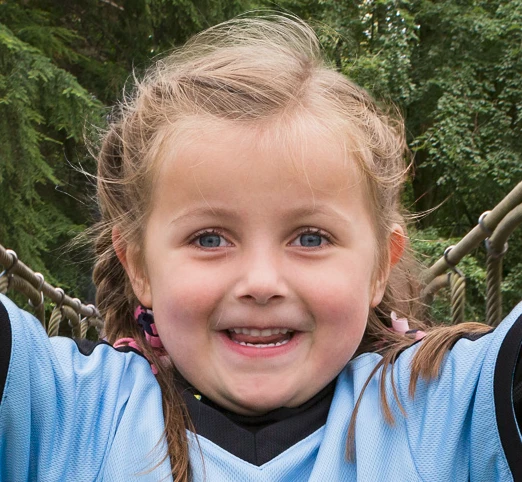
    B : On black – same as before but a little more to do with luminosity layer just to avoid the hard edges
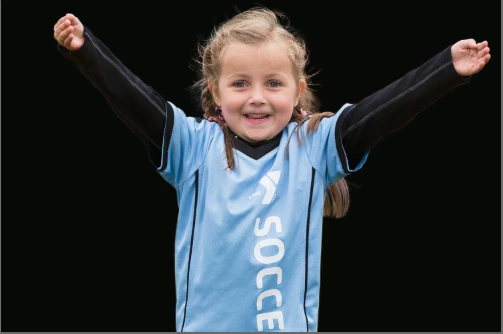
    C: On White . This was the hardest and required just a little more work.

    Before doing anything it looked like this

    I got the mask – in channels – set a brush to Overlay blending mode and opacity at  50% and brushed round some of the less than sharp areas with black and white to sharpen up the mask a bit . Brush White on the white parts and black on the dark. You will see the contrast improve.
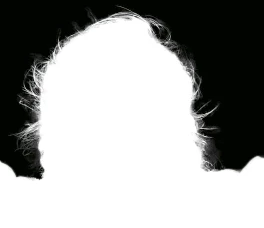
    Just as I had in the other examples I added two layers, one with color and one with luminosity blending mode (both clipped to the image layer. This time, on the luminosity layer, I brushed round the edge hair with a soft brush set to 25% to lighten the hair strands. Hair in a photo  is semi-transparent and blonde hair against a white background should be very light.

    The result was below :
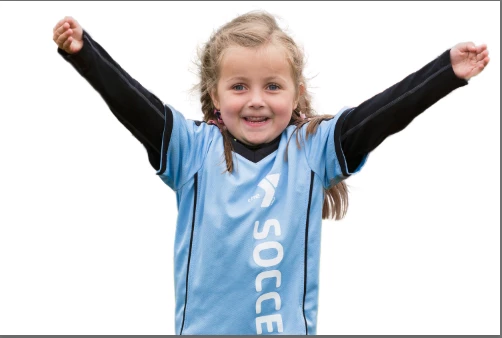
    I hope this helps you

    Dave

    cmgap
    Community Expert
    Community Expert
    December 8, 2016

    This is just a quick test made from a screen capture of your image done with my track pad. There's too much feathering but for a quick run it seems to be a good starting point compared to the old way of creating masks.

    Working on a higher res image with a wacom tablet or event mouse would have yielded a better result... with a not too much more time investment to finesse it. It takes a bit of time and practice with this new feature to master it... don't give up!