
Inspiring
January 13, 2020
Question

Select And Mask: slow performance on fast Macbook Pro Photoshop 21.0.2

  • January 13, 2020
  • 3 replies
  • 2086 views

(I posted this a few hours ago, but post seems to have been deleted; possibly because I pasted my PS system info?)


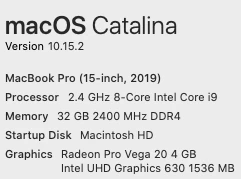
Select and Mask seems to be very slow on my '19 Macbook Pro (screenshot of specs below). Is there a possibility of incompatibility with my graphics card, or any other ideas? There's a noticeable delay when using sliders in the Select and Mask panel, and when using brush and quick selection tool.


Photoshop 21.0.2 Release.
 

This topic has been closed for replies.

3 replies

davescm
Community Expert
Community Expert
January 13, 2020

Your other thread shows GPU issues and conflicts. You have two GPUs - an AMD and an Intel. Photoshop is seeing both and enabling neither for OpenGL and both for Open CL. The GPU sniffer , which detects the GPU, has crashed but with a very strange date of 22 April 19 . There are a couple of other things that look strange in that system info.


See sections 7 &8 here
https://helpx.adobe.com/uk/photoshop/kb/troubleshoot-gpu-graphics-card.html

jimtronAuthor
Inspiring
January 13, 2020

Thanks for the reply, davescm; I'll try the troubleshooting steps on that page.

PECourtejoie
Community Expert
Community Expert
January 13, 2020

Hello, your post has not been deleted, it drifts behinds newer posts, you an always see it by clicking on your avatar...

here it is:

https://community.adobe.com/t5/photoshop/select-and-mask-slow-performance/td-p/10852037

jimtronAuthor
Inspiring
January 13, 2020

Thanks for the response; I spent a while looking for the original post, including clicking on my avatar and then "my latest contributions," I also searched the forum, not sure why I couldn't find it. Apologies for the duplicate.

Akash Sharma
Legend
January 13, 2020

Hi there,


Sorry that Select and Mask is working slower than expected in Photoshop 21.0.2 on your MacBook Pro running Mac Os Catalina. Please checkout the steps below:
 
1) Try going to the System Preferences of the macOS, then to Security and Privacy and add Photoshop to the Accessibility under the Privacy tab. Also, grant permissions to Photoshop 2020 under the Files and Folders section.
2) Turn on the Legacy Compositing option in Performance preferences. Choose Edit > Preferences > Performance (Windows) or Photoshop > Preferences > Performance (macOS). Select Legacy Compositing. Quit and relaunch Photoshop
 
Let us know how it goes.
 
Thanks,
Akash