
Participant
October 8, 2020
Answered

Select and Mask view background (Photoshop 2020)

  • October 8, 2020
  • 1 reply
  • 798 views

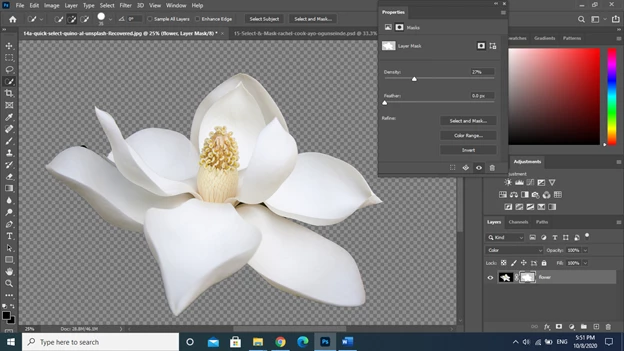
I select a white flower from a black background using the quick selection tool.

I create a layer mask, and with this selected I go to the "Select and Mask" tool.

Rather than "Onion Skin" I want to view the selection on a white background so I can easily identify the black edges that have been left from the background of the original image.

However, when I view it "On White" any opacity to the white background covers everything including the white flower that I had selected.

This is also the same when selecting a black background on the view for "Select and Mask"
This topic has been closed for replies.
Correct answer War Unicorn


I tried the same process but selected using the lasso tool, and the same thing happened.


Unless you're trying to illustrate something, your mask density should be at 100%; Select and Mask works in tandem with the grayscale values set beforehand so if you have a mask that isn't 100% black, it's going to reflect that in Select and Mask.

1 reply

October 8, 2020

Hi

Just checked and it's working as expected with Photoshop version 21.2.4 for me, can you post a screenshot to highlight the issue you have

Leo5E28Author
Participant
October 8, 2020


The first image is with the opacity of the background at 0%. The second image the opacity is about 90%. Sorry if its obvious, I'm very new to Photoshop!


October 8, 2020

It's hard to see on the screenshots you provided but something doesn't look right about how you masked out the flower

It should look like this

0% opacity

100% opacity

Can you post a screenshot with the layers panel opened