
Participant
January 6, 2025
Answered

Select Subject sometimes creates artifacts

  • January 6, 2025
  • 1 reply
  • 191 views

Hey all,


I've recently started running into an issue where the Select Subject function from the Magic Wand Tool toolbar creates rectangular artifacts on the borders of the otherwise properly selected subject. 
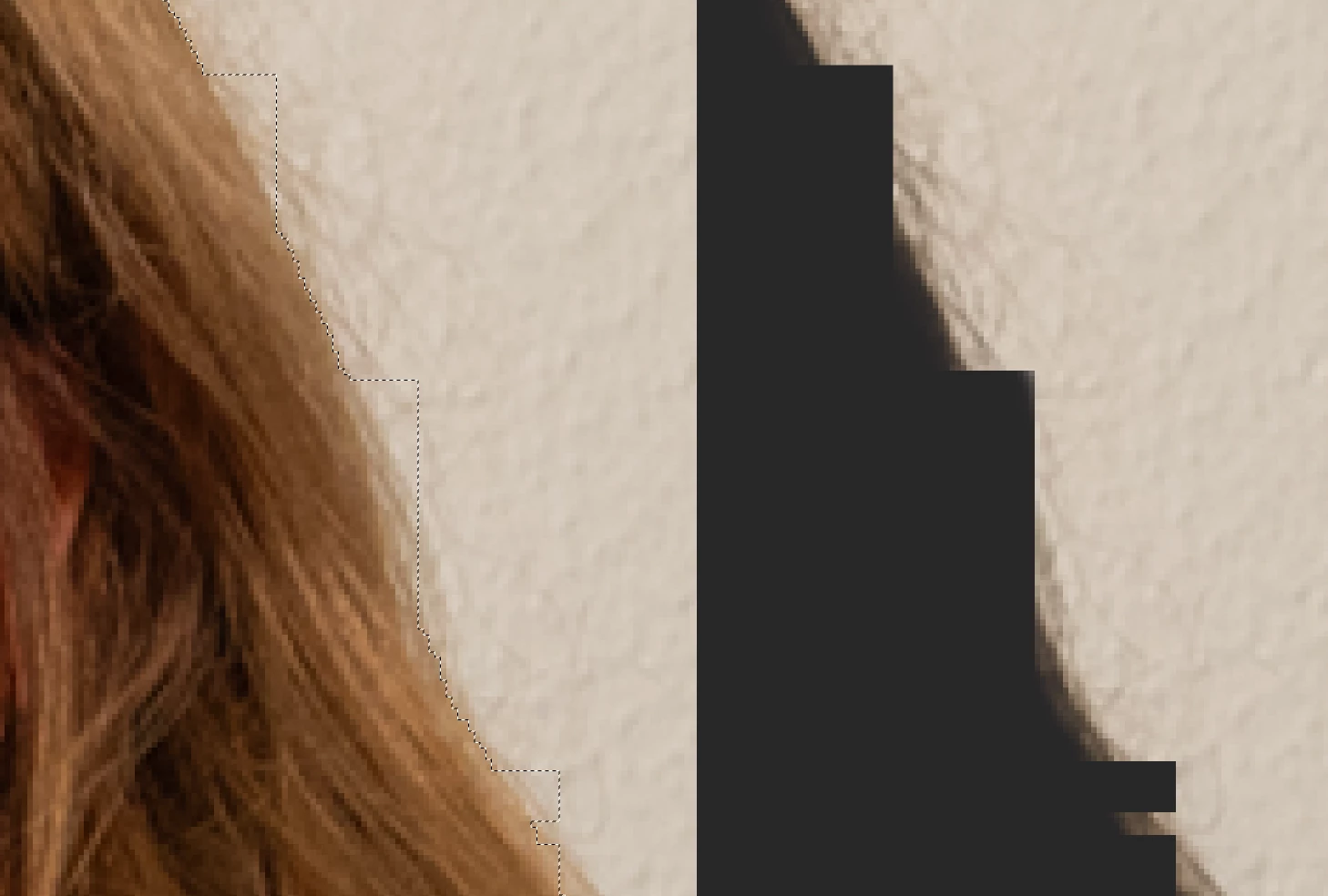


After taking this screenshot, I've used the tool again on the same image (without closing the file or Photoshop) and it worked fine. I've used the tool many times before without issue, and have not changed any of the settings.


Since this behaviour is so erratic, I doubt there's much to be done - but perhaps there's some workaround.


PS 25.12.0 Release on iMac

Correct answer Sameer K

Hey, @meteobluea54437600. Welcome to the Photoshop Community. I'll help you figure this out. 

Before troubleshooting, ensure you have the latest version of Photoshop installed from the Creative Cloud desktop app. Also, apply any pending updates for the macOS. 


Try changing the Select Subject mode from Photoshop > Preferences/Settings > Image Processing > Select Subject to Cloud & Selection process to Stable. 

If this does not help, go to the location of the preference folder below and rename it to backup.

  • macOS: Hold down the Option key in the Finder when using the Go menu. The library will appear below the current user's home directory.
  • Library > Preferences > Adobe Photoshop [version] Settings
  • Rename the Adobe Photoshop folder by adding a .old at the end. (Adobe Photoshop 2025 > Rename > Adobe Photoshop 2025.old). You can restore these preferences later if needed: https://adobe.ly/4860qM9
  • Restart the computer.

These changes will give a fresh start to Photoshop as a fresh install. Let me know how it goes.

Thanks!

Sameer K

(Type '@' and type my name to mention me when you reply)

1 reply

Sameer K
Community Manager
Sameer KCommunity ManagerCorrect answer
Community Manager
January 6, 2025

Hey, @meteobluea54437600. Welcome to the Photoshop Community. I'll help you figure this out. 

Before troubleshooting, ensure you have the latest version of Photoshop installed from the Creative Cloud desktop app. Also, apply any pending updates for the macOS. 


Try changing the Select Subject mode from Photoshop > Preferences/Settings > Image Processing > Select Subject to Cloud & Selection process to Stable. 

If this does not help, go to the location of the preference folder below and rename it to backup.

  • macOS: Hold down the Option key in the Finder when using the Go menu. The library will appear below the current user's home directory.
  • Library > Preferences > Adobe Photoshop [version] Settings
  • Rename the Adobe Photoshop folder by adding a .old at the end. (Adobe Photoshop 2025 > Rename > Adobe Photoshop 2025.old). You can restore these preferences later if needed: https://adobe.ly/4860qM9
  • Restart the computer.

These changes will give a fresh start to Photoshop as a fresh install. Let me know how it goes.

Thanks!

Sameer K

(Type '@' and type my name to mention me when you reply)
Participant
January 7, 2025

Hey @Sameer K, thank you for the quick reply.

As the error only happened sporadically and I can't deliberately reproduce it, it's hard to tell if this solved it - but at any rate, the problem does not appear to occur anymore and there is no significant change in processing time when using the "Cloud" and "More stable" options.

I was unaware that these settings existed, and would have wanted them enabled anyway - so thank you very much for the information 🙂