
Known Participant
March 11, 2019
Answered

Selecting Translucent Pixels

  • March 11, 2019
  • 1 reply
  • 485 views

I have a bunch of images that have pixels with various levels of translucency. But I have to create a selection for these pixels, and I need the selected pixels to be 100% opaque, and not retain the levels of translucency for each pixel.

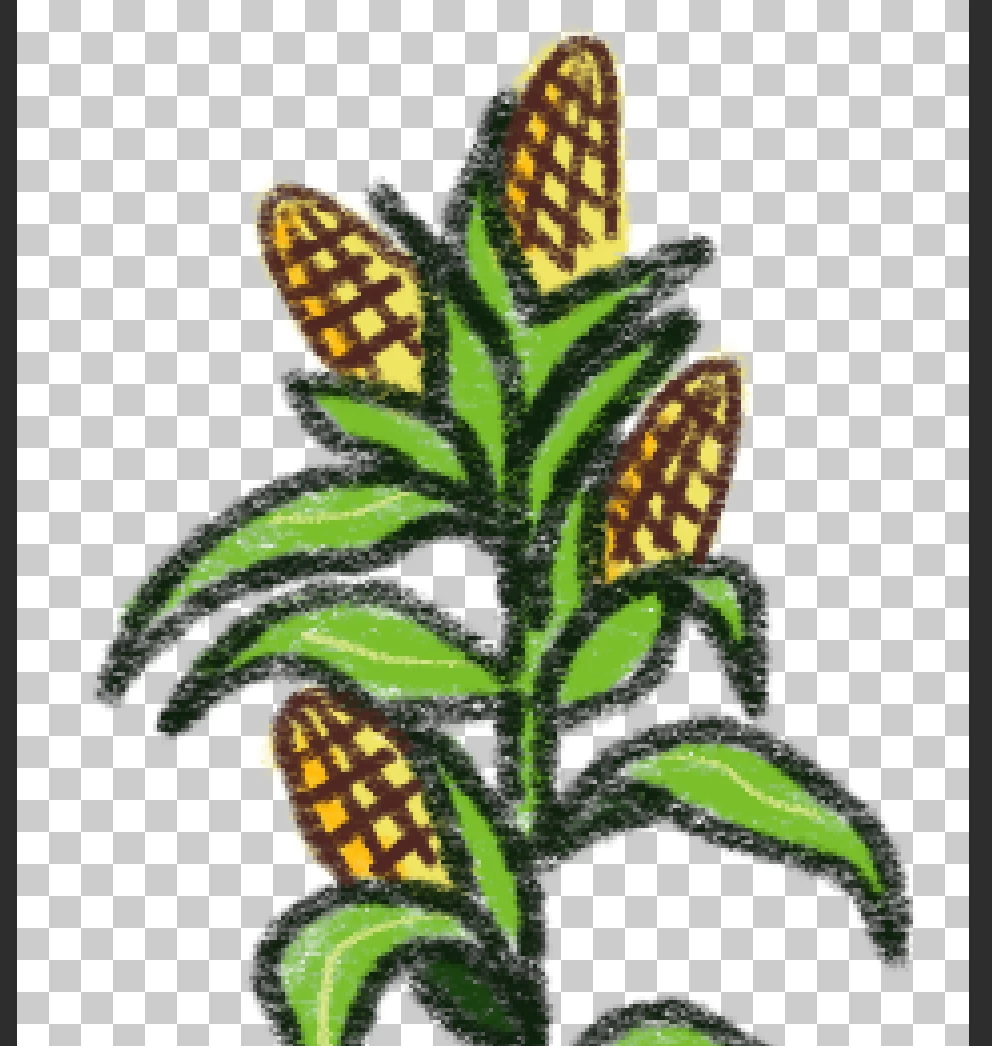
For example, here is a picture with lots of translucent pixels.
If I select the pixels (Mac: Command-Click on the Layer Icon), it looks like all of the pixels are selected.
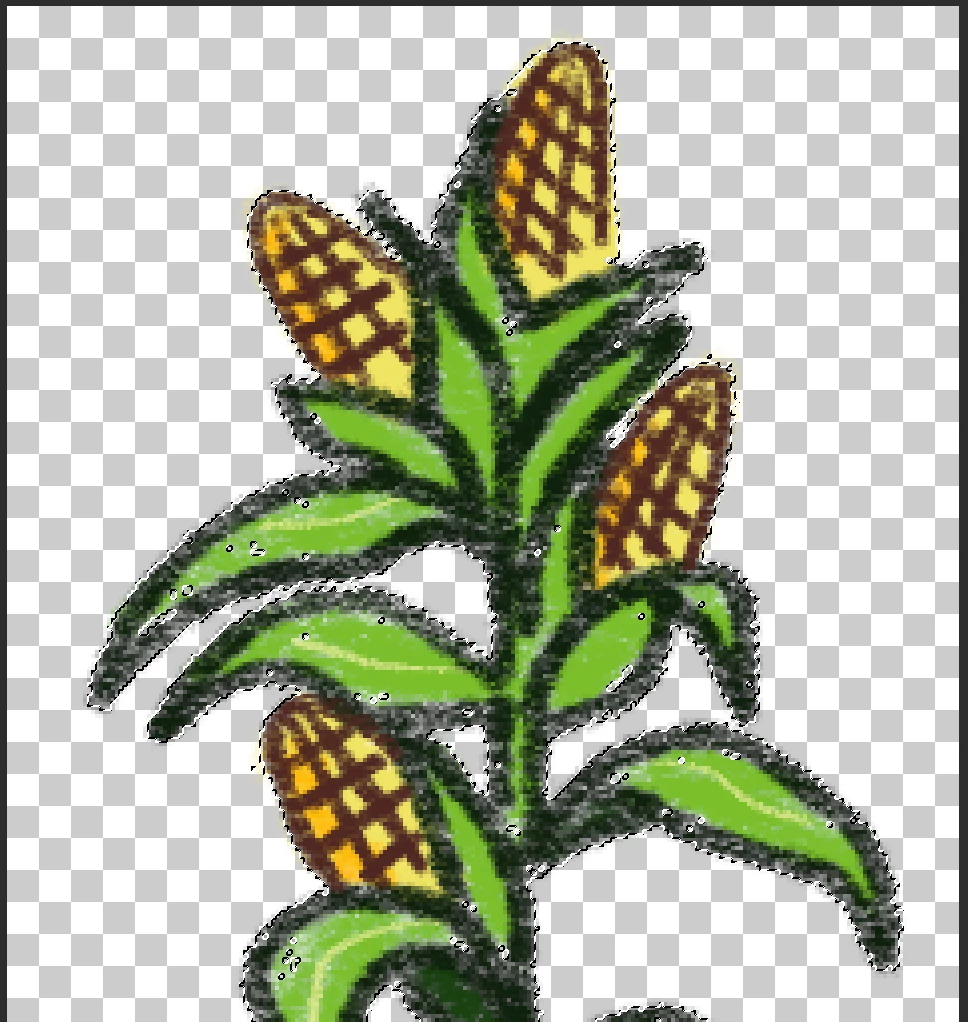
But the selection includes the level of translucency for each one of those pixels. Look what happens when I try to fill the pictures on a new layer:

The pixels are greyed, instead of solid. It's great that Photoshop is so intuitive that it can retain the translucency for every last pixel, but can I select the pixels at 100% without going through the lengthy process of doing this with a lasso tool?

Thanks!

    This topic has been closed for replies.
    Correct answer Chuck Uebele

    In cases like that you can either use the magic wand tool to select an area with 100% transparency. It should limit the selection to just that. Or you can do what I do sometimes: Duplicate the layer until the total combined layers is fully opaque, then merge them.

    1 reply

    Chuck Uebele
    Community Expert
    Chuck UebeleCommunity ExpertCorrect answer
    Community Expert
    March 11, 2019

    In cases like that you can either use the magic wand tool to select an area with 100% transparency. It should limit the selection to just that. Or you can do what I do sometimes: Duplicate the layer until the total combined layers is fully opaque, then merge them.

    Known Participant
    March 11, 2019

    Yes, your second answer is something I just tried, and that seems to work!

    I selected & filled the layer with a solid color, hit Command-J on the layer about half a dozen times, and merged them all together. Then I select the layer, and the pixel selection seems to be opaque.

    Thanks!