

infomamun
Inspiring
November 21, 2020
Answered

Semi Transparent pixel outside of Vector Mask

  • November 21, 2020
  • 3 replies
  • 978 views

Hi There,

As far I know vector mask creates a very sharp edge on the Image Layer. Any part/pixels outside of vector mask should have completely  hidden by the Mask.


But I found semi-transparent pixel line outside of vector mask (Please see the attached image). For your kind information, I am using Photoshop 2020 on Windows 10 and have Graphics card installed in my pc.
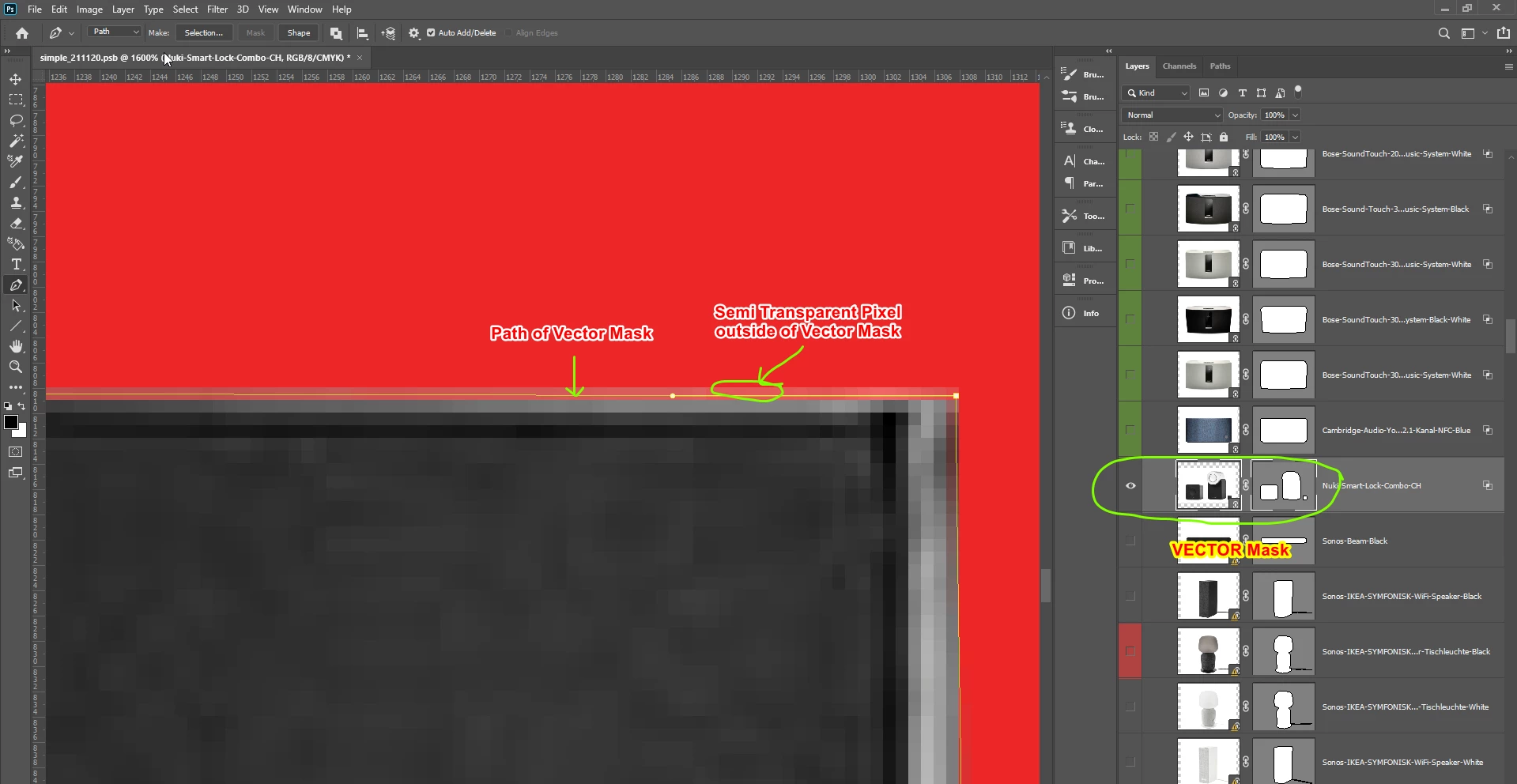
 

. I am using Vector Mask recently and don't know whether this semi-transparent pixel line is normal or not. Is there any way to get rid of this semi-transparent pixel line occurred from Vector Mask?


Please let me know.


Thanks

This topic has been closed for replies.
Correct answer barbara_a7746676

You're on the right track.

Select the marquee tool. Before using it to make the selection, turn off anti-alias in the options bar.

Make the selection and click the layer mask icon at the bottom of the Layers panel.

There won't be anti-aliasing, but there will be jaggies because of the square pixels.

3 replies

barbara_a7746676
Community Expert
Community Expert
November 22, 2020

You can have a pixel mask that has a hard edge without antialiasing.

infomamun
infomamunAuthor
Inspiring
November 22, 2020

@barbara_a7746676 How to achieve that? Suppose I create a round path over an image and press Crtl+Enter to turn it as selection. Then from Layer panel select the Mask icon... It will make the round selection as Layer Mask... In this step, where to set it as hard edge (without Anti-aliasing). Please note that, I have used path to create a circle/round shape, not the marquee tool.


Thanks in Advance for your kind help.

barbara_a7746676
Community Expert
barbara_a7746676Community ExpertCorrect answer
Community Expert
November 22, 2020

You're on the right track.

Select the marquee tool. Before using it to make the selection, turn off anti-alias in the options bar.

Make the selection and click the layer mask icon at the bottom of the Layers panel.

There won't be anti-aliasing, but there will be jaggies because of the square pixels.

barbara_a7746676
Community Expert
Community Expert
November 22, 2020

In Photoshop, it is not possible to turn off anti-aliasing for a vector mask. 

JJMack
Community Expert
Community Expert
November 22, 2020

You are zoomed in 1600% where the pixel grid shows and the Path shown does not seem to be one that is in your Vector Mask? That all seem to  have rounded top right corner paths.... You may also be seeing Anti-aliasing for the masking.

JJMack
infomamun
infomamunAuthor
Inspiring
November 22, 2020

@JJMack  Thanks for your reply. For the vector mask and layer thumbnail: I am not sure, there may be one more image layer was selected although the chance is less as if that happened, you might have seen double exposure on the artboard.


Anyhow, for both cases, the problem is the same, the semi-transparent pixel... What I do, save this image (vector masked) as png for one of my buyer and again in 2nd psb, I linked that png with an additional linked background image and background device layer for each image. The device that has screen-like part, like a computer monitor, thus when linked in that second psb and place a background picture to show as a new screen item of that monitor, the monitor shows semi-transparent pixels over the new screen. Thus it is not giving a clear image from that 2nd psb (images are generated by "Generate>Image Assets" and saved as png finally from the 2nd psb).


Would you please tell me from where to turn off the Anti-aliasing option for the vector mask? I can't see any option during path creation or vector mask creation.


Thanks again for your explanation.