MahaB82A
February 28, 2023
Answered

Separating layer and photo

  • February 28, 2023
  • 2 replies
  • 3257 views

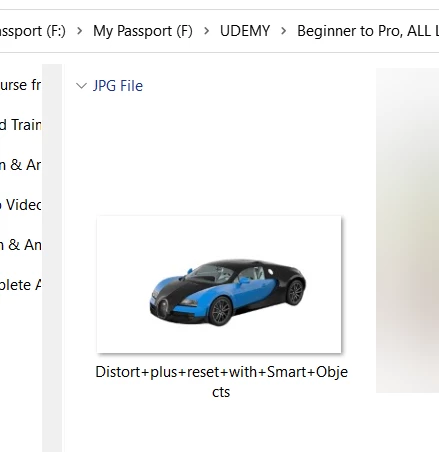
In this tutorial JPG file is given with a white backgound in window explorer.


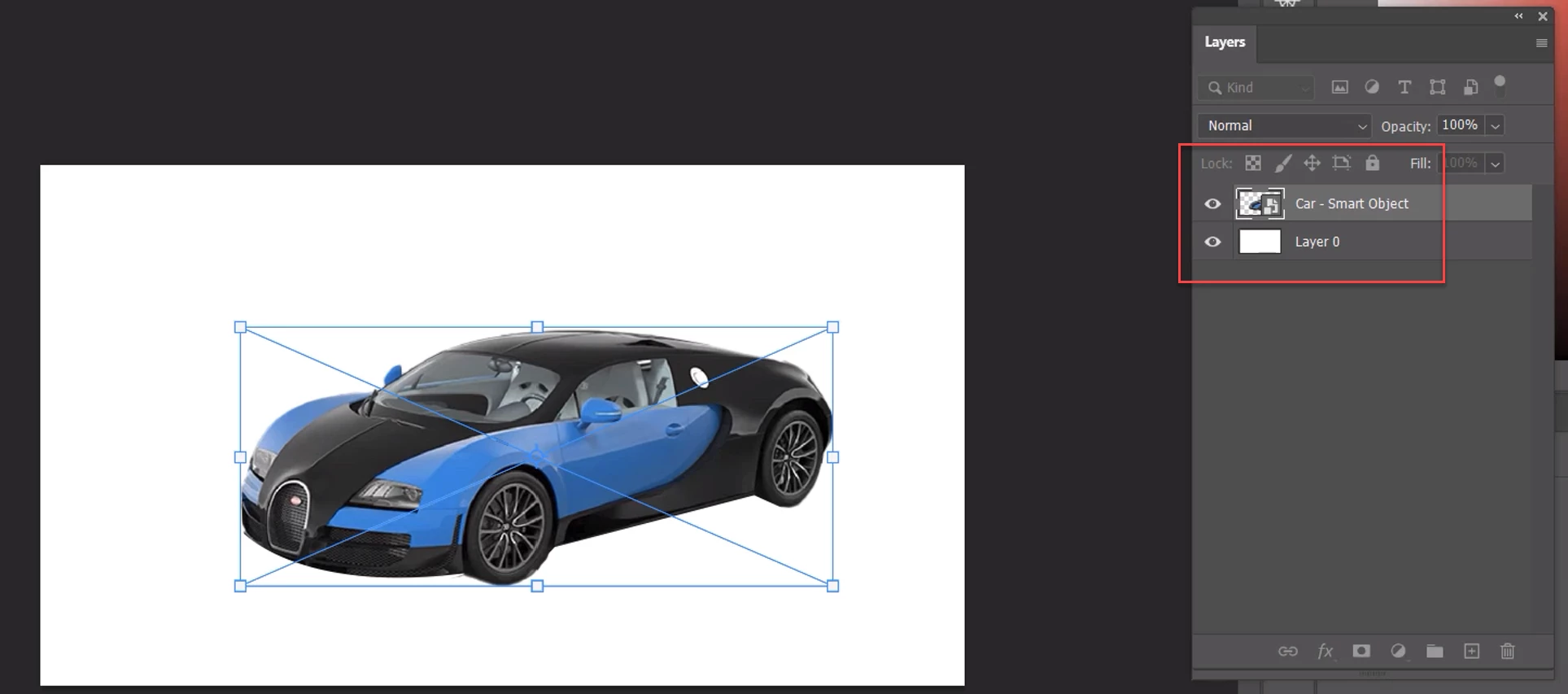
But file separated the photo and the background. That means, in the layer panel Photo is with transperant background and layer is with white background. Is it possible to do so? 


This topic has been closed for replies.
Correct answer jane-e

"Convert to Smart Object"

What is meant by Smart Object?

By @MahaB82A


Yes, in your case the subject is the car. 😊


"Smart Objects are a type of container that holds multiple layers within Photoshop. Apply properties and characteristics to multiple layers, combining different tools, filters, and features. Then undo and make changes as you need to — the original image is protected."

https://www.adobe.com/products/photoshop/smart-objects.html


"Smart Objects are wonderful tools in Photoshop. They enable you to make unlimited changes without losing quality and provide an amazing amount of flexibility. This nondestructive way of working is really the modern workflow for Photoshop".

https://photoshopcafe.com/use-smart-objects-photoshop-ultimate-guide/


Jane

 

2 replies

MahaB82A
MahaB82AAuthor
March 11, 2023

Select>Subject
I Assume that here Subject means car


"Convert to Smart Object"

What is meant by Smart Object?


jane-e
Community Expert
jane-eCommunity ExpertCorrect answer
Community Expert
March 11, 2023

"Convert to Smart Object"

What is meant by Smart Object?

By @MahaB82A


Yes, in your case the subject is the car. 😊


"Smart Objects are a type of container that holds multiple layers within Photoshop. Apply properties and characteristics to multiple layers, combining different tools, filters, and features. Then undo and make changes as you need to — the original image is protected."

https://www.adobe.com/products/photoshop/smart-objects.html


"Smart Objects are wonderful tools in Photoshop. They enable you to make unlimited changes without losing quality and provide an amazing amount of flexibility. This nondestructive way of working is really the modern workflow for Photoshop".

https://photoshopcafe.com/use-smart-objects-photoshop-ultimate-guide/


Jane


MahaB82A
MahaB82AAuthor
March 11, 2023

Thanks for the explanation. 

Kevin Stohlmeyer
Community Expert
Community Expert
February 28, 2023

Hi @MahaB82A the course files should match what the tutorial shows.

But in this case, here is how to convert to match the tutorial:

  1. Open the jpg
  2. Use Select>Subject to make a selection of the car.
  3. Click the Layer Mask button at the bottom of the Layers Panel. This will separate the car from the white background.
  4. Then Right click the new layer and choose "Convert to Smart Object".
  5. Last click the new layer button at the bottom of the Layers Panel, go to Edit>Fill and choose White.
  6. Rearrange the layers to put the white layer below the car.
MahaB82A
MahaB82AAuthor
February 28, 2023

I use latest version of Ps. I am unable to make number 4.


Kevin Stohlmeyer
Community Expert
Community Expert
February 28, 2023

Right-click past the name on the right, it will bring up a sub-menu that you can choose from or you can go to Layers menu>Smart Object>Convert to Smart Object.