Participating Frequently
September 14, 2020
Answered

Separating layers that are blended

  • September 14, 2020
  • 3 replies
  • 1013 views

Is it possible to save a single layer that has been blended to the layer below? I have 2 textures that I blended and I want to keep the distressed look of the top layer to place onto other textures and delete the base layer. I hope this makes sense.

This topic has been closed for replies.
Correct answer c.pfaffenbichler

Ultimately I would like to have a png of the distressed gold on a transparent layer. I can only achieve this look when the stone is involved. I have attached a photo of a piece of paper in pic 3 that i would like to place the transparent gold png onto. If I place solid gold on the paper and blend the 2 together it only removes small parts of the gold.

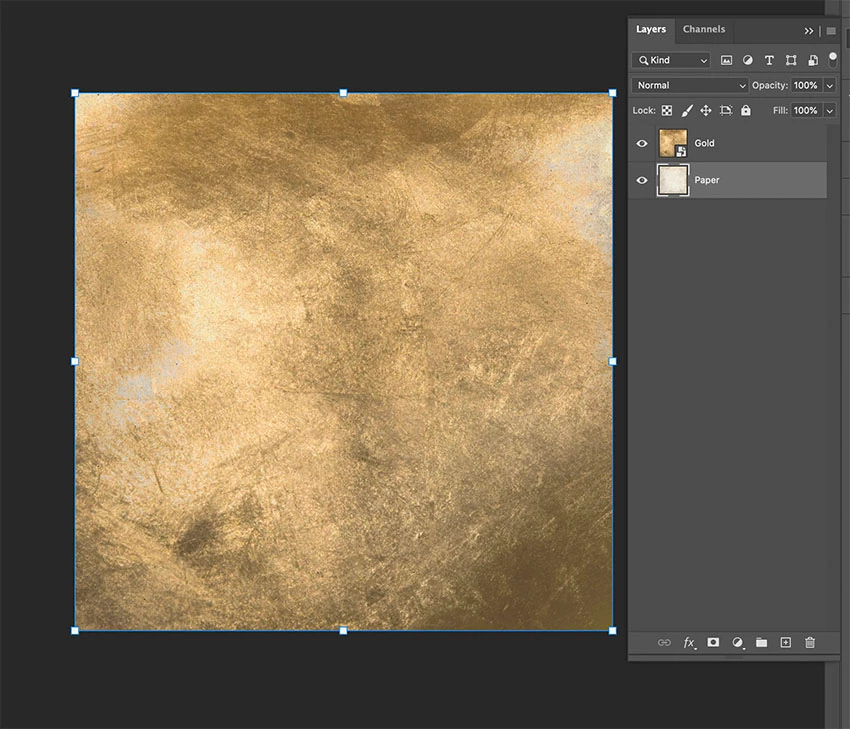
Pic 1: Solid gold on stone before blending

2: Gold and stone blended

3. Plain paper

4. Paper and gold blended

I would like to have the gold on the paper look the same as it does on the stone. It is not distressed enough.
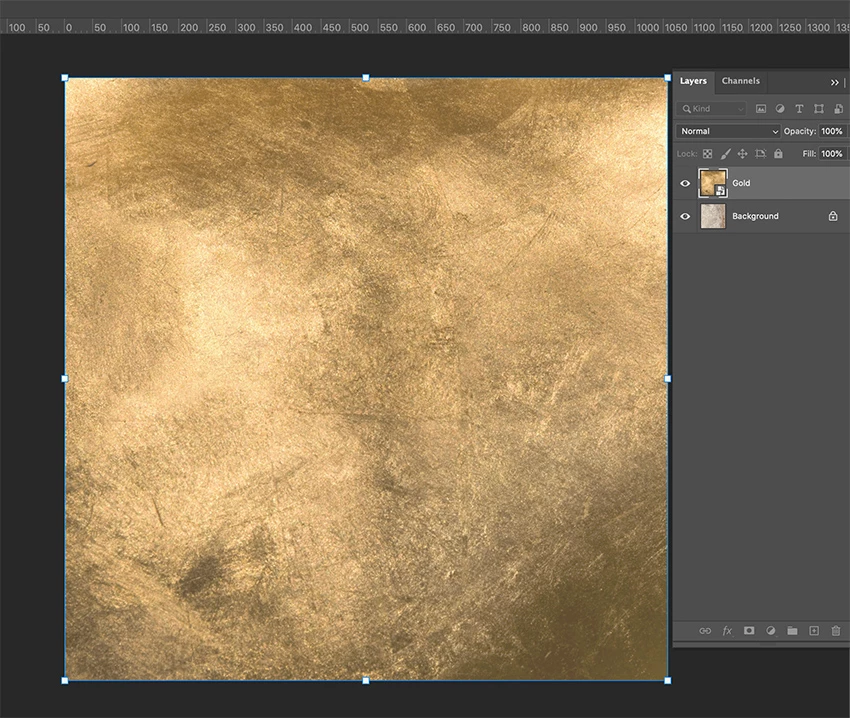
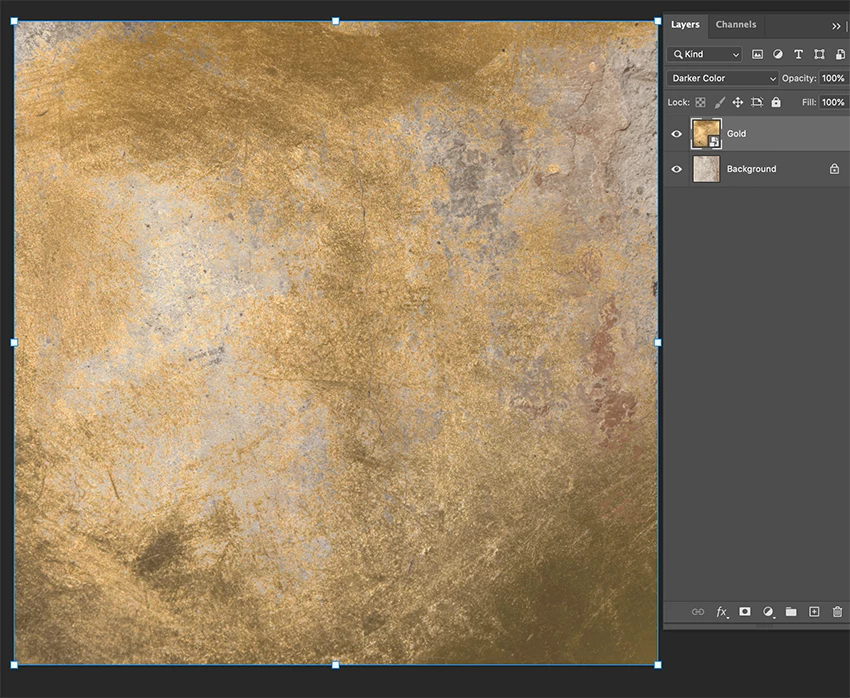
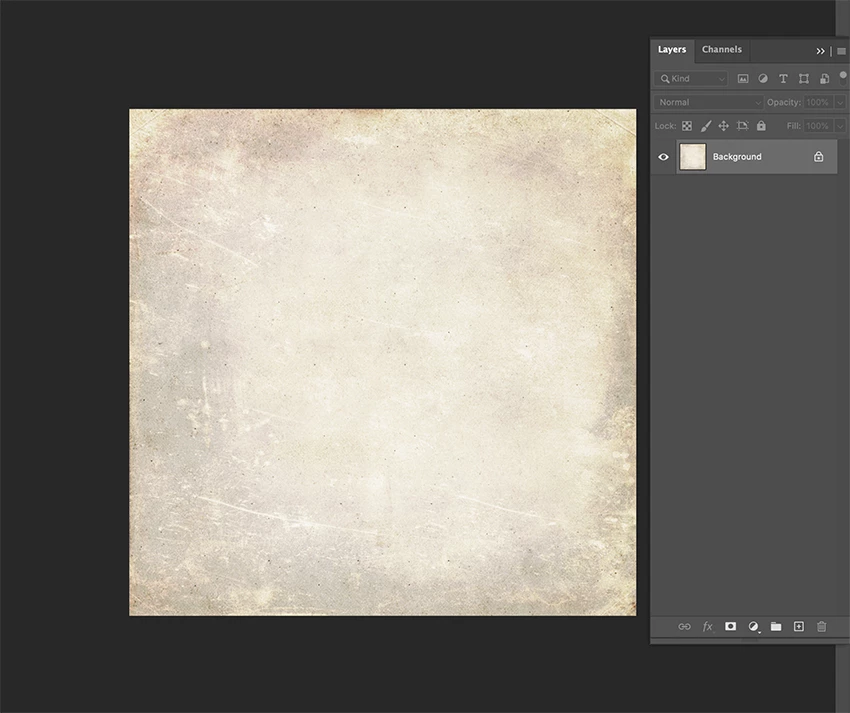
If I could have it saved as a transparent png in the stone blending process I could just take the transparent gold and place it on the paper with no blending.



3 replies

Chuck Uebele
Community Expert
Community Expert
September 14, 2020

Separating the effect of blend modes is difficult, if not impossible, depending upon the blend mode. In your case, with the darken mode, the gold layer is transparent where the gold is lighter than the stone. So you might be able to create a mask for the gold layer by this method:

Make a merged copy visible of the gold and stone layers, by using the shortcut ctrl/cmd-alt/opt-shift-E. Take that layer and with just the gold layer, set the top layer's blend mode to difference. This will give you a very dark or near black result.  Make another merged copy visible of that. The parts that are pure black are where the gold layer shows through and hides the stone. The lighter parts should be the stone layer. By using curves or levels on this new layer, you can adjust the lighter areas to make a mask that suits your needs. You will have to invert the mask, so the areas of gold will be white rather than black. Hope this is something along the lines of what you want.

Britt5E39Author
Participating Frequently
September 14, 2020

Thank you for trying to help. Blend if was a solution in the end.

Bojan Živković11378569
Community Expert
Community Expert
September 14, 2020

It is not quite clear what you want exactly.

If you want to save blended look after applying blend mode to top layer why do not use File > Save As or Export?

Britt5E39Author
Participating Frequently
September 14, 2020

I would like to save or export the gold layer only. Not the stone. When I try, the gold saves as it was originally (a solid piece).

I want the erased looking piece of gold on its own as a transparent png without the stone.

Bojan Živković11378569
Community Expert
Community Expert
September 14, 2020

As a transparent? Where comes from that transparency? What you see on your screen is result of blending two layers and you can save that result as png using File > Export. Do not use export function to save only top layer because blending result won't be visible. Your top layer is not changed, blending result can trick you that top layer is changed and you may expect to see it as image on screen you are looking at after exporting that layer using ecport function to export single layer.

c.pfaffenbichler
Community Expert
Community Expert
September 14, 2020

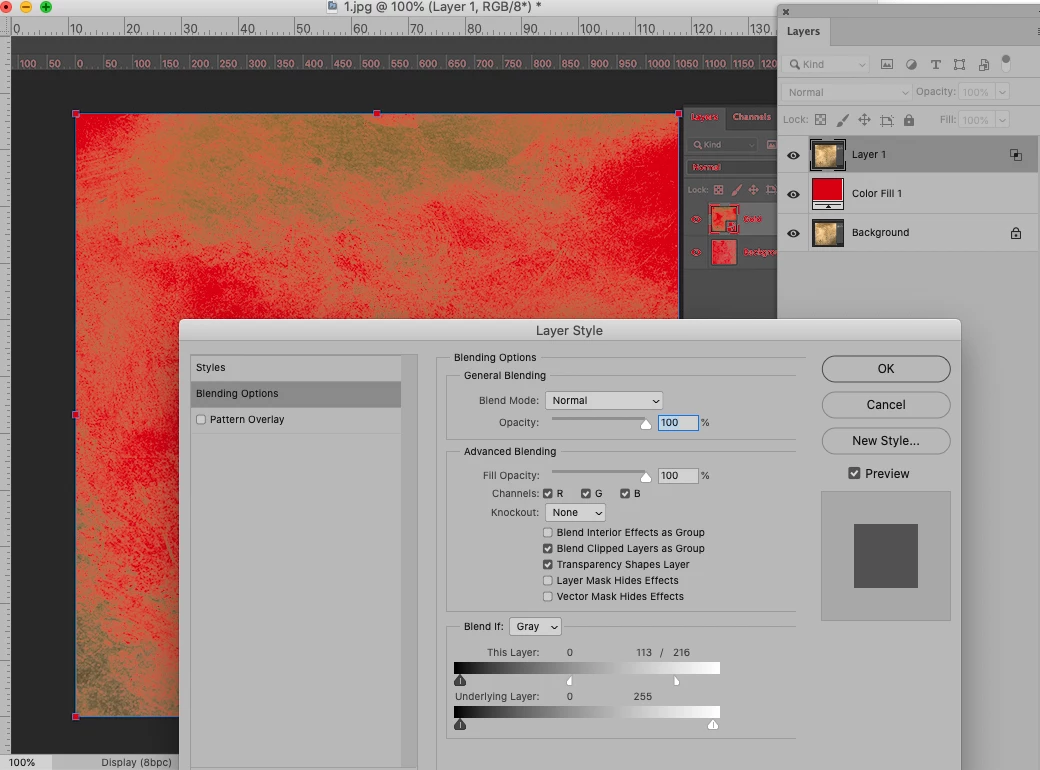
Could you please post a screenshot with the pertinent Panels (Toolbar, Layers, Channels, Options Bar, …) visible? 


Once you have merged two Layers (and the merging can’t be undone via history, previous version documents, …) it is possible to accurately separate their content only in some special cases. 

If the two Layers are still separate duplicating the top Layer to another image should not be a problem. 

Britt5E39Author
Participating Frequently
September 14, 2020

I have attached 2 screenshots. The second one shows the gold layer able to move and if it's possible I would like to save it with its 'merged look' but be able to replace the stone with anything else.

c.pfaffenbichler
Community Expert
Community Expert
September 14, 2020

I suspect I don’t quite understand what the problem is. 


What do you mean by »merged look«? 

What happens if you insert some other image and how does it differ from what you want to happen?