Inspiring
July 6, 2022
Answered

Shape layer via cut? [SOLVED]

  • July 6, 2022
  • 2 replies
  • 3863 views

When a layer is a rasterized image, using the New Layer Via Cut is pretty obvious what the function is.

Now when it's a shape layer, I see the New Shape Layer Via Cut, but it doesn't seem to do anything (or maybe I'm not using it properly). It doesn't show me any error when I have portion of a shape selected using the marquee and use the shortcut, but nothing happens. Can anyone explain what this is and how to use it properly?


EDIT: The issue of knowing what the shortcut does isn't solved yet, but I was able to achieve the result I wanted with the workaround below. If anyone actually knows how to use the shortcut, please share a step by step reply so I can test it out. Thanks!
This topic has been closed for replies.
Correct answer TiagoRocha

Solution:
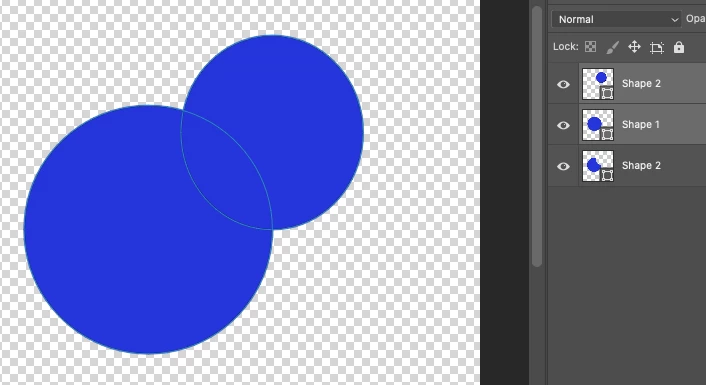
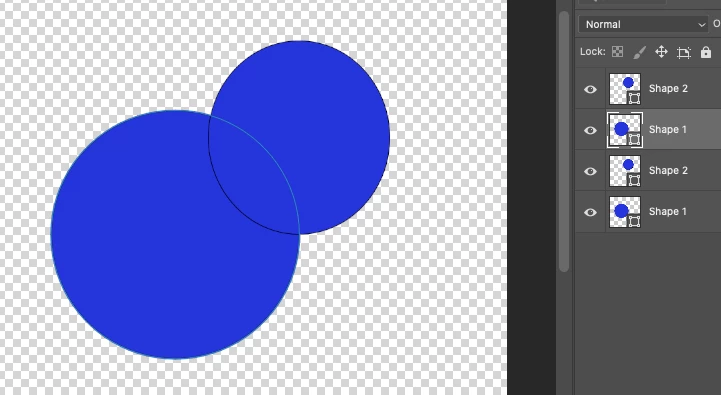
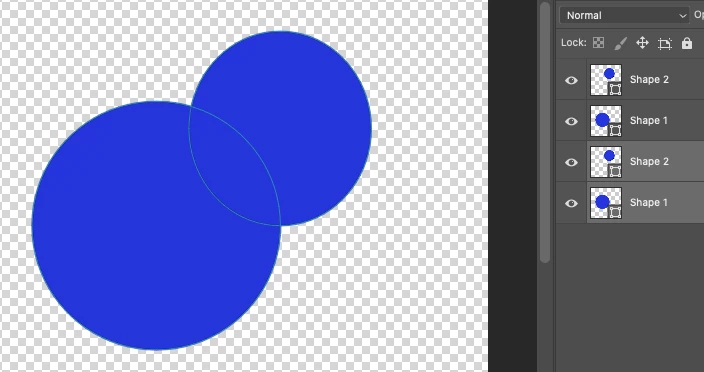
1) Duplicate both shapes:

2) Select the 2 at the bottom:

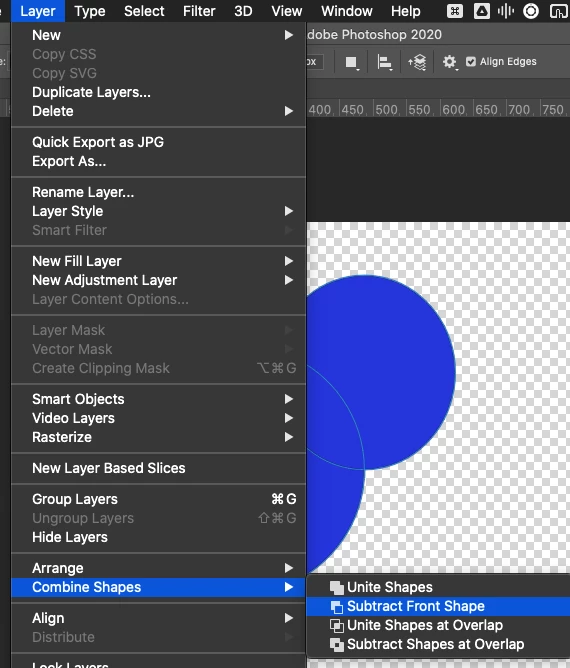
3) Select this option:

4) Select the 2 top shapes:

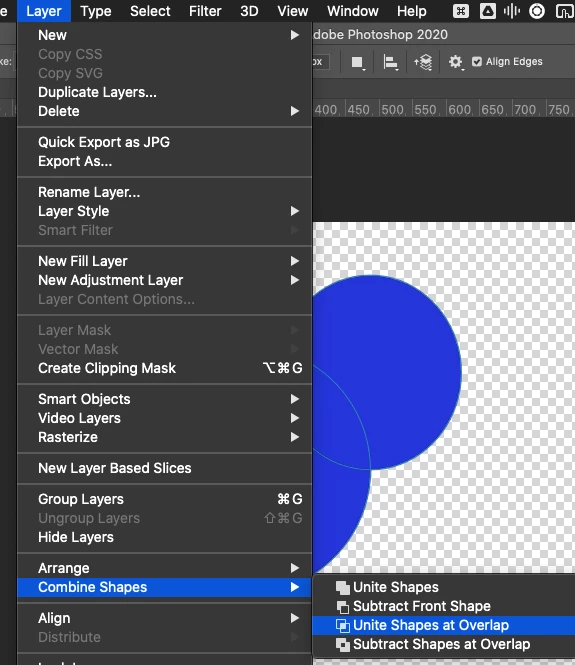
5) Select this option:

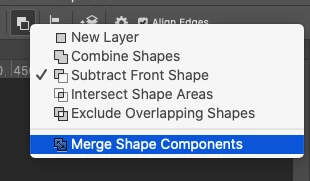
6) To convert the top layer (the intersection) into an individual shape, select that layer and go here:

7) There you go (moved the intersection to the side so you can see it):


2 replies

TiagoRochaAuthorCorrect answer
Inspiring
July 6, 2022

Solution:
1) Duplicate both shapes:

2) Select the 2 at the bottom:

3) Select this option:

4) Select the 2 top shapes:

5) Select this option:

6) To convert the top layer (the intersection) into an individual shape, select that layer and go here:

7) There you go (moved the intersection to the side so you can see it):


c.pfaffenbichler
Community Expert
Community Expert
July 6, 2022

A Shape Layer is a Solid Color (or Gradient …) Layer with a Vector Mask, so the (pixel-)Selection is irrelevant. 

Select one of the subPathItems instead. 

Inspiring
July 6, 2022

Thank you for the reply.

I'm a bit confused, because I don't know what you mean by "subPathItems"

I noticed that you have the Pen Tool selected and when I tried using it to create a closed path and use the shortcut, that worked. Now the issue is: what if I want to create a perfect square/rectangle or ellipse the way I can using the Marquee? Using the Pen Tool to achieve this is not the best and fastest workflow. How can I do it?

c.pfaffenbichler
Community Expert
Community Expert
July 6, 2022

Use the Rectangle Tool/Ellipse Tool and set the Path Operation accordingly (to what you want to achieve – add, subtract, intersect, …).