May 8, 2017
Answered

shapes along a path

  • May 8, 2017
  • 1 reply
  • 11256 views

Hello!

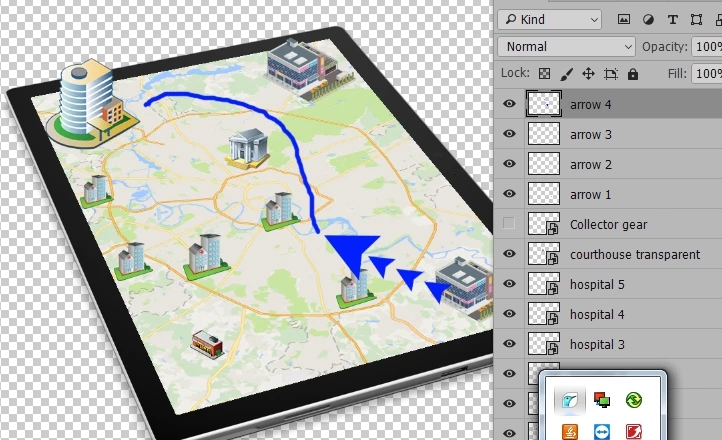
There's a collage to modify. There should be a line consisting of little arrows that indicate data flow between various sites.

I've created a custom shape and now tediously adding arrows one by one. Believe that should be an easy way to do so.

Feel like paths could be helpful, but can't really figure out how to use them into advantage.
Any ideas?
This topic has been closed for replies.
Correct answer davescm

One way

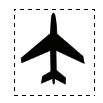
get your shape - make a marquee round it

Then Edit - Define Brush Preset

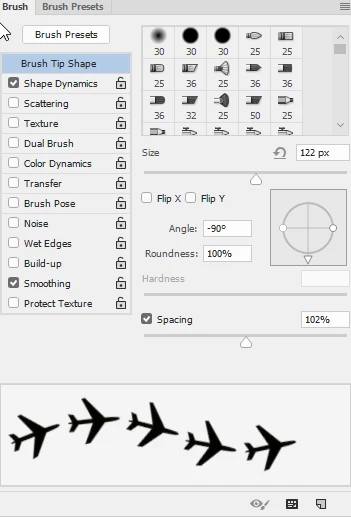
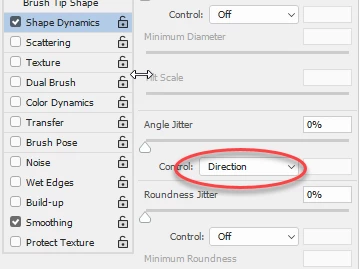
Then set the brush angle to be controlled by Direction

Adjust the spacing

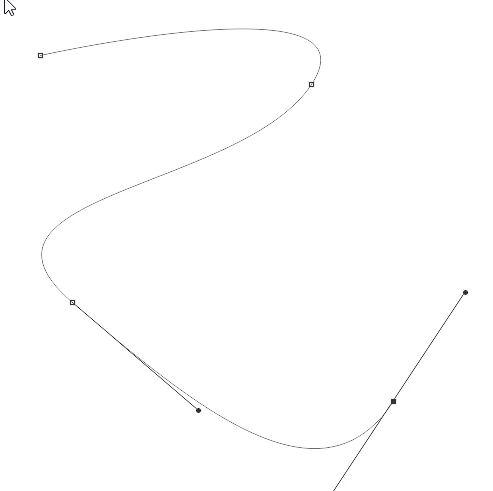
Draw your path

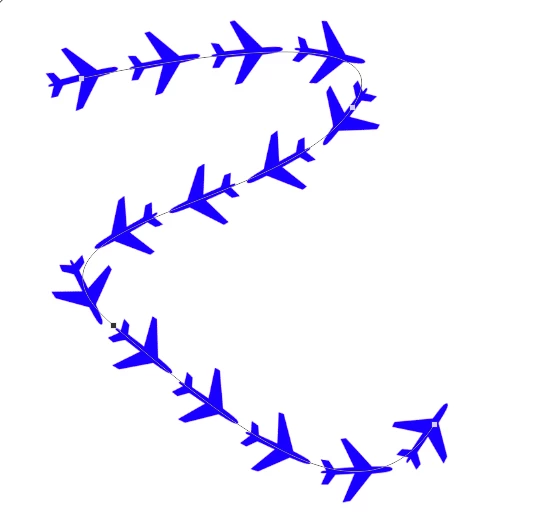
Stroke the path with your brush

I hope that helps

Dave

1 reply

davescm
Community Expert
davescmCommunity ExpertCorrect answer
Community Expert
May 8, 2017

One way

get your shape - make a marquee round it

Then Edit - Define Brush Preset

Then set the brush angle to be controlled by Direction

Adjust the spacing

Draw your path

Stroke the path with your brush

I hope that helps

Dave

May 8, 2017

Worked like a charm! Thank you!!

davescm
Community Expert
Community Expert
May 9, 2017

Playing further with the idea.

The goal is to make path stoke follow path changes.

Currently, when a path changes, I hide the old stoke, create a new level and move all effects onto it.

Is there a way to make stoke follow the path changes automatically without a new level hassle? (I may be asking too much)


I don't know a way to make the stroke follow the path change - however you can easily apply the layer styles to the new layer.

After you have stroked onto a new layer, right click the old layer and, in the layers panel, choose "Copy Layer Styles" then right click the new layer and "Paste Layer Styles". This will give the new layer the same style effects as the old.

Dave