Participant
September 22, 2023
Question

Size and alignment of pasted content in Vanishing Point does not match its dotted bounding box

  • September 22, 2023
  • 9 replies
  • 2216 views

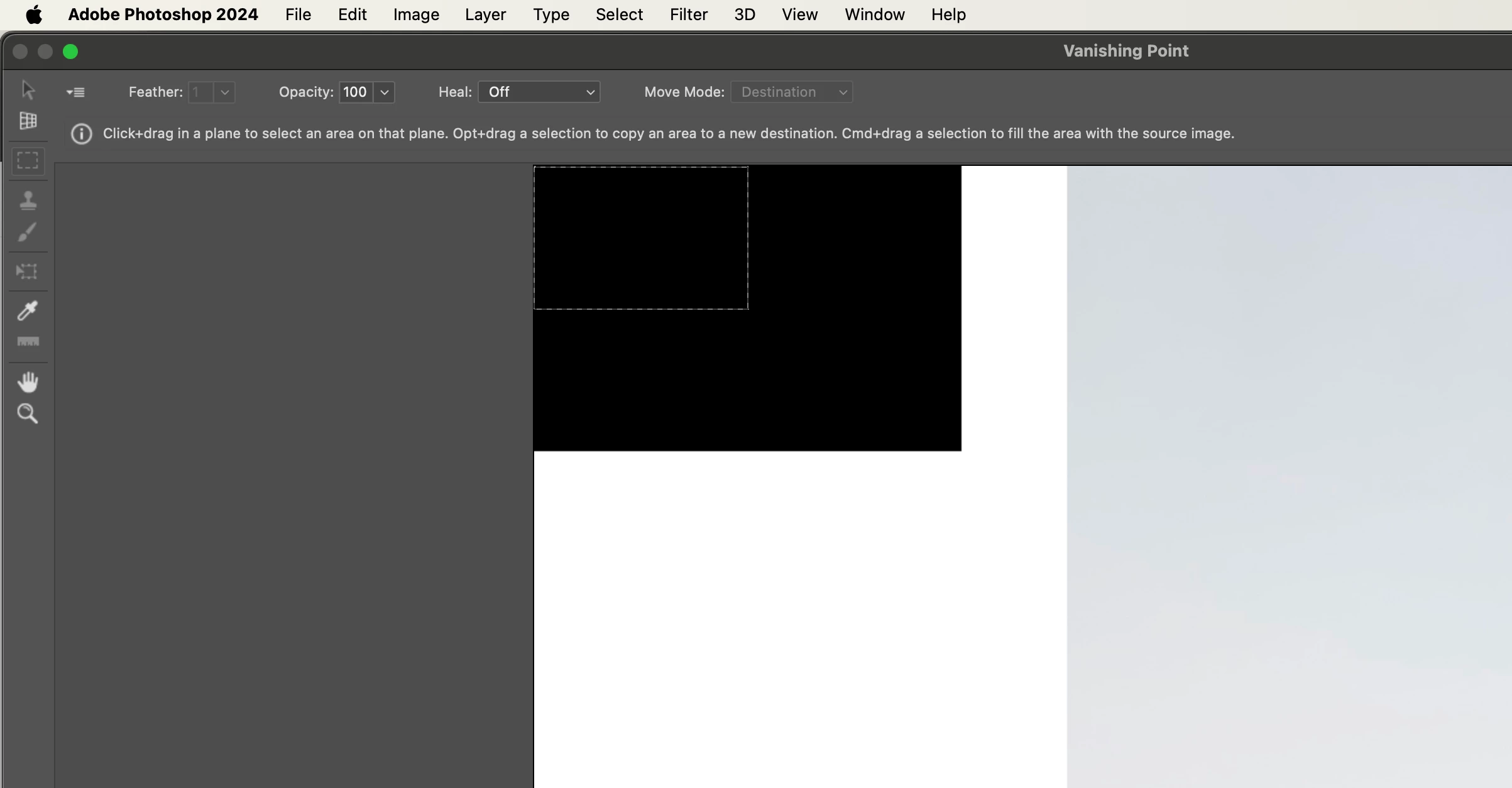
When I paste content in Vanishing Point tool, the content's bounding box does not match the size of nor aligns with the content itself. 
 

This topic has been closed for replies.

9 replies

Participating Frequently
October 10, 2023

I've now gone back to the Ventura OS and vanishing point works again. This seems to be an issue with the new Sonoma OS unfortunately.

Participating Frequently
October 7, 2023

my vanishing point brings in the image weird and I have to resize to fit window as you described, but it also does not work at all. I tried using stamp tool and marquee tool to repair an image and it does not work. It does nothing.

Participating Frequently
October 6, 2023

I think they may be an issue with upgrading to the new Sonoma OS. I've tried resetting PS (inc. manual) and also uninstalled and re-installed previous versions that worked previously. Hopefully this can get fixed asap as a lot of my work just now relies on vanishing point.

melissapiccone
Community Expert
Community Expert
October 6, 2023

I see the problem now - the image is coming in much larger than the boudnding box. Now all the screenshots makes sense. I don't know what the issue is or how to fix it. You can try to reset Photoshop prefs but I'm not sure if it will help here. Hopefully someone else will chime in.

Melissa Piccone | Adobe Trainer | Online Courses Author | Fine Artist
Participant
October 5, 2023

Sorry, melissapiccone, I must not have explained well enough, but cutefunk's screenshots do a good job at showing the problem.

Take a closer look at my screenshot and cutefunk's second-to-last screenshot, then compare it to your first screenshot. Look at the dotted line/bouding box of the pasted content. In our screenshots, the dotted line does not line up with its content. In your's, the dotted line does line up with its content. 


This wouldn't necessarily be a problem except when I drag that content into the perspective plane, the content does not behave in a way that is unsable at all. Look at cutefunk's 4th and 5th screenshot. This is what happens when you drag the dotted box in the place—the content doesn't line up. And if you try to counteract this by moving the dotted box to a weird place, the pasted content starts behaving unpredictably.

melissapiccone
Community Expert
Community Expert
October 5, 2023

It's still working correctly for me, here are the steps. 


1. Copy or cut the image into your clipboard that you want to place in perspective. 

2. Create a new blank layer. 

3. Choose vanishing point and make your plane.

4. paste - it will past into the blank layer in the upper left corner:


5.  Select the section tool on the left - the box with control handles around it and drag the image into your plane. It will come in giant... you need to click and drag the image to find a corner... 

 6.  Resize the image from the corner


Melissa Piccone | Adobe Trainer | Online Courses Author | Fine Artist
Participating Frequently
October 4, 2023

I have the same issue. When I open up Vanishing Point I can't scroll around - when I zoom in I can't scroll to work in more detail. When I paste in any artwork to put into the vanishing point, when I go to re-size the box isn't even properly around the artwork (marque covers 25% top left of whatever the artwork is). When I put in the vanishing point, when I come out of vanishing point it's at another place on the artboard with the artwork expanded but cut to size of what the vanishing point should be.

The black box in the example with the marque tool around 25% of the artwork is what I get when trying to scale the artwork.

I've added images to try and give a better idea of what seems to be happening to me and the original poster. 


Participant
September 28, 2023

I'm have the same issue too after update v25.0.    

melissapiccone
Community Expert
Community Expert
September 22, 2023

Your screenshot is not helpful, I can't tell what the problem is. When I use Vanishing point, my content usually comes in giant compared to the plane I place it on and I have to resize it - is that the problem? 

Melissa Piccone | Adobe Trainer | Online Courses Author | Fine Artist
