Gareth_Williams
Inspiring
December 19, 2016
Answered

Size Layer or Selection to Document Boundaries?

  • December 19, 2016
  • 1 reply
  • 1067 views

Hi everyone, I have googled this but not found any answer. I am making a favicon in a 250x250 px document (later it will be resized to 16px) I want the logo to fit the whole document. At the moment the only way I can do it is to place the logo in the middle (align horizontal and align vertical) and then scale it manually with edit/transform/scale. I have to do it by eye and get it near the edges but it’s not exact.

Can you select the layer (content of a layer) and make it scale to fit within the document automatically? or fit within a selection? Either would be helpful. Thanks for your help.
    This topic has been closed for replies.
    Correct answer davescm

    Thanks Dave,

    Snap to document boundaries is checked but it doesn’t seem to do anything. Well, it doesn’t seem to do anything when scaling something anyway. Convert to shape has made it look rubbish (as you alluded to in your post) and given it a crap looking grey stroke, it’s even worse in my case because my effect (in the styles pallet) had a nice bright stroke and drop shadow which is completely ruined when converting to shape.


    Hi Gareth

    You may want to look at your settings. Convert to shape shouldn't stroke it gray - the difference is small.

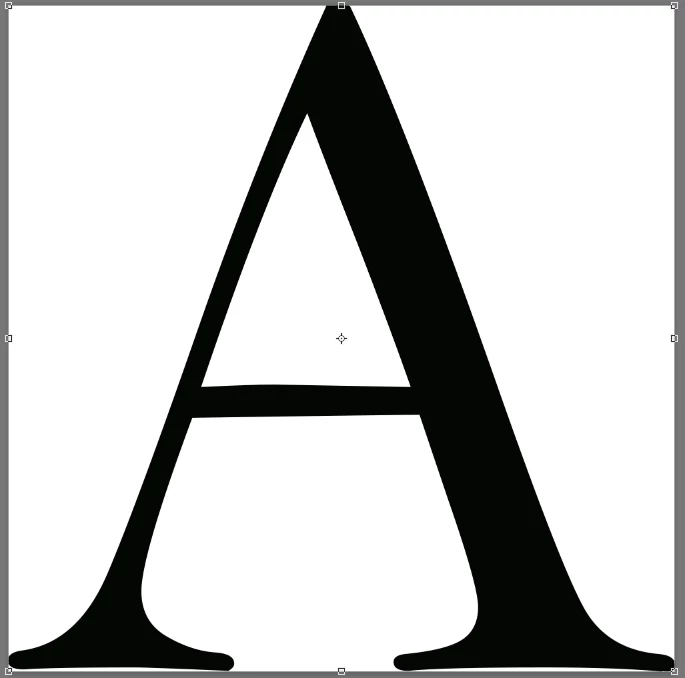
    Letter A

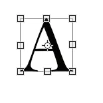
    Type layer scaled

    Convert to shape and scaled

    You can apply layer styles to the shape layer if you want to

    Dave

    1 reply

    gener7
    Community Expert
    Community Expert
    December 19, 2016

    In the Free Transform Option at the top, you can define the X and Y dimensions of your logo in any unit.

    There is a link between X and Y to maintain perspective, but you can uncheck that.

    So if you know the Canvas size, just set X and Y to match it. Default is in percent, but you can specify 3 in or 300 px.

    Gene

    Gareth_Williams
    Inspiring
    December 20, 2016

    Ah! There is a problem with this method, so I have “unmarked” it as correct. When the logo is a text character, in my case a letter, this doesn't work hight ways. It only works width ways because hight ways there is more space above and bellow the letter. So it worked with the “W” because it was wider than tall but did not work with the “F” because it is taller than wide. Back to the drawing board!

    davescm
    Community Expert
    Community Expert
    December 20, 2016

    Hi Gareth

    Do you have this checked in View :

    Also for text, as you have noticed there is  a bigger bounding box than the actual text. However in this case you could right click the type layer and Convert to Shape. This will have a bounding box that will transform and will snap to the edges. The disadvantage is that although it is still a vector, and therefore scalable, sometimes it is not quite as crisp as text. But given that your intention is to size down at the end this may not be an issue for you.

    Hope that helps

    Dave