Are you perhaps referring to the size of the layer being transformed?
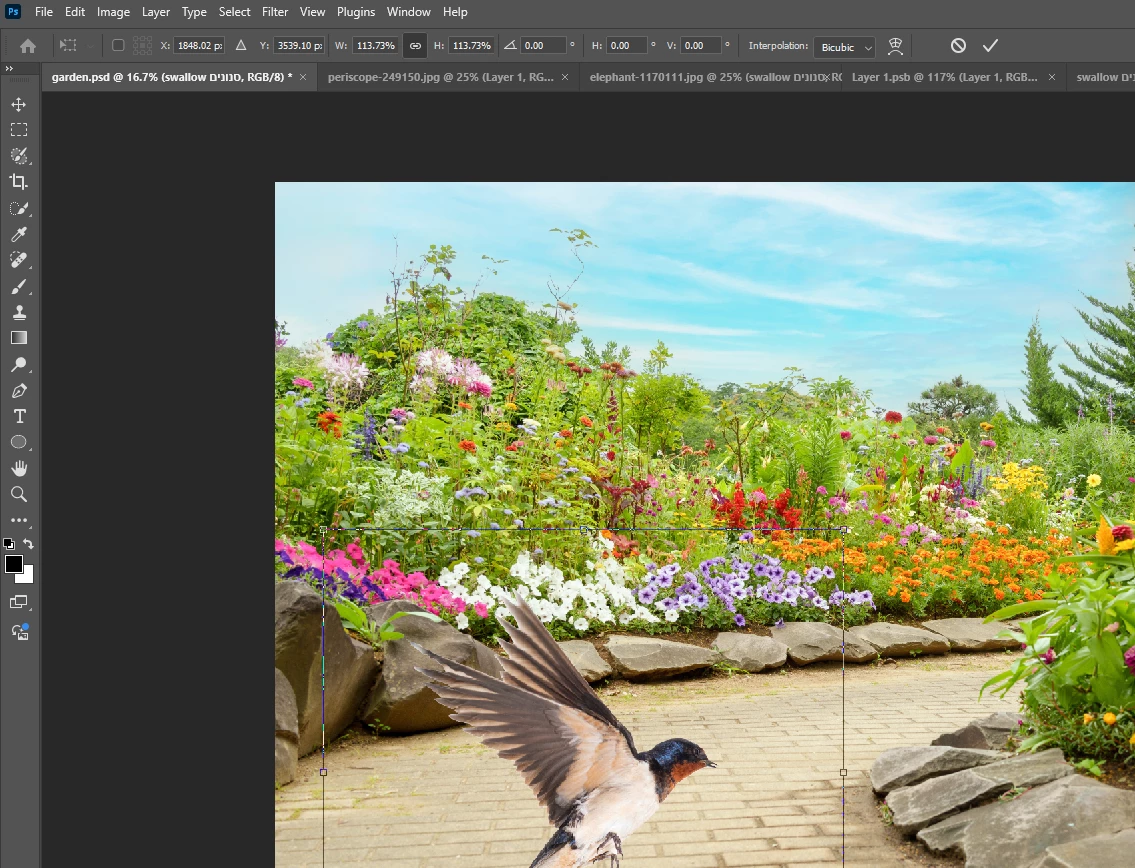
If so, I agree with @Conrad_C – you can change the transform toolbar width and height by right-clicking in their fields and changing them from % to px or another desired unit of measure. In your screenshot, the transformed bird has a lot of space around it, so you see the size of the transform box and not the actual bird pixel bounding.
By size, do you mean dimensions (width x height), file size, or a different size (megapixels, etc)
Kevin already showed where you can show Document Dimensions in the status bar. If the “size” you want is file size, the status bar should default to file size.
The picture below shows four ways to see document dimensions:
A. Status bar
B. Info panel, when customized
C. Rulers, if displayed (View > Rulers)
D. Properties panel, when no layer is selected.
Finally, your screen shot is already showing dimensions in the options bar, probably because Free Transform is active. If the selection is a layer of the same dimensions as the document, the options bar shows that. If you want to see different units for the selection than percentages, right-click the value and change it, as shown in the demo below.

 AdChoices