
Exit
  • Global community
    • Language:
      • Deutsch
      • English
      • Español
      • Français
      • Português
  • 日本語コミュニティ
  • 한국 커뮤니티
0

Smart Object changes scale unexpectedly when replacing artwork

New Here ,
Jan 07, 2026 Jan 07, 2026

Hi,

My name is Carolina, and I work with Photoshop mockups for fabric and apparel printing.

I am experiencing an issue that I have not been able to find clearly documented, so I decided to open this topic. Due to a high volume of files, our workflow relies heavily on Photoshop Smart Objects to standardize and automate artwork placement across multiple mockups and artboards.
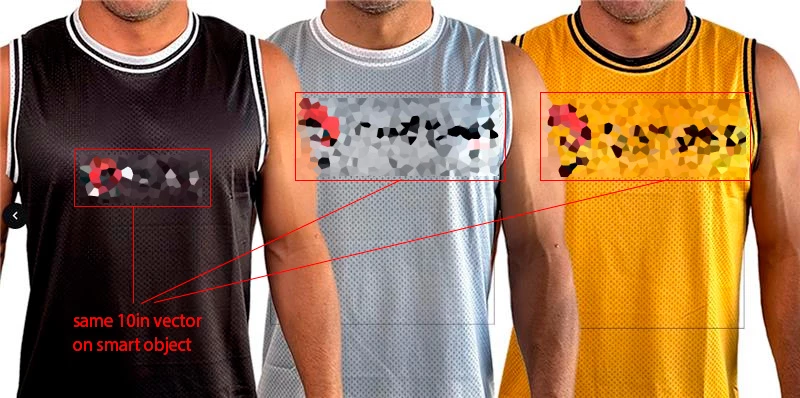
photoshop problem with smart object.jpg

The problem is that, occasionally, when replacing the artwork inside a Smart Object, the object automatically changes scale, even though the same source files, Smart Object structure, and alignment rules are being used. This does not happen in all mockups, only in some of them, which makes the behavior inconsistent and difficult to predict.

For example, using the same PSD mockup and the same Smart Object, a placeholder vector with a fixed size (10 inches) aligns correctly in most garments. However, when replacing it with the final logo, which is also vector based, the resulting scale appears significantly larger in certain mockups, breaking visual consistency across the set.

The Smart Object structure includes reference and margin shapes, some of them invisible, which are required for alignment and cannot be removed. These reference objects seem to affect the bounding box calculation and may be influencing how Photoshop recalculates scale when the Smart Object is updated. Even when the replacement artwork maintains the same dimensions, the final rendered size is not always consistent.

We first noticed this behavior around mid December 2025, approximately December 18. The workflow was previously stable, and no changes were made to the source files at that time, which makes me wonder whether this could be related to a recent Photoshop update or internal change.

Manually resizing each file is not a viable solution, as Smart Objects work correctly in most cases and are essential for this automated workflow across dozens of files.

Has anyone experienced similar Smart Object scaling inconsistencies in Photoshop, or knows how to prevent Photoshop from recalculating scale when replacing artwork inside Smart Objects?

Thank you in advance.

TOPICS
Windows
202
Translate
Report
Community guidelines
Be kind and respectful, give credit to the original source of content, and search for duplicates before posting. Learn more
community guidelines
Adobe
Community Expert ,
Jan 07, 2026 Jan 07, 2026

Raster smart objects are sized using their resolution PPI value. I'm guessing that the resolution value under Image > Image Size is different between these smart objects.


For vector objects, there might be a stray point changing the expected bounding area.


I would expect to have a larger bounding object used for consistent sizing across all designs. Example, if all designs were  smaller and centred on an A3 page setup, then I'd use a A3 sized locked path for consistent bounds.


Are the files .ai or .eps or .pdf etc?

Can you provide example files for testing?

Translate
Report
Community guidelines
Be kind and respectful, give credit to the original source of content, and search for duplicates before posting. Learn more
community guidelines
New Here ,
Jan 08, 2026 Jan 08, 2026

Hi Stephen, thank you for the explanation.


I usually work with multiple artboards within the same PSD. As shown in the image I posted, when updating the same Smart Object with the same vector artwork, some artboards automatically increase the Smart Object scale (%), while others remain correct — with no manual transform applied. This happens inconsistently across artboards within the same file. The Smart Object content is always vector-based and includes reference/margin shapes (some hidden).


I’m attaching one of the PSD files where this behavior occurs, in case it helps determine whether this is expected behavior or a regression.

Translate
Report
Community guidelines
Be kind and respectful, give credit to the original source of content, and search for duplicates before posting. Learn more
community guidelines
New Here ,
Jan 08, 2026 Jan 08, 2026

I wanted to share a clearer example.


All the purple artworks you see are instances of the same Smart Object.
When the first purple Smart Object is updated, all other purple instances update together, as expected.

The issue is that some of those instances end up with a larger scale (%) than others, even though they originate from the same Smart Object within the same PSD and no manual transform is applied.


So the content updates correctly, but the resulting scale differs between artboards.

I’m attaching another PSD that demonstrates this more clearly.

Translate
Report
Community guidelines
Be kind and respectful, give credit to the original source of content, and search for duplicates before posting. Learn more
community guidelines
Adobe Employee ,
Jan 08, 2026 Jan 08, 2026

Hey @carolnitra

Thanks for the detailed breakdown — that definitely sounds frustrating. What’s likely happening is that Photoshop is recalculating the Smart Object’s layer bounds when you replace its contents. Any hidden, oversized, or reference objects within the Smart Object can affect those bounds, which may cause the artwork to rescale unexpectedly, even if the replacement file has the same canvas dimensions.


A few things you could try:


> Double-check that only the intended artwork defines the Smart Object’s bounds (no hidden or oversized elements).

> Look for stray pixels, masks, or reference shapes that extend beyond the visible artwork.

> If possible, try placing or pasting the new artwork into the Smart Object instead of using Replace Contents to see if it behaves more consistently.


^CM

Translate
Report
Community guidelines
Be kind and respectful, give credit to the original source of content, and search for duplicates before posting. Learn more
community guidelines
New Here ,
Jan 08, 2026 Jan 08, 2026

Thank you very much for the attention and availability, I really appreciate it.


When replacing artwork inside the Smart Object, I remove everything except a single reference object that defines the artwork area. This object is used purely to delimit the paint/print space.

Because of this, any stray pixels, paths, or nodes from previous artwork should be completely removed, so they wouldn’t affect the bounding box or scale calculation.


What intrigues me is that, even using the exact same Smart Object, some mockups resize correctly while others do not. If there were hidden artifacts or leftover data influencing scale, I would expect the issue to occur consistently across all instances — but it doesn’t.


That inconsistency is what makes this behavior difficult to explain and troubleshoot.

Translate
Report
Community guidelines
Be kind and respectful, give credit to the original source of content, and search for duplicates before posting. Learn more
community guidelines
Community Expert ,
Jan 08, 2026 Jan 08, 2026

I’m just chiming in because I think I saw a problem like this today. Unfortunately, it seems to be difficult to reproduce. 


I wanted to add some type and graphics over three video files. I created a layered TIFF document, placed the first video file, and added the graphics. The second and third versions would be very similar, so I duplicated the document, selected the video layer, and chose Layer > Smart Objects > Relink to File to replace it with the second video file. 


The replacement video file appeared mysteriously smaller on the canvas than the first. This should not have happened because they were captured one after the other, without changing settings. I switched to the desktop and double-checked the width and height of the screen recordings and they are all 2032 x 1322 px, so the smaller size was not based on a width and height difference. Next I switched back to Photoshop and looked at the dimensions of the replacement video Smart Object, and notice that the scaling percentage had mysteriously been shrunken down to an odd percentage like 23.46% (that’s not exact, I didn’t write it down). It should have stayed at 100%. But, I tried it again just now and it worked fine, which is why I think it’s difficult to reproduce. 


Possibly related but not sure: I said I had three versions. When I duplicated the second document to make the third version, Photoshop ended up hanging while reading the replacement file. It went into “Application Not Responding” while there was a stuck progress bar that said it was updating the Smart Object. Another strange thing about this is although Photoshop hung and was force quit a couple of times as I tried again, neither macOS nor Adobe displayed a crash reporter dialog box, so I was unable to submit one. I eventually fixed this by forcing Photoshop to quit, deleting the document copy that crashed Photoshop, and making another duplicate of the document that this time worked fine. 


Again I don’t know if the Photoshop hangs in the last paragraph are related, but I only mention it in case it helps indicate what’s going on. Hopefully, it is not evidence that there is a problem that might compound until the application can’t handle it. 

Translate
Report
Community guidelines
Be kind and respectful, give credit to the original source of content, and search for duplicates before posting. Learn more
community guidelines
New Here ,
Jan 08, 2026 Jan 08, 2026
LATEST

Yes — it’s extremely frustrating.


I’ve tried to identify a consistent rule or trigger, but so far I haven’t been able to define any reliable criteria. Neither AI analysis, forum discussions, nor repeated testing have revealed a clear pattern.


Each piece I work on is a different PSD containing multiple artboards. What makes this particularly difficult is that the issue is inconsistent: on some days, certain artboards fail to cooperate; on other days, different artboards exhibit the same behavior.


This irregularity across files and artboards makes it very hard to distinguish a predictable pattern or root cause, even when using the same Smart Object structure and workflow.

Translate
Report
Community guidelines
Be kind and respectful, give credit to the original source of content, and search for duplicates before posting. Learn more
community guidelines