bryanr72
Participant
November 29, 2017
Answered

Smoothing a rough/jagged signature

  • November 29, 2017
  • 4 replies
  • 25457 views

Greetings-

This is my first post, so if I do something in error, please let me know.

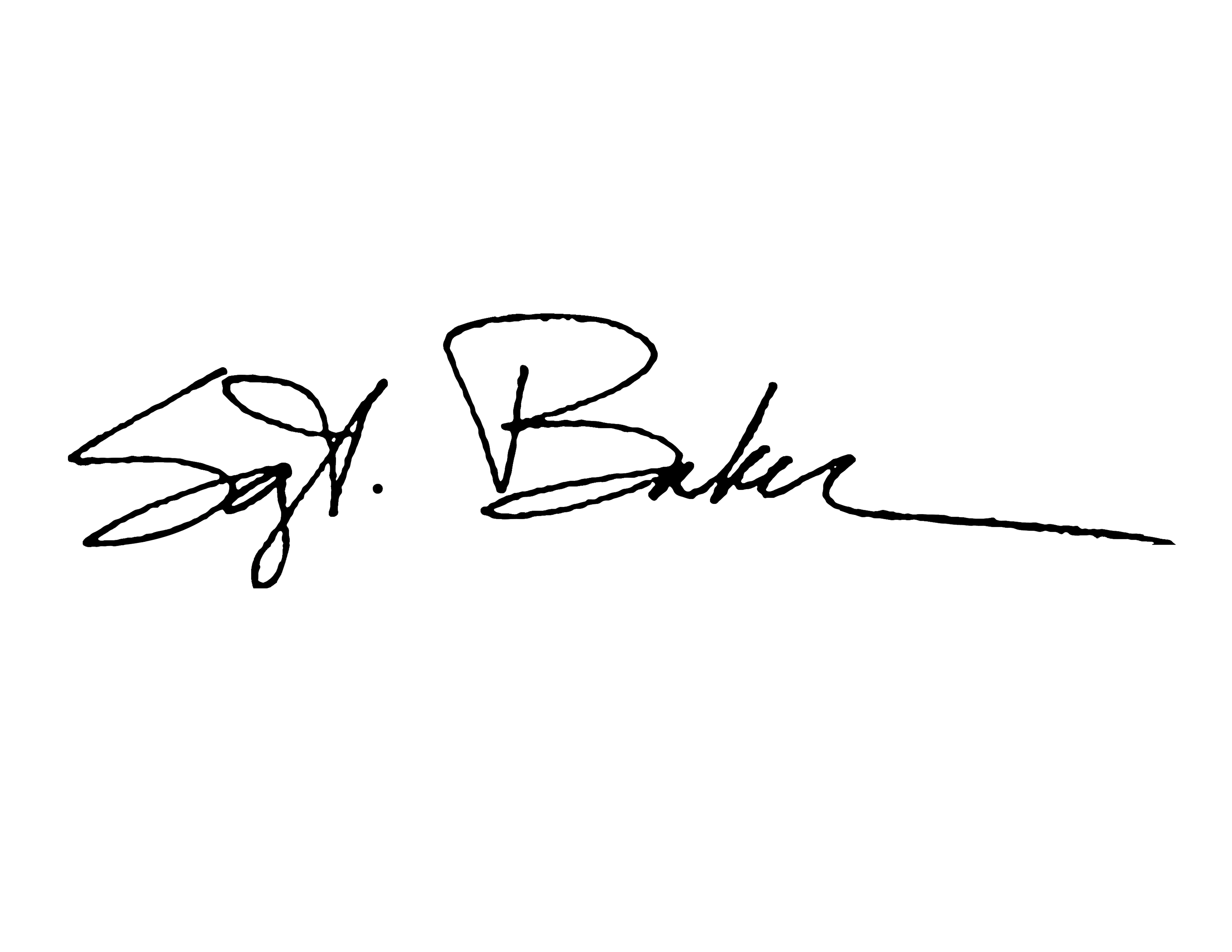
I am trying to clean up a low res signature, for a project.  I've tried the pen tool, & I can use it to some degree, but the signature has little anomalies that make the signature unique to the person.  And that is where I have trouble.

Is there a plug-in or something that can clean up things like this?  I've included the blown up version as a reference, so you can see what I'm working with. 

Any help is appreciated.  The more I can learn, the better I will get.

Thanks!

-Bryan
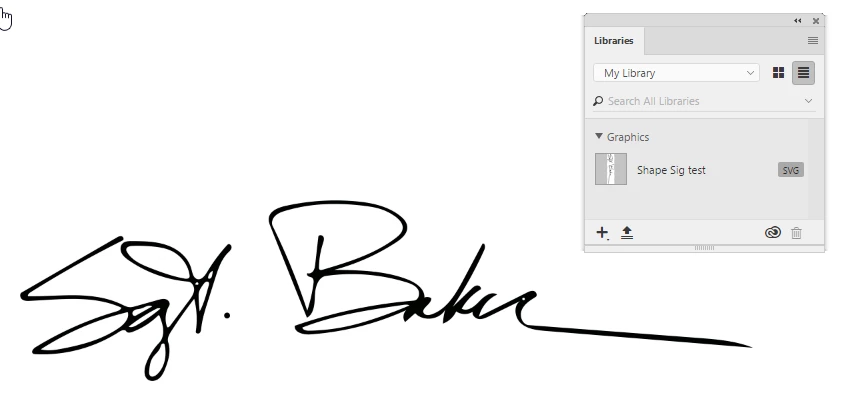
Correct answer davescm

Now here is a real "off the wall" alternative:

I used my phone with the Adobe Capture app to photograph the signature direct from the screen in post 1.

I then used the app to crop it and turned smoothing on in capture - and saved it to my library. That took seconds.

It immediately appeared in my library in Photoshop as an SVG file.

:

Dave

4 replies

JonathanArias
Legend
November 29, 2017

i have done this for a previous company. i took the signature to illustrator as a high res image. live traced it. and minimized the number of points/used the smooth tool. came it great and now the signature was vector.

davescm
Community Expert
Community Expert
November 29, 2017

As an alternative

1. Just trace around the signature with the pen tool to make a path. That way you can make it as smooth, or include any bumps, as you like.

2.Then create a shape from the path

Bottom is original (click to zoom)

Dave

davescm
Community Expert
davescmCommunity ExpertCorrect answer
Community Expert
November 30, 2017

Now here is a real "off the wall" alternative:

I used my phone with the Adobe Capture app to photograph the signature direct from the screen in post 1.

I then used the app to crop it and turned smoothing on in capture - and saved it to my library. That took seconds.

It immediately appeared in my library in Photoshop as an SVG file.

:

Dave

Chuck Uebele
Community Expert
Community Expert
November 29, 2017

Within Photoshop, you can apply a gaussian blur then a threshold adjustment layer to sharpen things back up. Works so-so. Bottom is the original.

bryanr72
bryanr72Author
Participant
November 29, 2017

Thank you for the help!  It is much appreciated.

-Bryan

rayek.elfin
Legend
November 29, 2017

Here is a quick cleaned up version. I have to confess that I did not use Photoshop or Illustrator for this, but OpenToonz (animation software) because it has an excellent (drawn) bitmap line art to vector conversion and nice vector clean-up tools. OpenToonz is meant for this type of hand-drawn line cleanup, and does it quickly and nicely without too much user intervention.

I tried Illustrator, but it was too finicky in this case. Someone here can probably come up with a Photoshop-only solution.

The high resolution version is here: http://i67.tinypic.com/10ife4m.png

Anyway, the basic thought process behind this is to convert the original to a vector version with smooth curves without too much detail retained, then use smooth and thickness tools to correct the major issues.

Terri Stevens
Legend
November 29, 2017

Another application that is designed to take signatures and clean them up is FontLabs Scanfont. It is really designed for scanning a signature and then converting it into an actual font. We use it quite a lot where I work as it allows us to sign documents with our actual signatures from within a word processor or DTP program just by selecting your own font. Needless to say something like that is not free-it costs $99 There are Mac and Windows versions and demo versions are available on their site.

https://old.fontlab.com/font-converter/scanfont/

rayek.elfin
Legend
November 29, 2017

Oh, thanks: I wasn't aware of that software. Seems very useful, and will keep that in mind when/if a situation arises. Bookmarked!