Participant
June 23, 2018
Question

Sneaker Mock up

  • June 23, 2018
  • 3 replies
  • 784 views

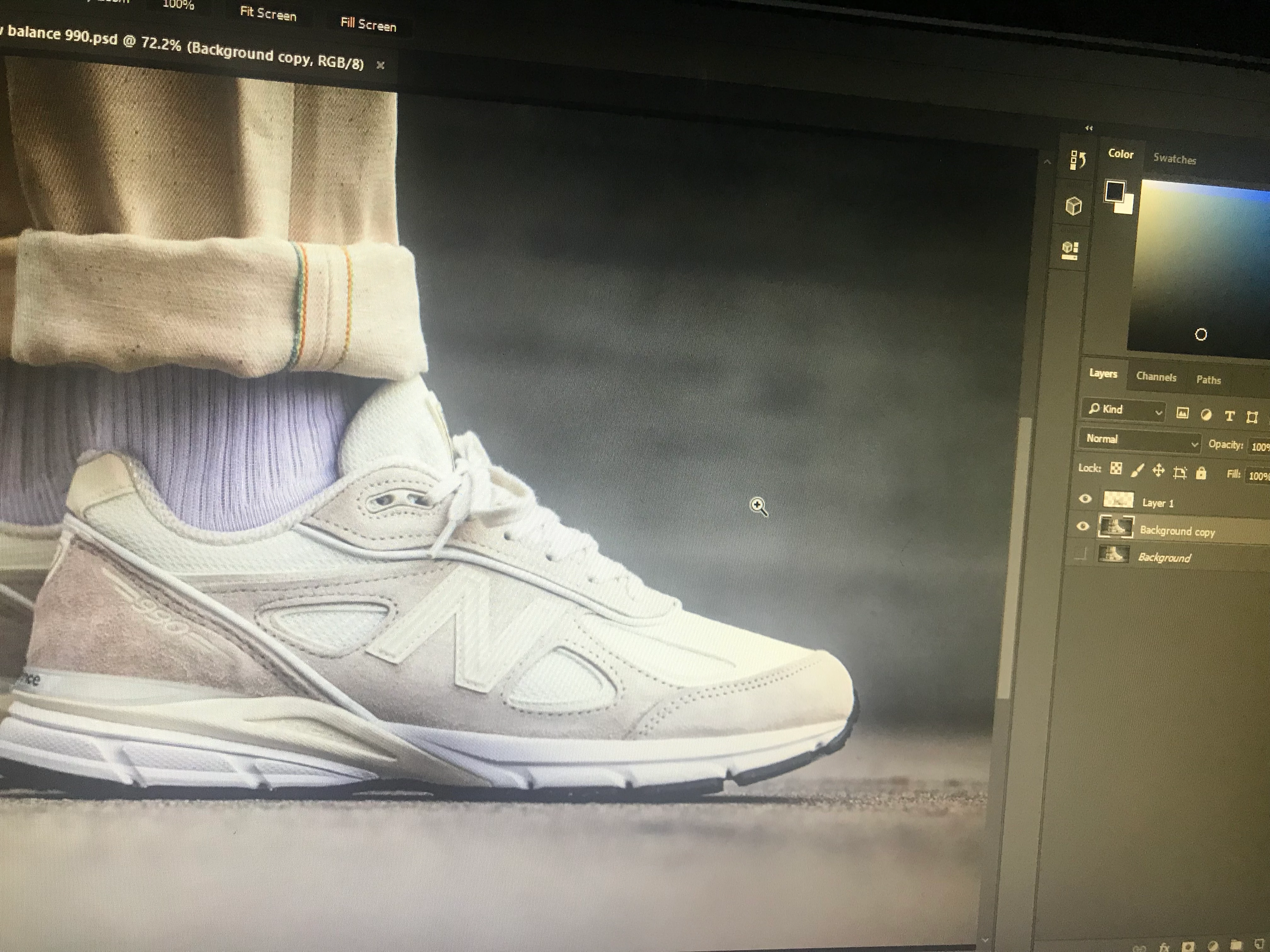
Hi, i've recently been trying to make a shoe mock up but my end results are not what i excepted. i as wondering if someone could guide me through the process of making a legit mockup.

    This topic has been closed for replies.

    3 replies

    Trevor.Dennis
    Community Expert
    Community Expert
    June 24, 2018

    Good gracious.  I initially thought that the shoe was an illustration, and I was going to be in awe of your skills!!! 

    The master of this sort of thing is my all time Photoshop hero, Bert Monroy, who did the Times Square illustration.  Check out the image at the link below, and zoom in and in and in,

    Times Square

    If you are serious about this, then take out a subscription to Lynda.com, and watch Bert go through a detailed account of every detail in the Times Square illustration, plus many other images.  Note that it took Bert several years to complete that project. 

    Don't be put off, as illustration is so much more rewarding than tarting up your holiday snaps, but it takes a lot of time and practice to get really good at it.

    Bert Monroy — Online Courses, Classes, Training, Tutorials on Lynda

    Trevor.Dennis
    Community Expert
    Community Expert
    June 24, 2018

    BTW,  have a go at our Something For The Weekend challenges.  There's a new one every Friday (UK time) and anyone is welcome to have a go.  It's good practice, and you'll get stuck and have to work stuff out.  I've learned heaps by doing them.

    Something for the weekend - Part 25 - A Bridge Too Far

    Participant
    June 23, 2018

    okay i understand so far. i made a selection and it was perfect but if i want to cut each part of the shoe out do i need multiple copies of the original image?

    davescm
    Community Expert
    Community Expert
    June 24, 2018

    Yes

    Just use Ctrl+J  (Cmd+J on Mac) to copy the layer and mask a different section. You can repeat this as many times as you like to separate the sections.

    Dave

    davescm
    Community Expert
    Community Expert
    June 23, 2018

    Hi

    What are you starting with?

    If you are starting with an image of the shoe and combining it with other elements then it is all about
    a. Masking

    b. Matching lighting colour and shadows which involves painting in shadows and using curves.

    c. Matching perspective which means picking the right images to combine.

    If you have a couple of sample starting images post them and we'll try and help you.

    If on the other hand you are starting with nothing at all and have to make the shoe from scratch then, personally, I would make it in a 3D application and then render it accordingly.

    Dave

    Participant
    June 23, 2018

    thank you for replying and helping me out. im starting off with an image from google; i posted the image in the original post.

    a. I know what a layer mask is but i dont know how to use it effectively.

    b. i guess i have a lot of research to do about that topic.

    c. could you elaborate on that topc

    davescm
    Community Expert
    Community Expert
    June 23, 2018

    Hi

    A mask allows a layers pixels to be visible or hidden. If they are hidden the pixels on the layer(s) below become visible.

    Where the mask is white the layer pixels are visible - where it is black they are hidden. Shades of grey lead to shades of transparency.

    You can add a mask in Layer > Layer Mask > Reveal (or Hide) All          

    You can click on the mask and brush straight onto it in black or white.

    You can also make a selection, using any of  the selection tools, then make a mask from the selection using Layer >Layer Mask >Reveal (or Hide) selection

    As another alternative you can draw your selection with the pen tool, to create a path. This is a very accurate method for drawing around smooth shapes such as your shoe.  Then in the paths panel you can make a mask directly from the path by clicking on the mask symbol at the bottom of the paths panel.

    Draw with Pen tools in Photoshop

    Dave