


Known Participant
June 29, 2019
解決済み

So different of Linear dodge between old and new versions

  • June 29, 2019
  • 返信数 5.
  • 2112 ビュー

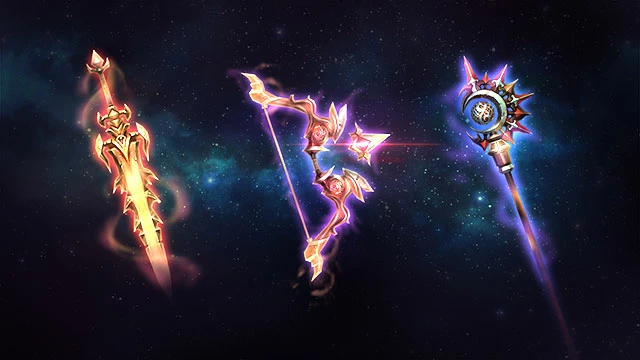
This is the result in PS2014(both linear dodge & color dodge used)
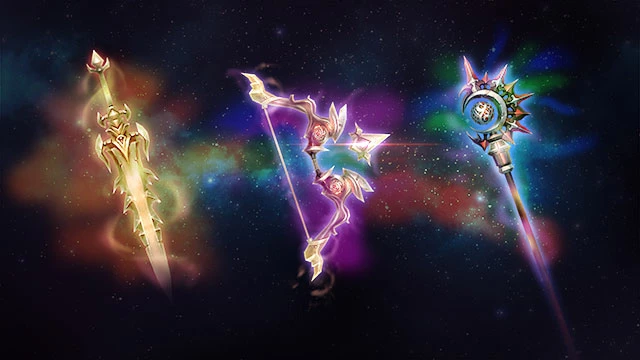
And the result of same PSD in PS2018(in fact, 2015-2019 are all the same problem), so different, anybody noticed this issue?
I used to mention this issue, but seems no one regards what I said.

Is there anyone with the same problem as me?

Here is the TEST PSD.
このトピックへの返信は締め切られました。
解決に役立った回答 Jeff Arola

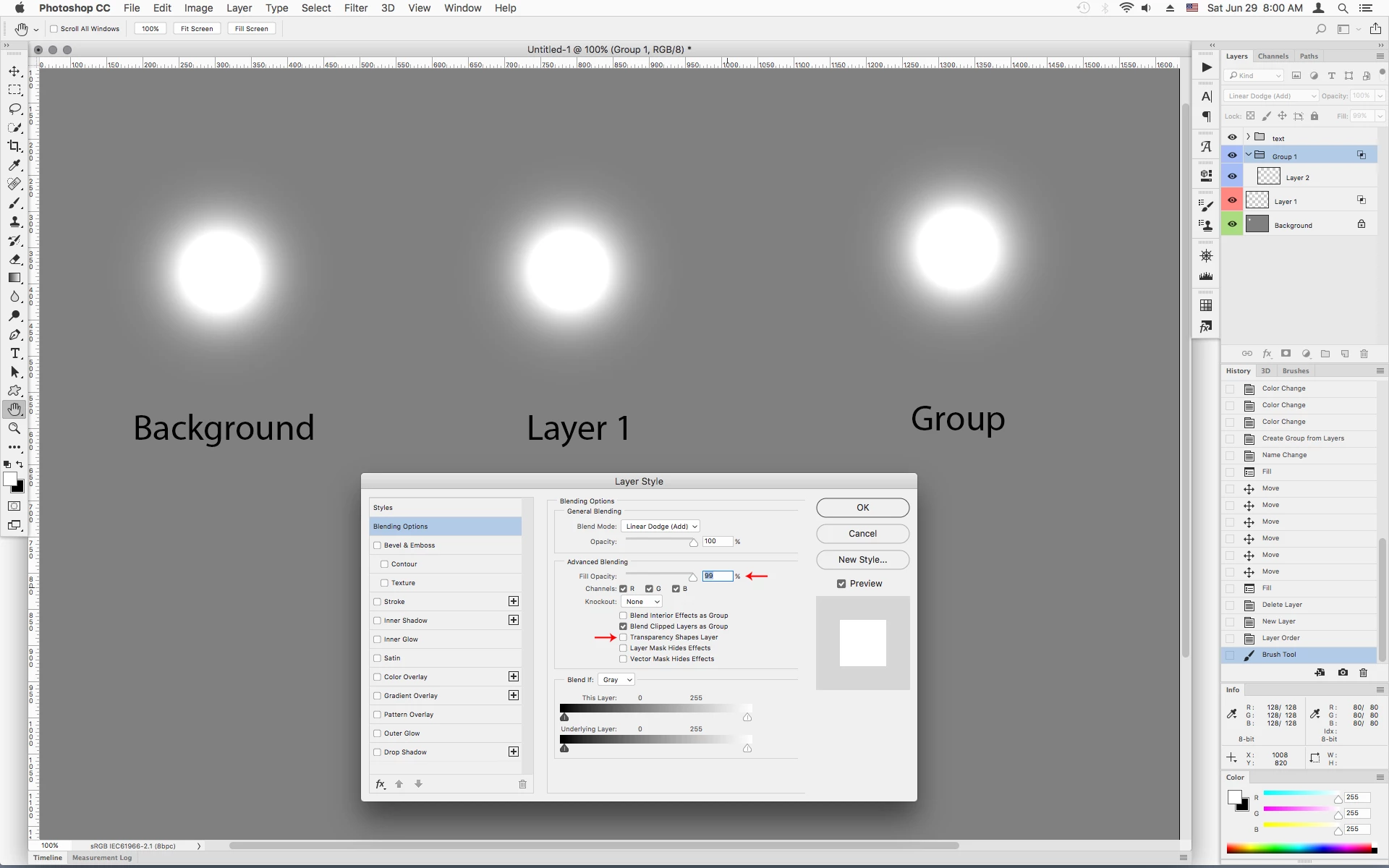
After further investigation it actually looks like the bug has to do with the Fill Opacity on Groups.

If you check Transparency Shapes Layer and reduce the Fill Opacity to 99 then it looks like the other two layers.

返信数 5

fooxx作成者
Known Participant
July 1, 2019

By the way, can't  the original post be edited once again after a period of time?

c.pfaffenbichler
Community Expert
Community Expert
July 2, 2019

A post can usually not be edited after the first reply has been posted to it.

fooxx作成者
Known Participant
July 5, 2019

I see~~Thanks for your explanation~~

fooxx作成者
Known Participant
July 1, 2019
Jeff Arola
Community Expert
Community Expert
June 29, 2019

It's easy to replicate the issue 20.0.5

1. Make a new document in sRGB, fill with 50% grey.

On the grey layer use a soft brush set to white and Linear Dodge (Add) in the tool options bar

2. Make a new layer, paint on that layer with the same white brush and then change the layer blend mode to Linear Dodge (Add)

and uncheck Transparency Shapes Layer in the Layer Style Blending Options.

3. Make a new layer, put the layer in a Group, paint with the white brush on the layer in the group. Then change the Group Blending Mode to Linear Dodge (Add). Now here's the problem that even if you uncheck Transparency Shapes Layer for the Group it still doesn't match the other two, assuming the other two is how it's supposed to look.

You can fix the group by filling layer 2 in the group with Black in the Behind blend mode, but for some other blend modes the fix is not so easy or it might not work on a particular document for whatever reason.

Jeff Arola
Community Expert
Jeff ArolaCommunity Expert解決!
Community Expert
June 29, 2019

After further investigation it actually looks like the bug has to do with the Fill Opacity on Groups.

If you check Transparency Shapes Layer and reduce the Fill Opacity to 99 then it looks like the other two layers.

fooxx作成者
Known Participant
July 1, 2019

Thanks for your explanations, they are quite professional and detailed, and I think, unchecking "Transparency Shapes Layer" option maybe the best way for present version.

I never used "Transparency Shapes Layer" before, and seems need to use it from now on, it's a bit complex than before.

After further test, seems still the "Group+Transparency Shapes Layer" is handy operation, just like using Group in 2014, because "layer+Transparency Shapes Layer" can't apply layer style correctly.

Jeff Arola
Community Expert
Community Expert
June 29, 2019

You can use your Creative Cloud account to upload the psd and paste a link here on the forum.

https://assets.adobe.com/files

It's been brought up before

Photoshop: Group linear dodge may acts different from the layer linear dodge | Photoshop Family Customer Community

i do know from first hand experience there is still a problem with group blend modes even in 20.0.5

Stephen Marsh
Community Expert
Community Expert
June 29, 2019

The problem may be that non-chinese reading people may have a problem trying to download your file, even with the "aid" of online translation tools.

fooxx作成者
Known Participant
July 1, 2019

I've updated the PSD file link, please try it.