Known Participant
August 7, 2023
Answered

Soft transitions in gradients

  • August 7, 2023
  • 2 replies
  • 1591 views

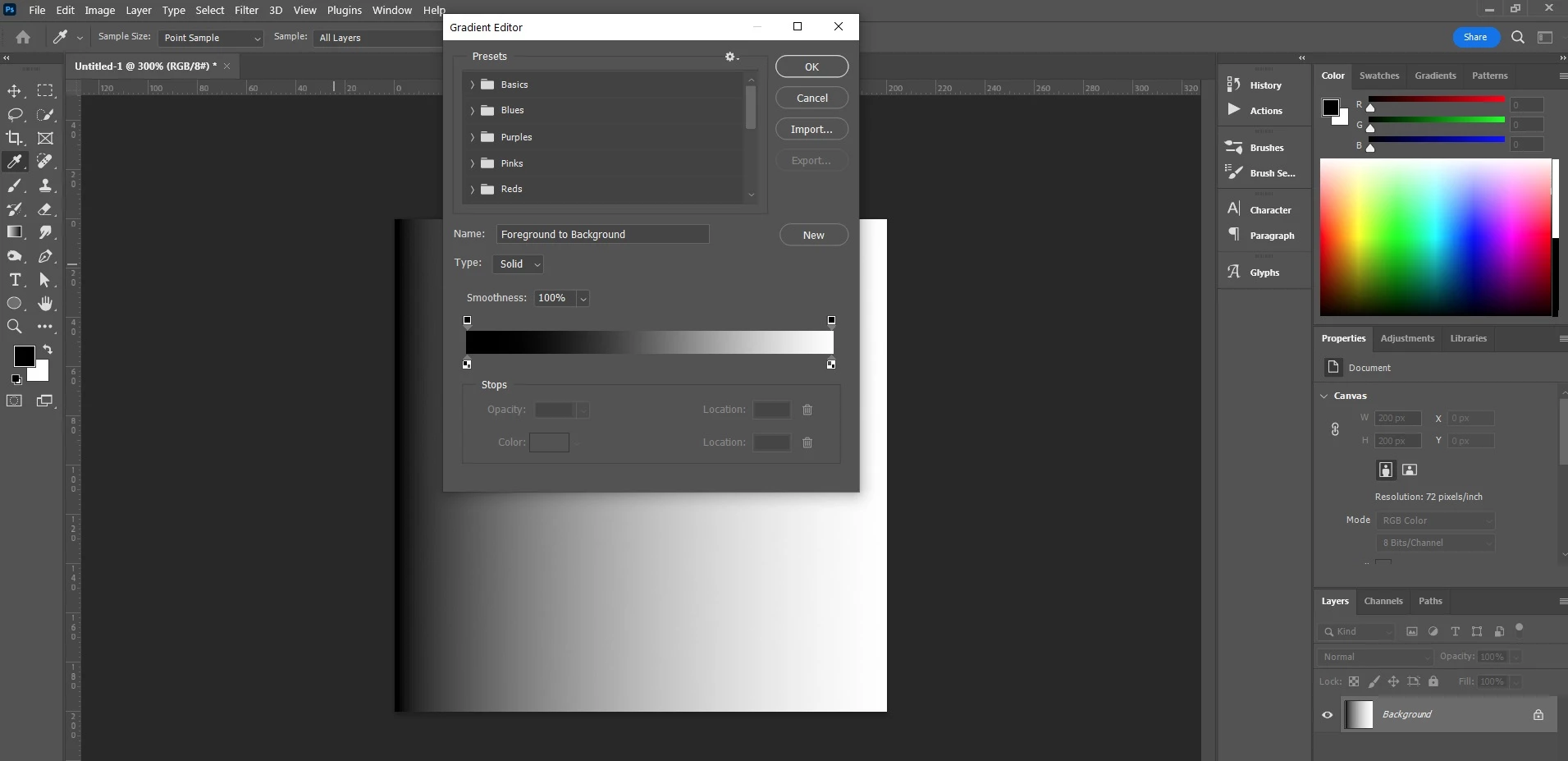
I'm not sure if this really counts as a problem or an inconvenience, but I have noticed since this update that the displayed transition between gradient colors does not accurately reflect how the gradient has been set up. If I draw a straight black to white gradient, it has almost no 'darker' gray and shifts almost immediately into medium grays. Then it's already at lighter gray tones by the time it reached the halfway point. This seems to happen both in classic and the new gradient method. The difference is most obvious in classic mode, when I can bring the settings menu over the actual image and compare how different they look, but it's the same for the newer gradient options as well. I cannot seem to get a soft transition between dark and light tones without adding extra points in myself.



[Branched to new thread and subject edited for clarity]


This topic has been closed for replies.
Correct answer davescm
quote

If I use the "new" gradient tool Photoshop recently released, the results are the same.

Can you please create an image with the »new« one and provide that as a layered image?  


This may prove useful : https://helpx.adobe.com/uk/photoshop/using/gradient-interpolation.html


Dave

2 replies

c.pfaffenbichler
Community Expert
Community Expert
August 7, 2023

What is the image’s Color Space? 

Does this also apply if you create a Gradient Layer based on the same Preset? 

howlamanAuthor
Known Participant
August 7, 2023

It was a standard RGB color new document. I have been experiencing this with 8-bit and 16-bit RGB files, pre-existing and brand new. If you need more color info beyond that, I'll unfortunately need clarification.


If I use the "new" gradient tool Photoshop recently released, the results are the same.

If I use "Gradient Fill" under the Layer palette, the Linear option is most accurate, Classic next. The "Perceptual," which seems to be the best option for the standard gradient tool, is the worst under Gradient Fill.


c.pfaffenbichler
Community Expert
Community Expert
August 7, 2023
quote

It was a standard RGB color new document. I have been experiencing this with 8-bit and 16-bit RGB files, pre-existing and brand new. If you need more color info beyond that, I'll unfortunately need clarification.


If I use the "new" gradient tool Photoshop recently released, the results are the same.

If I use "Gradient Fill" under the Layer palette, the Linear option is most accurate, Classic next. The "Perceptual," which seems to be the best option for the standard gradient tool, is the worst under Gradient Fill.


By @howlaman

I did not ask about the Color Mode but the Color Space – the ICC profile essentially. 

davescm
Community Expert
Community Expert
August 7, 2023

@howlaman Look at the gradient method in the options bar (the right most option). You have chosen Linear but are working in a gamma encoded color space. Try Perceptual or Classic.


Dave

howlamanAuthor
Known Participant
August 7, 2023

Classic still looks significantly off: only marginally better. Perceptual looks closest to what I'm trying to accomplish.


Does this have something to do with new settings/updates to Photoshop? I understand what it's doing and appreciate the help, but this is not an issue I have ever had in Photoshop in the 20 years I've used it. I have never experienced this issue before with my gradients set to Linear, and have never messed with that setting before. That includes on this same computer/monitor before this latest Photoshop update. Nothing else has changed.