


Participant
July 31, 2019
Answered

Solid Colour fill layer issue in Photoshop

  • July 31, 2019
  • 3 replies
  • 4386 views

I am having an issue with the solid colour fill layer.  When using it at 100% opacity and 100% flow I can still see the background I have masked over as thought the opacity is set at 60%.  It never use to be like this, was alway 100% cover and the opacity was used to determine the strength of the mask.  How can I fix this?

Message was edited by: Sahil Chawla
This topic has been closed for replies.
Correct answer rob day

I already had "Use Graphic Processor" deselected.  Selected "Legacy compositing" relaunched Photoshop and there is no change


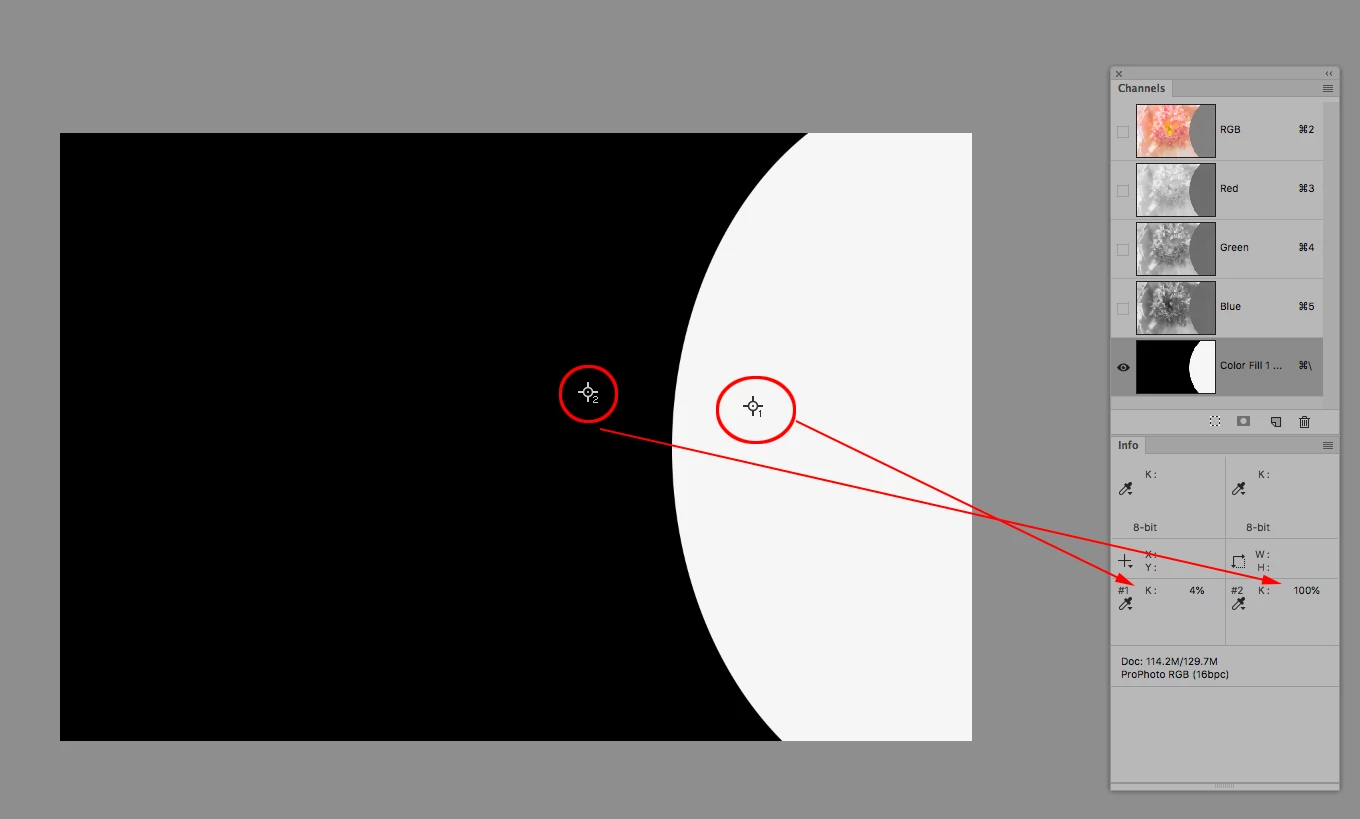
Have you checked the mask values via the Info panel? Option-Click the mask in the Layers panel and make sure the white area reads 0% Actual Color. Here I have 4%, which reveals some of the image below.

3 replies

melissapiccone
Community Expert
Community Expert
July 31, 2019

Your white probably isn't really white as already suggested. To check, hold shift and click on the mask to turn it off.

Melissa Piccone | Adobe Trainer | Online Courses Author | Fine Artist
Chuck Uebele
Community Expert
Community Expert
July 31, 2019

Try duplicating the fill layer and filling the mask with pure white, so that it covers everything. Then use black to paint out the areas where you don't want it.

Chuck Uebele
Community Expert
Community Expert
July 31, 2019

Can you post a screen shot?

mjja72Author
Participant
July 31, 2019

I am using colour fill to fill the masked area I need and 100% opacity and then putting a gradient layer on top of this layer.  The colour fill is just still showing through the background.

Sahil.Chawla
Adobe Employee
Adobe Employee
July 31, 2019

Hi there,

Thanks for sharing the screenshot as asked by Chuck.

Could you please try deselecting "Use Graphics Processor" located in Photoshop's Preferences > Performance, then relaunch Photoshop and let us know if it helps?

If that does not help, then please try enabling "Legacy compositing" located in Photoshop's Preferences > Performance, then relaunch Photoshop.

Regards,
Sahil