Participating Frequently
June 14, 2023
Answered

Solid edge on cut out image that mosaic effect applied

  • June 14, 2023
  • 2 replies
  • 1271 views

Hi all,


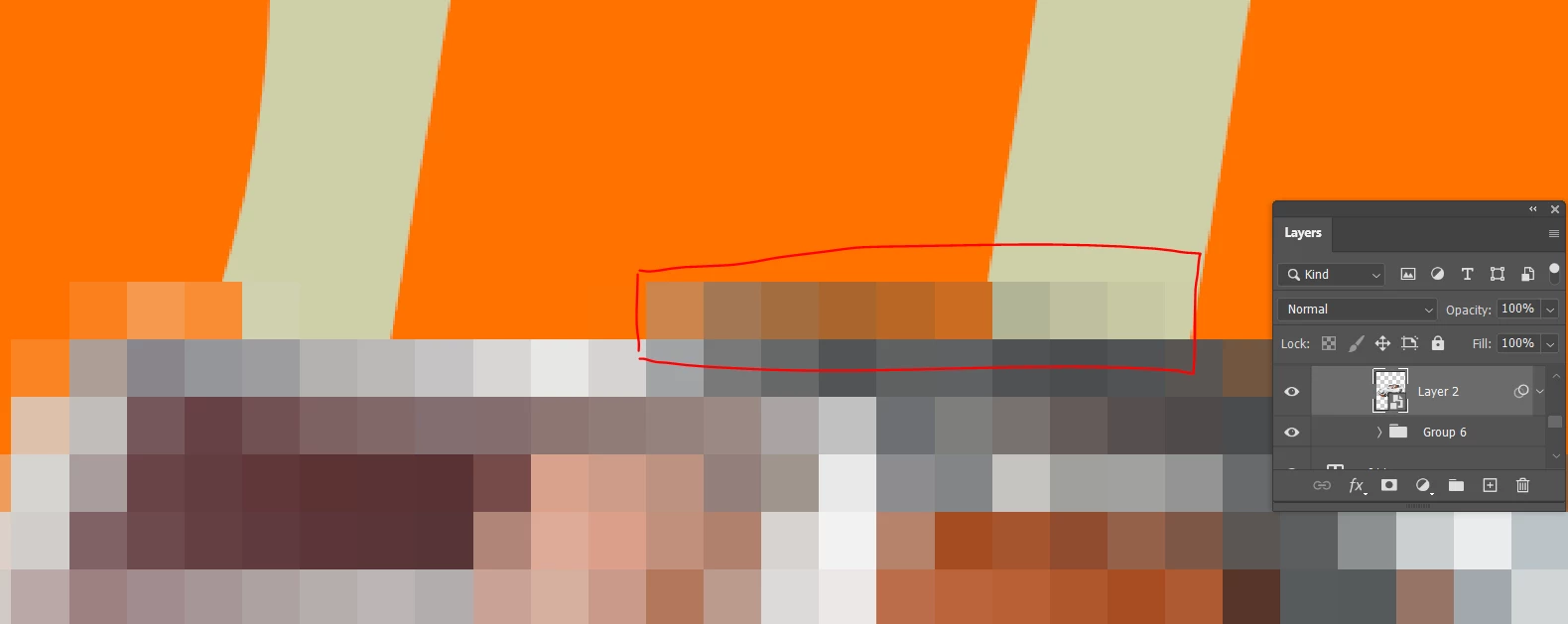
I was apply mosaic effect on a cut out image, but every squares at the edge are faded/transparent.

Is there a way to fix that??


Thank you guy ❤️

This topic has been closed for replies.
Correct answer c.pfaffenbichler

Hi!

The layer that applied effect is at 100% opacity. With the mosiac applied, every square are at 100% ocpacity except thoes at the very edge.

I guess that how the effect suppose to do :((

I put a solid color layer beneat the mosiaced layer, it takes sometime but kind of solves the problem.


Here the result, I'm happy with it 😄
 

Very very thank you for your time!


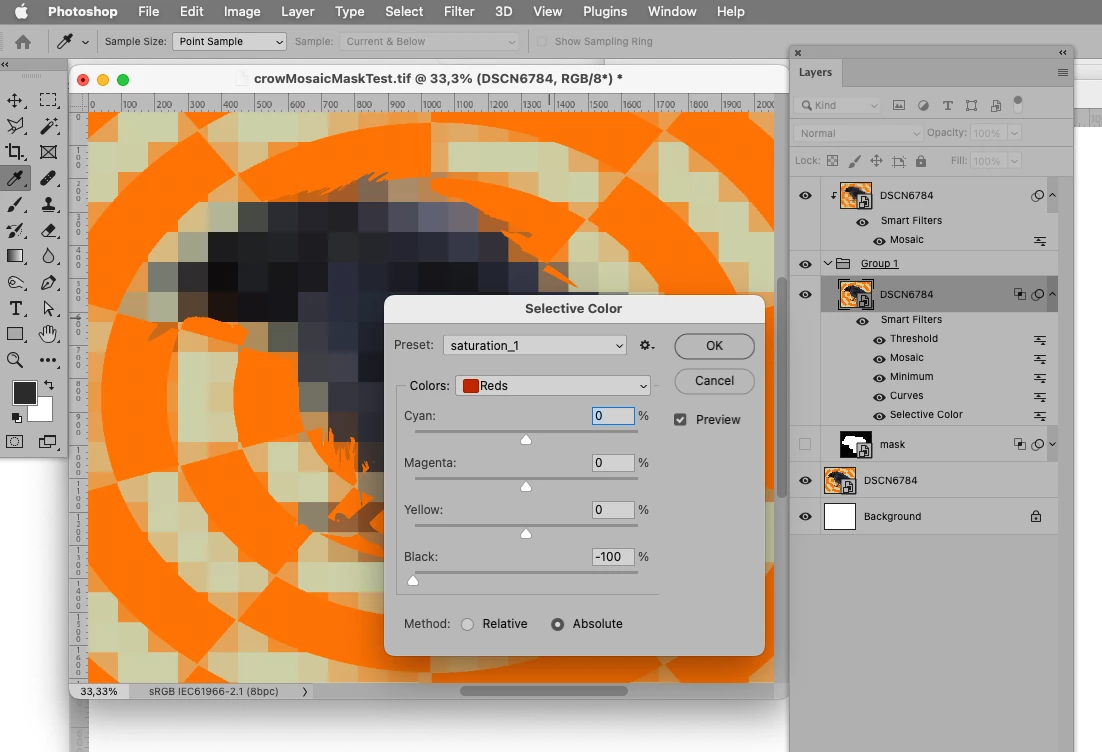
And if a »Saturation Mask« via Selective Color is an option the image could be used for a Mask itself. 
2 replies

Trevor.Dennis
Community Expert
Community Expert
June 16, 2023

How large is the image in pixels?  It sounds like your are describing anti aliasing, which is a method used to reduce jaggies.  It is usually not an issue when viewing at 1:1 100% actual pixel size.   If you are seeing  this when zoomed way in, then zoom back to 100%.  

Participating Frequently
June 23, 2023

Hi!

the image are 1000x1500px, I was try about 60% zoom and they're still fade, like I can see through them.

I think you are right about anti aliasing, but this mossiac filter effect on a smart object, can we turn off the anti-aliasing when appling the effect?


Very appriciate your info, it's very helpful!

Trevor.Dennis
Community Expert
Community Expert
June 23, 2023

I can see what you are referring to now you have shown us the sceen shots.  You have a couple of things working against you, and the first is that is exactly what the mosaic effect is supposed to do.  Your best work around is to apply it to a copy of the layer, and use a layer mask to paint out the areas you where you don't want the anti aliassing to show.


The second thing is the shallow angleof the lines which are going to make them prone to 'jaggies', and thus are going to have a more visible degree of anti alias applied to them.  I have used Threashold to remove the anti alias from the brush strokes below, and zoomed in to 300%.  It is apparent that the shallow angled lines have the most pronounced stepping (jaggies)


With threashold turned off, the anit alias smooths out the jaggies.


It might be that a different effect or workflow will do a better job of acieving the look you are after.  If you can show us an example, we'll do our best to describe how to acieve that look.


c.pfaffenbichler
Community Expert
Community Expert
June 16, 2023

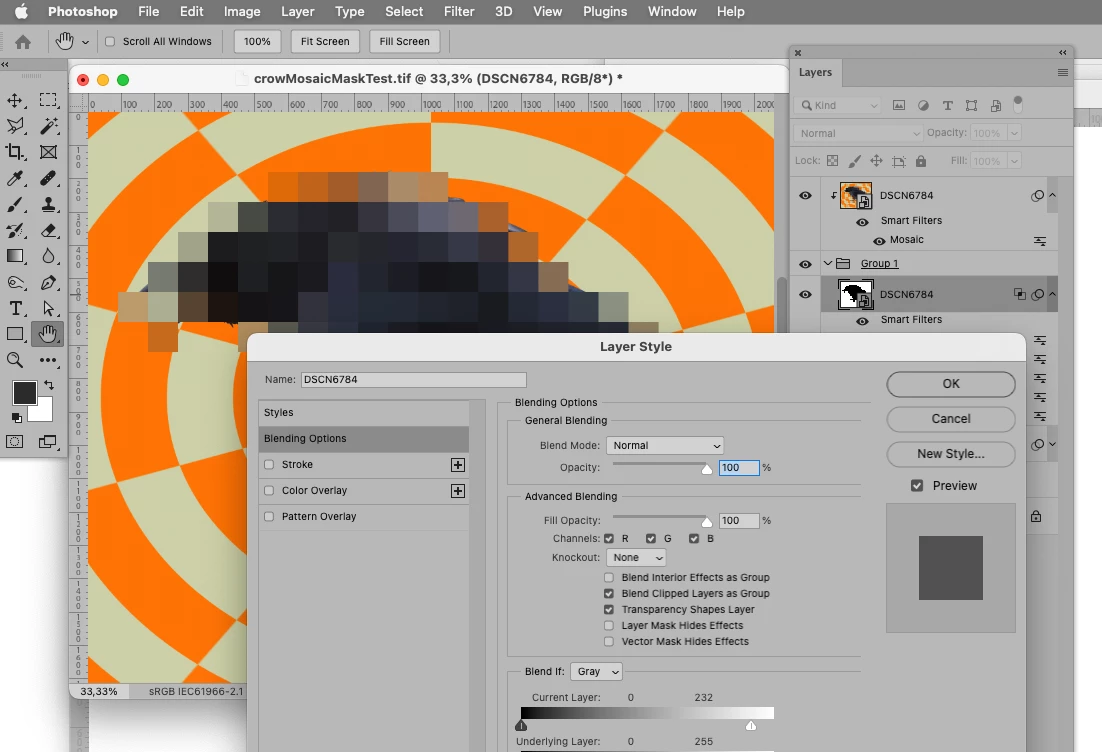
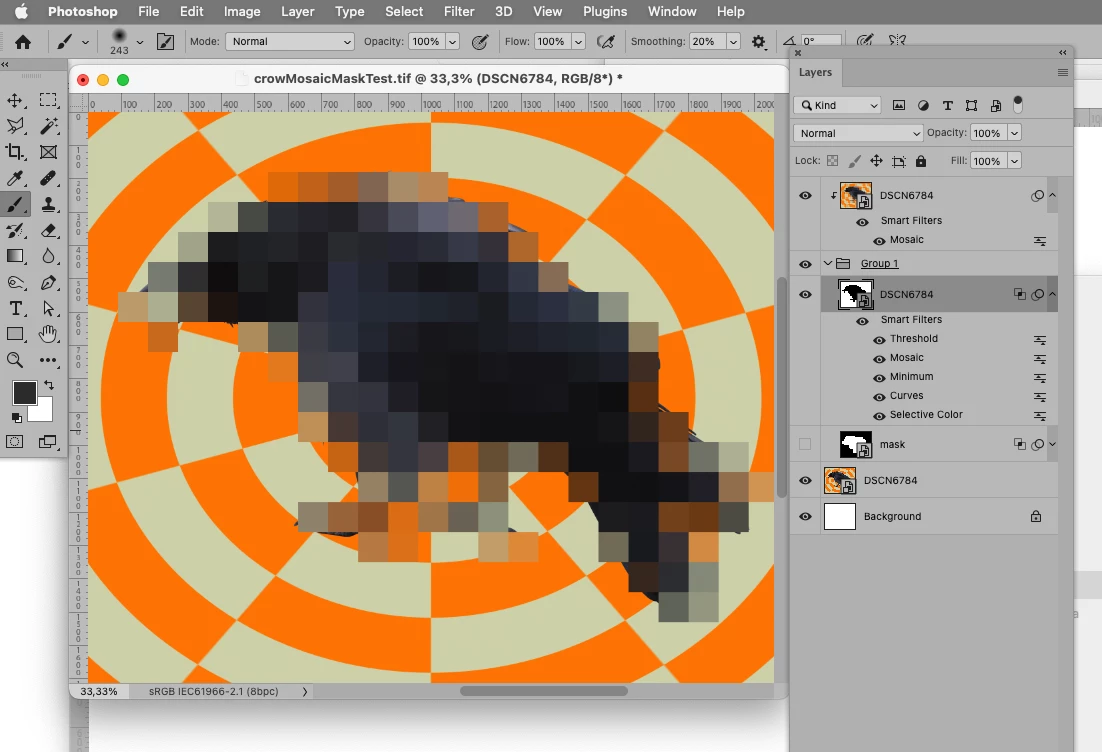
Could you please post screenshots with the pertinent Panels (Toolbar, Layers, Options Bar, …) visible? 

Participating Frequently
June 23, 2023

Here's the images of before/after enable mossiac effect  


Thank you very much for the reply!

Participating Frequently
June 23, 2023
quote

Here's the images of before/after enable mossiac effect  


Thank you very much for the reply!


By @Key304949206zra

The Layer’s transparency is mosaiced so that is as it should be. 


Have you thought through what you expect instead? The resulting composite color of the SO at 100% opacity (with the transparent parts inside the square contributing to the average as white), the mixture of the SO and the background at 100& opacity, …?


Hi!

The layer that applied effect is at 100% opacity. With the mosiac applied, every square are at 100% ocpacity except thoes at the very edge.

I guess that how the effect suppose to do :((

I put a solid color layer beneat the mosiaced layer, it takes sometime but kind of solves the problem.


Here the result, I'm happy with it 😄


Very very thank you for your time!