Participant
January 23, 2019
Answered

Something wrong with my color settings.

  • January 23, 2019
  • 1 reply
  • 1191 views

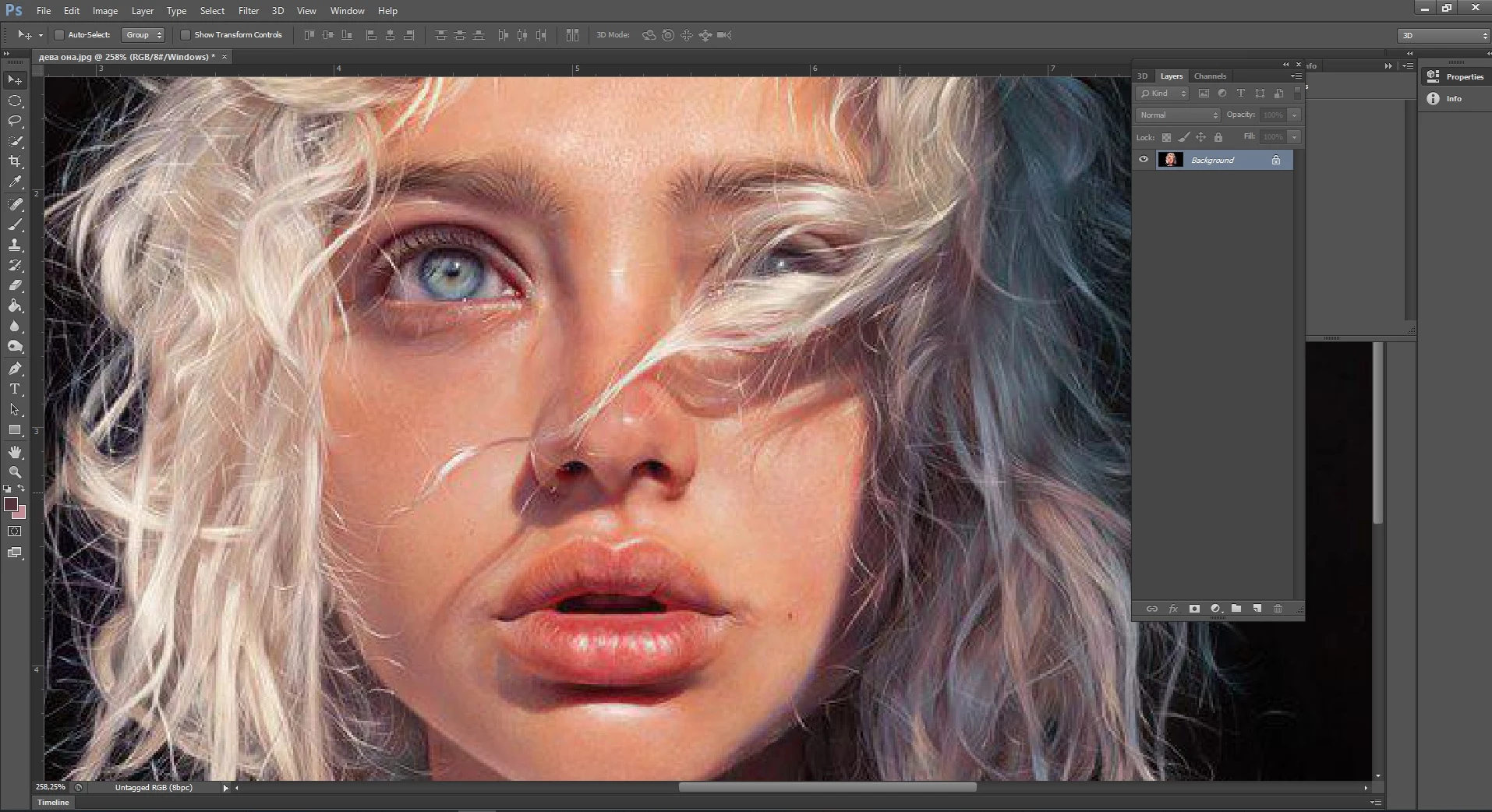
So I got a Jpg image, and imported it into photoshop for further work (1 pic is the default image opener, 2 is in photoshop, obviously). It seems like in Photoshop the image is sharper, more saturated, compressed, maybe, whereas the default is smoother, sort of... It's like the reds are sticking out as well.@ It's better noticeable at the nose area, where the hair is, and at the top of the mouth... I've tried different colour settings, stuff like that, cannot fix this... Please, advise.

This topic has been closed for replies.
Correct answer D Fosse

D Fosse

with respect but,

you'd recommend  sRGB - it may be a good troubleshooting step to finding out if the display profile is wacked, but its not right advice to post like this - in a form that looks like general advice:

"Since your working space is sRGB, I want to be sure your monitor is profiled for that. So go into Windows, add

sRGB and set it as default."

setting the monitor default to same as workingspace is not good advice IMO

I think it's a system viewer (no colourmanagement) -v - Photoshop and possibly wide gamut display issue

neil barstow, colourmanagement


The CG246 in question is in fact my own - that's one of my old screenshots. I'm very well aware of the whys and hows of profiling a display.

You seem to mix up "troubleshooting" with "best practices" here. This is troubleshooting, which should be clear from the context. This person does not have a calibrator. Yes, he should get one, but in the meantime we can set him up so he can continue working.

Anyway, I'm not sure the monitor profile is the issue here - but it's always good to have it out of the way.

The immediate problem here is more likely the missing profile and/or viewing in a non-color managed viewer.

1 reply

gener7
Community Expert
Community Expert
January 23, 2019

The first thing I notice is that your image is untagged. That is no color profile is assigned to it. The # symbol in the Document tab confirms this.

Before I go ahead, would you go to Photoshop's Color Settings (Shift + Ctrl + k) and give us  a screenshot of that dialog box?

Participant
January 23, 2019

Sure, thanks for stopping by to help. I tried assigning different color profiles, they all just seem wrong, so i decided to ask someone.

gener7
Community Expert
Community Expert
January 23, 2019

Since your working space is sRGB, I want to be sure your monitor is profiled for that. So go into Windows, add

sRGB and set it as default.

Sorry Gener7, this is not good general advice, sRGB is OK for troubleshooting a wonky display profile, in some circumstances,

but for day to day use the default monitor display screen colour profile should always be set to a profile for that specific monitor display screen.

Ideally one made with an on-screen sensor.

If the screenshot below was the poster's own he'd choose CG246


Next, checkmark "Missing Profiles: Ask when opening." When you oppen the image you will get the dialog below:

It would be good if you know what produced this image. Your scanner or camera?

If you don't know, try Edit > Assign Profile as demonstrated until you get a match.