Participant
September 12, 2020
Question

Speed of animation changing after converting to timeline

  • September 12, 2020
  • 2 replies
  • 4552 views

Hi,


I've been using photoshop for several months now and I'm having one recurring problem which is beginning to annoy me more and more and I'd greatly appreciate if someone can help.


I make gifs of popular TV shows and movies, to upload onto socail media (mostly tumblr and twitter). My process is: import video frames to layers > resize image > set frame delay to desired speed of gif > convert to video timeline > convert to smart filters > sharpen/blur/adjustment layers until I have the desired look > export > save for web


The problem I'm having is this: when I convert to video timeline, the speed increases dramatically. I spent hours yesterday and today googling and searching forums for a solution to this, but I haven't found this exact question be asked before. I've tried adjusting the frame rate but somehow this doesn't help, the gif is just as fast as before.


I've uploaded my gifs to show you what i mean.


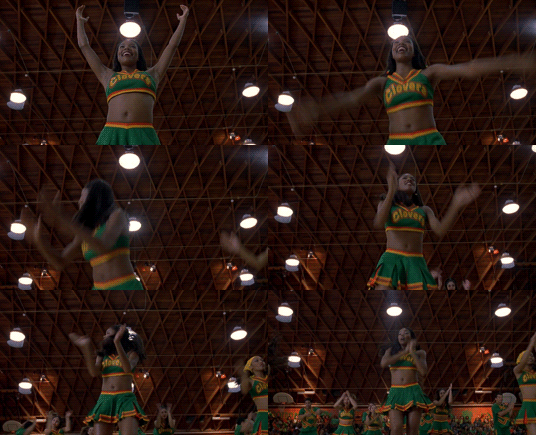
Here what my gif looks like after I've imported the images, resized the image to 268px (cos that's tumblr's setting), and I've set the frame delay to 0.07:
 

Then when I click "convert to video timeline":
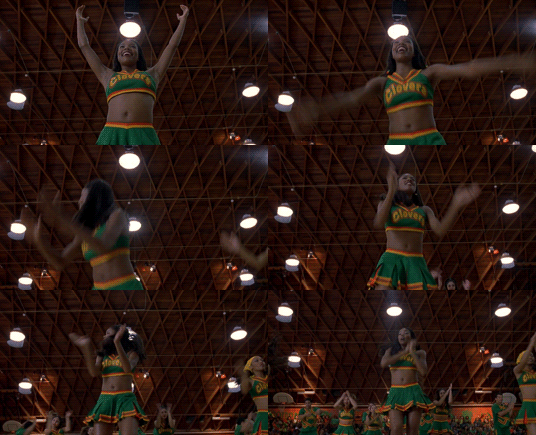
As you can see it's a lot faster, and I literally haven't done anything else, all I've done is converted to video timeline.


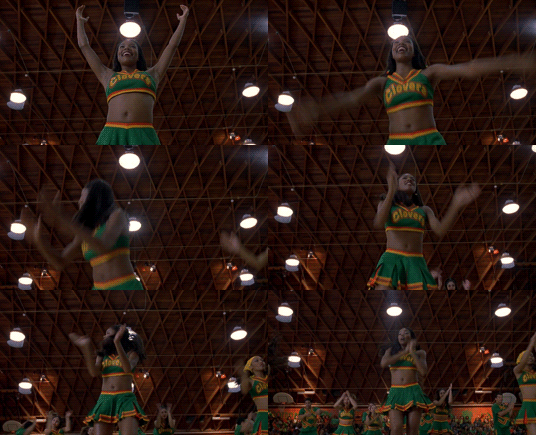
This is when I tried to reduce the frame rate from 30fps to 20fps
 

I do have 2 work-arounds to this - 1) When I'm in video timeline and I've finished with adjustment layers and stuff, and I'm happy with how the gif looks, I go ahead and export as a gif. Then I open that same gif I just saved back into photoshop. In the frame animation window I set frame delay until I have desired speed, and then I save for web again. Alternatively 2) Before I save for web, I flatten frames to clips > convert back to frame animation > make frames from layers, then set frame delay again until I have my desired speed. Then I export for web.

So I know how to manage the issue, I Still know how to get to my desired outcome. The problem is just that I’m sure there’s something in my settings that’s wrong but I can’t figure out what. I’ve asked around other gif-makers on tumblr and they all seem to not know what I’m talking about so I think this isn’t something that is fixed within photoshop; I think it’s just a problem with my specific photoshop.


For reference, I have adobe photoshop 2020 21.0.2 and a macOS high sierra from 2017.


Any help would be greatly appreciated.

This topic has been closed for replies.

2 replies

Participant
April 2, 2024

I have the same problems and ended up to this post. I also dig it more on internet and found the solution to make the results closer to what we want it to be. You can Convert the Frame Animations to Video Timeline firrst, then Export as Video (MP4). Then open the VIDEO in Photoshop and you will get the Timeline of the Video. Then Right Click on the Video Timeline, change the Speed (slower or faster) and render to see if the speed fits for you. Then Save For Web > and select GIF.

I found this trick here: https://www.learn-photoshop.club/resources/how-do-you-speed-up-or-slow-down-an-animated-gif-in-photoshop/

Hope it helps 🙂

Participant
September 4, 2024

Thank you so much, Shakaw! That is a SUPER helpful comment and source of information! That blog is GOLD!

JJMack
Community Expert
Community Expert
September 13, 2020

I had no problem imported 500 Frames from a MP4 where  I had to skip  feame in the MP4 to limit the numbet of layers to 500. I calculated what the frame delay would need to be for a 500 frame animated Gif duration to match the MP4 30 FPS duration. The Gif of course is not as smooth as the MP4 for it has fewer frames. The Animated Gif colors are poorer then the MP4 video and the gif file size is much larger.  The only reason to create an animated gif is to support transparency for Photoshop rendered MP4 video doe not support transparency. Come pare the Animated Gif to the MPe. Gif vs MP4 

JJMack
I5CDCAuthor
Participant
September 13, 2020

I don't understand what you're saying :[ What does this have to do with the speed increasing in timeline?

I5CDCAuthor
Participant
September 14, 2020

It sounds like you did not set any frame delay. So your Gif will plays as fast as a machine is capable of displaying it.. Your Gif duration will vary by machines capabilities.  If you want the Animation to have a particular duration.  You need to set the frames to have some delay before the next frame is  displayed so the frame rate will be correct for the animation to have the duration the you want.  You can not just let it be no delay. That will vary from machine to machine.  


Hi, I understand that - my point is though that I do set frame delay. When you import video frames to layers, photoshop automatically sets the frame delay at 0.04 - but this is too fast. So I "select all frames", then set the frame delay that I want it to be at (in the gif I included above, I set it at 0.07 secs, but normally I set it around 0.1) and it plays exactly how I want it to.


But then as soon as I click convert to video timeline, it's so much faster. Regardless of what time I had set frame delay, it's always too fast in the video timeline.