
Spot Healing Brush Tool seems to sample from incorrect areas in Photoshop 24.3.0
Photoshop 24.3.0 (updated 3 days ago)
Windows 11 Pro 22H2, build 22621.1413
Recreation steps:
Help --> Hands-on tutorials
- open the tutorial for Photo Editing --> Retouch photos --> Use the healing brush tools to remove unwanted content
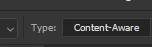
- followed initial steps and created new layer, made sure "Sample All Layers" was checked in the Spot Healing Brush Tool
- dragging over the letter L seems to sample from the wrong area
- dragging over the letter O again samples from wrong area. Parts of the letter that was on brick-colored surface are now filled with withe-colored bricks, and parts of the letter on white-colored area are now replaced by brick-colored area
This is reproducable not only in this tutorial, but anywhere you use the Spot Healing Brush Tool: samples to replace the "painted" area are random.
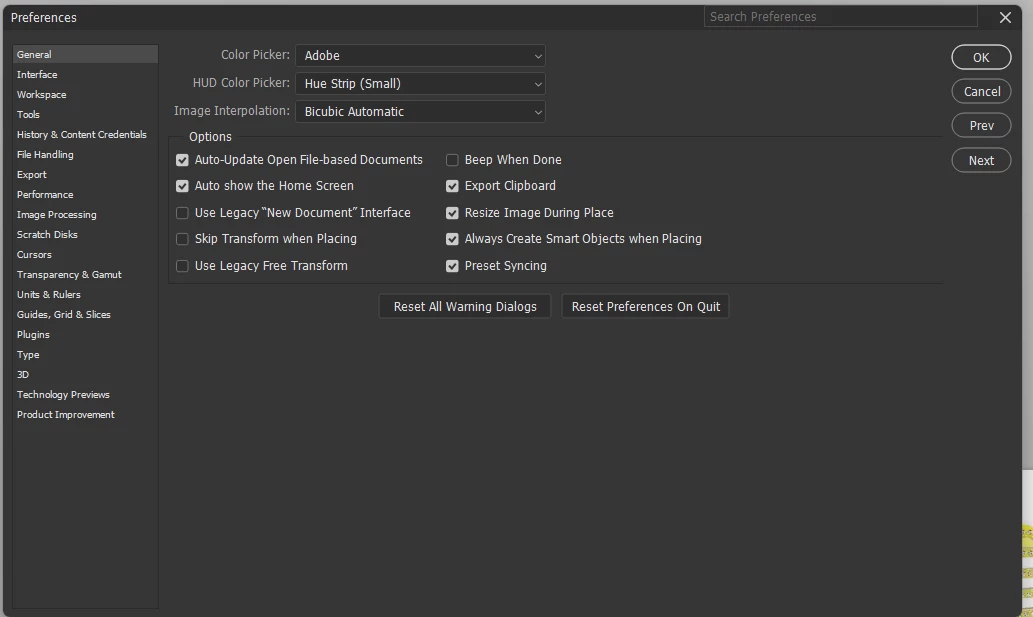
This is working fine in Photoshop 24.1.1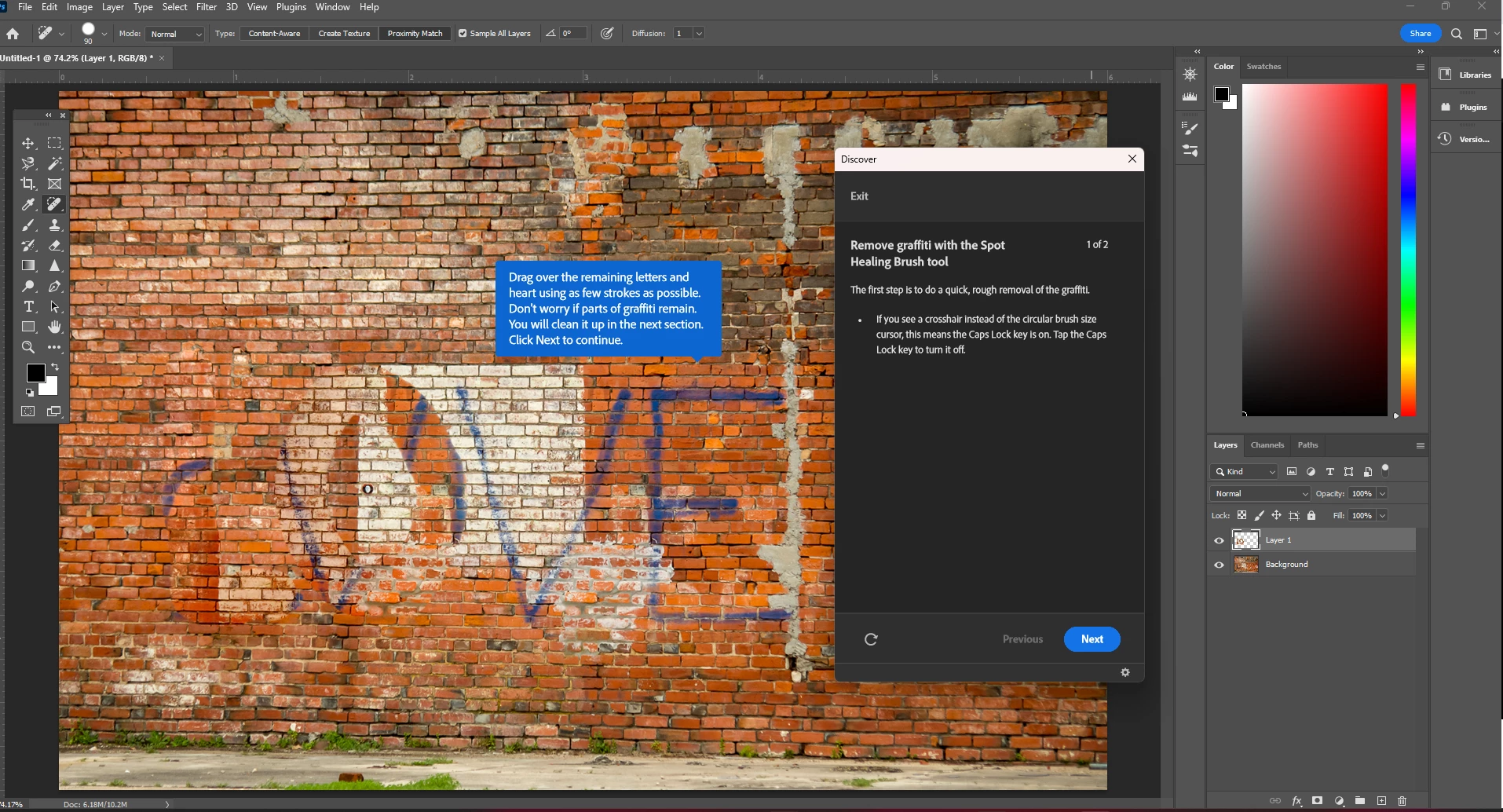
 AdChoices